Get Entra Access Package Reports Using PowerShell
Monitor Entra ID access packages using Microsoft Graph PowerShell to track assignments, resources, roles, and policies. Generate reports on user access, request status, and incompatible access packages. Ensure secure entitlement management by auditing access package configurations and identifying unauthorized or excessive access across your organization.
act as a security boundary. They make sure the right users get the right resources at the right time. But imagine this scenario: a new employee accidentally gets access to finance resources, or a long-time employee accumulates multiple access packages over time. A small oversight like this can put your organization’s security at risk. This is why monitoring access packages are essential. The Microsoft Entra admin center, Microsoft Graph API, and Microsoft Graph PowerShell can provide access package information, but switching between tabs or handling Graph cmdlets can be tricky. Hence, using Microsoft Graph PowerShell is a simpler and faster way to track and manage access package assignments.
In this blog, we’ve curated the top PowerShell cmdlets to get the crucial access package reports. These reports help you track access package assignments, resources, roles, and policies.
Let’s dive into the essential access package reports every organization should keep an eye on to ensure secure, controlled, and up-to-date access at all times. 🤩
To get started, connect to Microsoft Graph PowerShell with the scopes “EntitlementManagement.Read.All” and “User.Read.All”. Once connected, you’re ready to simplify access package monitoring.
- View the list of access packages
- Retrieve access packages based on a catalog
- View the resource roles and scopes of an access package
- Get all policies assigned in an access package
- Track incompatible access packages of an access policy
- Audit incompatible groups of an access package
- Monitor access packages configured as compatible with a specific access package
- Track the users assigned to an access package
- Check user request status report
- Track access packages assigned to a user
The overall access package report gives you complete visibility into all access packages in your tenant. This report helps you identify if any unexpected access packages appear and ensures that crucial packages are not being modified without proper review. To quickly fetch all access packages in one go, you can run the PowerShell script below.
|
1 |
Get-MgEntitlementManagementAccessPackage -All |
Output

The execution of this cmdlet retrieves all the access packages along with the details like access package ID, created time, access package name, description, hidden status, and modified time.
A catalog is basically a container that holds resources and the access packages linked to those resources. Each catalog decides which resources are available to be added to access packages. Since an access package can only include the resources from its assigned catalog, knowing the catalog is key to understanding what resources the package actually provides.
To make the report easier to analyze, you can filter access packages by catalog. This helps you quickly find access packages that use the same set of resources. If you want to list access packages of specific catalog, you can use the PowerShell script below.
|
1 2 3 4 5 6 7 8 9 10 11 12 |
$catalogName = "<CatalogName>" Get-MgEntitlementManagementAccessPackage -All | ForEach-Object { $pkg = $_ $cat = Get-MgEntitlementManagementAccessPackage -AccessPackageId $pkg.Id -ExpandProperty Catalog if ($cat.Catalog.DisplayName -eq $catalogName) { $pkg | Select-Object ` @{Name="AccessPackageName"; Expression={$_.DisplayName}}, @{Name="AccessPackageId"; Expression={$_.Id}}, @{Name="CatalogName"; Expression={$cat.Catalog.DisplayName}}, @{Name="CatalogId"; Expression={$cat.Catalog.Id}} } } | Format-Table -AutoSize |
Replace <CatalogName> with the display name of the target catalog.
Output
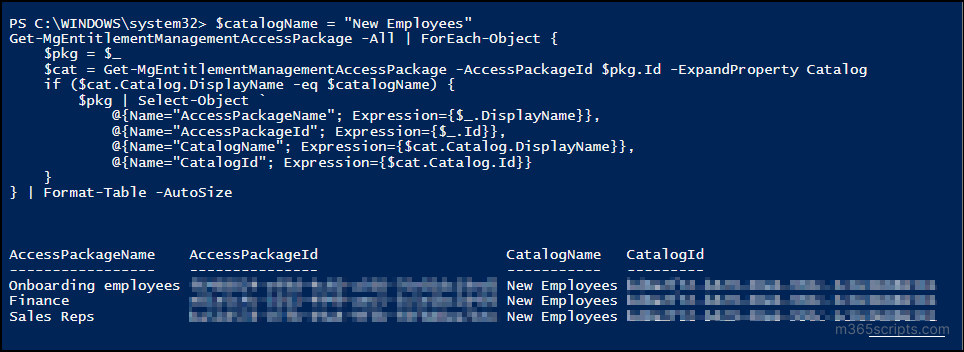
The execution of the cmdlet displays the access package name, access package ID, catalog display name, and catalog ID.
First, let’s break down the difference between resources, roles, and scopes.
- Resources are the items included in the access package, such as applications, groups, and SharePoint sites.
- Roles define the level of permission granted on those resources like Owner, Member, etc.
- Scopes specify where that role applies, for example, a specific team, site, or app permission level.
This report provides a full breakdown of every resource along with the roles and scopes included in an access package. With this, you can clearly see the exact access users receive through the package. You can also use PowerShell to retrieve all resource-role-scope mappings for an access package and export the results to CSV using the cmdlet below:
|
1 2 3 4 5 6 7 8 9 10 11 12 13 14 15 16 17 |
$ap = Get-MgEntitlementManagementAccessPackage -AccessPackageId "<AccessPackageId>" -ExpandProperty "resourceRoleScopes(`$expand=role,scope)" $results = foreach ($scope in $ap.ResourceRoleScopes) { $resourceName = "N/A" $resourceType = "Unknown" $resourceId = $scope.Scope.OriginId switch ($scope.Scope.OriginSystem) { "AadGroup" { $resourceType = "Group"; $resourceName = (Get-MgGroup -GroupId $resourceId).DisplayName } "AadApplication" { $resourceType = "Service Principal"; $resourceName = (Get-MgServicePrincipal -ServicePrincipalId $resourceId).DisplayName } "SharePointOnline" { $resourceType = "SharePoint Site"; $site = Get-MgSite -SiteId $resourceId ; $resourceName = $resourceId } "AadRole" { $resourceType = "Directory Role"; $resourceName = $scope.Role.DisplayName } "AzureResource" { $resourceType = "Azure Resource"; $resourceName = $scope.Scope.DisplayName } "External" { $resourceType = "External Organization"; $resourceName = $scope.Scope.DisplayName } default { $resourceType = $scope.Scope.OriginSystem; $resourceName = "Unsupported resource" } } Select-Object @{Name='AccessPackageName'; Expression = { $ap.DisplayName }}, @{Name='ResourceType'; Expression = { $resourceType }},@{Name='ResourceName'; Expression = { $resourceName }}, @{Name='ResourceId'; Expression = { $resourceId }}, @{Name='RoleName'; Expression = { $scope.Role.DisplayName }},@{Name='RoleOrigin'; Expression = { $scope.Role.OriginSystem }}, @{Name='ScopeOrigin'; Expression = { $scope.Scope.OriginSystem }} } $results | Export-Csv "<OutputCSVFile>" -NoTypeInformation |
Replace <AccessPackageID> with the unique ID of the target access package and <OutputCSVFilePath> with the location where you need to save the exported CSV file.
Output

Retrieve the Roles and Scopes of Specific Access Packages
For a large organization with tens or hundreds of access packages, retrieving roles and scopes one by one can be inefficient. In such cases, you can use a CSV file containing the required access package IDs to fetch all roles and scopes in one go.
Create a CSV file with a column named AccessPackageId containing the IDs of the access packages you want to retrieve like the image below.
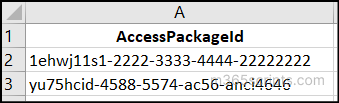
Once created, use the following PowerShell script to export the roles and scopes of all listed access packages:
|
1 2 3 4 5 6 7 8 9 10 11 12 13 14 15 16 17 18 19 20 |
$accessPackageList = Import-Csv "<InputCSVFilePath>" $results = foreach ($item in $accessPackageList) { $ap = Get-MgEntitlementManagementAccessPackage -AccessPackageId $item.Id -ExpandProperty "resourceRoleScopes(`$expand=role,scope)" foreach ($scope in $ap.ResourceRoleScopes) { $resourceType = "Unknown" $resourceName = "N/A" $resourceId = $scope.Scope.OriginId switch ($scope.Scope.OriginSystem) { "AadGroup" { $resourceType = "Group"; $resourceName = (Get-MgGroup -GroupId $resourceId).DisplayName } "AadApplication" { $resourceType = "Service Principal"; $resourceName = (Get-MgServicePrincipal -ServicePrincipalId $resourceId).DisplayName } "SharePointOnline" { $resourceType = "SharePoint Site"; $site = Get-MgSite -SiteId $resourceId ; $resourceName = $resourceId } "AadRole" { $resourceType = "Directory Role"; $resourceName = $scope.Role.DisplayName } "AzureResource" { $resourceType = "Azure Resource"; $resourceName = $scope.Scope.DisplayName } "External" { $resourceType = "External Organization"; $resourceName = $scope.Scope.DisplayName } default { $resourceType = $scope.Scope.OriginSystem; $resourceName = "Unsupported resource" } } Select-Object @{Name='AccessPackageName'; Expression = { $ap.DisplayName }}, @{Name='ResourceType'; Expression = { $resourceType }}, @{Name='ResourceName'; Expression = { $resourceName }}, @{Name='ResourceId'; Expression = { $resourceId }}, @{Name='RoleName'; Expression = { $scope.Role.DisplayName }}, @{Name='RoleOrigin'; Expression = { $scope.Role.OriginSystem }}, @{Name='ScopeOrigin'; Expression = { $scope.Scope.OriginSystem }} } } $results | Export-Csv "<OutputCSVFilePath>" -NoTypeInformation |
Replace <InputCSVFilePath> with the exact location of the CSV file that contains the access package IDs and <OutputCSVFilePath> with the location where you need to save the exported file.
Output

Export the Resource Role Scopes of All Access Packages
To retrieve the resource scopes for all access packages at once, where manually checking each package is not practical, you can use the PowerShell script below.
|
1 2 3 4 5 6 7 8 9 10 11 12 13 14 15 16 17 18 19 |
Get-MgEntitlementManagementAccessPackage -All | ForEach-Object { $ap = Get-MgEntitlementManagementAccessPackage -AccessPackageId $_.Id -ExpandProperty "resourceRoleScopes(`$expand=role,scope)" foreach ($scope in $ap.ResourceRoleScopes) { $resourceType = "Unknown" $resourceName = "N/A" $resourceId = $scope.Scope.OriginId switch ($scope.Scope.OriginSystem) { "AadGroup" { $resourceType = "Group"; $resourceName = (Get-MgGroup -GroupId $resourceId).DisplayName } "AadApplication" { $resourceType = "Service Principal"; $resourceName = (Get-MgServicePrincipal -ServicePrincipalId $resourceId).DisplayName } "SharePointOnline" { $resourceType = "SharePoint Site"; $site = Get-MgSite -SiteId $resourceId ; $resourceName = $resourceId } "AadRole" { $resourceType = "Directory Role"; $resourceName = $scope.Role.DisplayName } "AzureResource" { $resourceType = "Azure Resource"; $resourceName = $scope.Scope.DisplayName } "External" { $resourceType = "External Organization"; $resourceName = $scope.Scope.DisplayName } default { $resourceType = $scope.Scope.OriginSystem; $resourceName = "Unsupported resource" } } Select-Object @{Name='AccessPackageName'; Expression = { $ap.DisplayName }}, @{Name='ResourceType'; Expression = { $resourceType }}, @{Name='ResourceName'; Expression = { $resourceName }}, @{Name='ResourceId'; Expression = { $resourceId }}, @{Name='RoleName'; Expression = { $scope.Role.DisplayName }}, @{Name='RoleOrigin'; Expression = { $scope.Role.OriginSystem }}, @{Name='ScopeOrigin'; Expression = { $scope.Scope.OriginSystem }} } } $results | Export-Csv "<OutputCSVFile>" -NoTypeInformation |
Replace <OutputCSVFilePath> with the location where you want to save the exported CSV file.
Output

Policies are the backbone of an access package. They define who can request access, who approves it, and how long access stays active. Since business needs and user roles constantly change, it’s important to review these policies regularly.
Every access package must have at least one policy to allow identities to be assigned. When an access package is created, Entra ID automatically generates an ‘Initial Policy’, which supports identities inside the directory, outside the directory, and administrator direct assignments.
Access package policies fall into two types:
- Directly assigned policies – Users are manually added to the policy each time.
- Automatic assignment policies – Users are added automatically based on attributes you define. Any user who meets the criteria is automatically included in the policy, reducing manual effort.
This report retrieves the complete list of policies configured in a specific access package; you can use the PowerShell script below.
|
1 2 3 4 |
$accessPackageName = "<AccessPackageName>" $policies = Get-MgEntitlementManagementAssignmentPolicy -All -ExpandProperty AccessPackage | Where-Object { $_.AccessPackage.DisplayName -eq $accessPackageName } | Select-Object Id, DisplayName, CreatedDateTime, @{Name ="AccessPackageName";Expression = { $_.AccessPackage.DisplayName}}, @{Name = "AccessPackageId"; Expression = {$_.AccessPackage.Id }}, ModifiedDateTime $policies | Format-Table -AutoSize |
Replace <AccessPackageName> with the display name of the desired access package.
Output

View All Policies Assigned to Specific Access Packages in Entra ID
If you need to extract policies for multiple selected access packages rather than one at a time, first create a CSV file containing the required Access Package IDs.
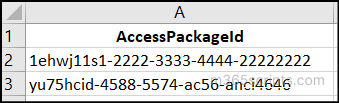
Once the CSV is ready, use the PowerShell script below to retrieve the corresponding policy details.
|
1 2 3 4 5 |
$accessPackageIds = Import-Csv "<FilePath>" $policies = foreach ($AccessPackage in $accessPackageIds) { Get-MgEntitlementManagementAssignmentPolicy -All -ExpandProperty AccessPackage | Where-Object { $_.AccessPackage.Id -eq $AccessPackage.AccessPackageId } | Select-Object Id,DisplayName,CreatedDateTime, @{Name = "AccessPackageName"; Expression = { $_.AccessPackage.DisplayName }},@{Name = "AccessPackageId"; Expression = { $_.AccessPackage.Id }},ModifiedDateTime } $policies | Format-Table -AutoSize |
Replace <FilePath> with the exact location of the CSV file.
Output

Identify Policy Assignments for All Access Packages
When you want to audit policy assignments across the entire tenant, you can automate the process using the PowerShell script below. This allows you to export all access package policies in one go.
|
1 2 3 |
$policies = Get-MgEntitlementManagementAssignmentPolicy -All -ExpandProperty AccessPackage | Select-Object Id,DisplayName,CreatedDateTime, @{Name = "AccessPackageName"; Expression= { $_.AccessPackage.DisplayName }},@{Name = "AccessPackageId";Expression = { $_.AccessPackage.Id }},ModifiedDateTime $policies | Format-Table -AutoSize |
Output

In certain scenarios, users should not be allowed to request two access packages together due to security, segregation of duties, or compliance requirements. To enforce this, Entra ID allows you to configure incompatible access packages. This means if a user has (or requests) a specific access package, they cannot request another incompatible one.
With this report, you can easily list all incompatible access packages for a particular access package. You can retrieve this report using the PowerShell cmdlet below:
|
1 |
Get-MgEntitlementManagementAccessPackageIncompatibleAccessPackage -AccessPackageId "<AccessPackageID>" |
Replace <AccessPackageID> with the unique ID of the access package for which you need to check the incompatible access packages.
Output

Get Incompatible Access Packages of Specific Access Packages
To identify incompatible access packages across multiple access packages, you first need a CSV file containing the access package IDs, formatted as shown below.
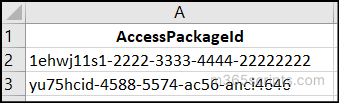
Once your CSV is ready, you can use the following PowerShell script to retrieve the incompatible access packages:
|
1 2 3 4 5 6 |
Import-Csv "<FilePath>" | ForEach-Object { $AccessPackageId = $_.AccessPackageId $AccessPackage = Get-MgEntitlementManagementAccessPackage -AccessPackageId $AccessPackageId Get-MgEntitlementManagementAccessPackageIncompatibleAccessPackage -AccessPackageId $AccessPackageId | Select-Object Id,DisplayName, @{Name = "AccessPackageName"; Expression = {$AccessPackage.DisplayName}},@{Name = "AccessPackageId"; Expression = {$AccessPackage.Id}} } | Format-Table -AutoSize |
Replace <FilePath> with the exact location of the CSV file.
Output

List Incompatible Access Packages for All Access Packages
If you want to identify all incompatible access packages across all access packages in a single run, this report is exactly what you need. You can retrieve the information using the following PowerShell cmdlet:
|
1 2 3 4 5 |
$allPackages = Get-MgEntitlementManagementAccessPackage -All $allIncompatible = foreach ($accessPackage in $allPackages) { Get-MgEntitlementManagementAccessPackageIncompatibleAccessPackage -AccessPackageId $accessPackage.Id | Select-Object Id, DisplayName, @{Name = "AccessPackageName"; Expression = {$accessPackage.DisplayName}}, @{Name = "AccessPackageId"; Expression = {$accessPackage.Id}} } $allIncompatible | Format-Table -AutoSize |
Output

Incompatible groups in access packages are security groups that are already assigned to one access package and restrict their members from requesting or being assigned to another access package. This report lists all groups marked as incompatible with a selected access package. Any user who belongs to these groups will be restricted from requesting that package.
With this report, you can quickly identify conflicting groups and ensure that access is granted only where appropriate. To get this report, use the following PowerShell cmdlet:
|
1 |
Get-MgEntitlementManagementAccessPackageIncompatibleGroup -AccessPackageId "<AccessPackageID>" | Select-Object DisplayName, Id |
Replace <AccessPackageID> with the unique ID of the target access package.
Output

Get Incompatible Groups of Specific Access Packages
If you need to find incompatible groups across multiple access packages, you can retrieve this information by following the steps below.
First, create a CSV file with the IDs of the target access packages like the image below:
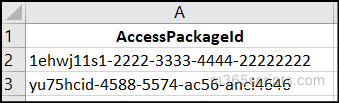
Then, you can use the following PowerShell cmdlet:
|
1 2 3 4 5 |
Import-Csv "<FilePath>" | ForEach-Object { $AccessPackageId = $_.AccessPackageId $AccessPackage = Get-MgEntitlementManagementAccessPackage -AccessPackageId $AccessPackageId Get-MgEntitlementManagementAccessPackageIncompatibleGroup -AccessPackageId $AccessPackageId | Select-Object Id, DisplayName, @{Name = "AccessPackageName"; Expression = {$AccessPackage.DisplayName}}, @{Name = "AccessPackageId"; Expression ={$AccessPackageId}} } | Format-Table -AutoSize |
Replace <FilePath> with the exact location of the CSV file.
Output

Find Incompatible Groups of All Access Packages
To get all the incompatible groups of all access packages, you can use this PowerShell cmdlet:
|
1 2 3 4 5 |
$allPackages = Get-MgEntitlementManagementAccessPackage -All $allIncompatible = foreach ($pkg in $allPackages) { Get-MgEntitlementManagementAccessPackageIncompatibleGroup -AccessPackageId $pkg.Id | Select-Object Id, DisplayName, @{Name = "AccessPackageName"; Expression = {$pkg.DisplayName}}, @{Name = "AccessPackageId"; Expression ={$pkg.Id}} } $allIncompatible | Format-Table -AutoSize |
Output

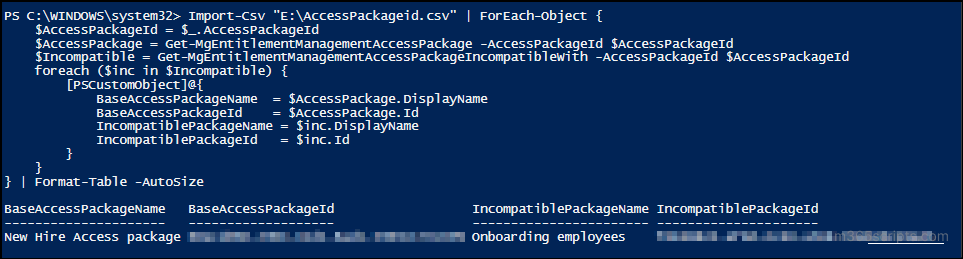
The “Incompatible With” retrieves all access packages where the selected access package has been configured as an incompatible package. To prevent conflicts of interest and enforce separation of duties, some access packages are deliberately marked as incompatible with others. This ensures that users cannot request or hold two conflicting access packages at the same time.
With this report, you can quickly identify which access packages are restricted from being combined with the selected one. To access this report, use the PowerShell cmdlet below.
|
1 |
Get-MgEntitlementManagementAccessPackageIncompatibleWith -AccessPackageId "<AccessPackageID>" |
Replace <AccessPackageID> with the unique ID of the target access package.
Output

View “Compatible With” Access Packages for Specific Access Packages
To check the “Compatible With” access packages for multiple access packages, use the PowerShell script below.
CSV Input:
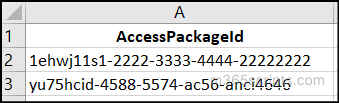
PowerShell
|
1 2 3 4 5 6 7 8 9 10 11 12 13 |
Import-Csv "<FilePath>" | ForEach-Object { $AccessPackageId = $_.AccessPackageId $AccessPackage = Get-MgEntitlementManagementAccessPackage -AccessPackageId $AccessPackageId $Incompatible = Get-MgEntitlementManagementAccessPackageIncompatibleWith -AccessPackageId $AccessPackageId foreach ($inc in $Incompatible) { [PSCustomObject]@{ BaseAccessPackageName = $AccessPackage.DisplayName BaseAccessPackageId = $AccessPackage.Id IncompatiblePackageName = $inc.DisplayName IncompatiblePackageId = $inc.Id } } } | Format-Table -AutoSize |
Replace <FilePath> with the exact location of the CSV file.
Audit “Compatible With” Access Packages for All Access Packages
To get all the “Compatible With” access packages for all access packages, you can use the PowerShell cmdlet below.
|
1 2 3 4 5 |
$allIncompatible = Get-MgEntitlementManagementAccessPackage -All | ForEach-Object { $pkg = $_ Get-MgEntitlementManagementAccessPackageIncompatibleWith -AccessPackageId $pkg.Id | Select-Object @{Name = "Id"; Expression = {$pkg.Id}}, @{Name = "DisplayName"; Expression = {$pkg.DisplayName}}, @{Name = "AccessPackageName"; Expression = {$_.DisplayName}}, @{Name = "AccessPackageId"; Expression = {$_.Id}} } $allIncompatible | Format-Table -AutoSize |
Output

This report lists all users who currently have access through the selected access package. It is useful for access audits, compliance validation, or troubleshooting when a user wants to know why they have access to a resource. To view this report, you can use the following PowerShell cmdlet:
|
1 2 3 |
$accesspackage = Get-MgEntitlementManagementAccessPackage -Filter "displayName eq '<AccessPackageName>'" $assignments = @(Get-MgEntitlementManagementAssignment -AccessPackageId $accesspackage.Id -ExpandProperty target -All -ErrorAction Stop) $assignments | Format-table @{Name = "AssignmentID"; Expression = {$_.Id}},state,@{Name = "UserName"; Expression = {$_.Target.displayName}},@{Name = "UserID"; Expression = {$_.Target.id}} |
Replace <AccessPackageName> with the display name of the target access package.
Output

Sometimes admins want to know whether the users’ access package request is pending, approved, rejected, expired, or stuck in provisioning. This report helps you identify the status of any user’s access package request along with relevant audit events. With this report, you can track whether the access request was approved with proper justification, along with when it happened. You can get to this report by using the PowerShell cmdlet below:
|
1 2 3 |
$accesspackage = Get-MgEntitlementManagementAccessPackage -Filter "displayName eq '<AccessPackageName>'" $Requests = @(Get-MgEntitlementManagementAssignmentRequest -AccessPackageId $accesspackage.Id -All -ErrorAction Stop) $Requests |
Replace <AccessPackageName> with the display name of the target access package.
Output

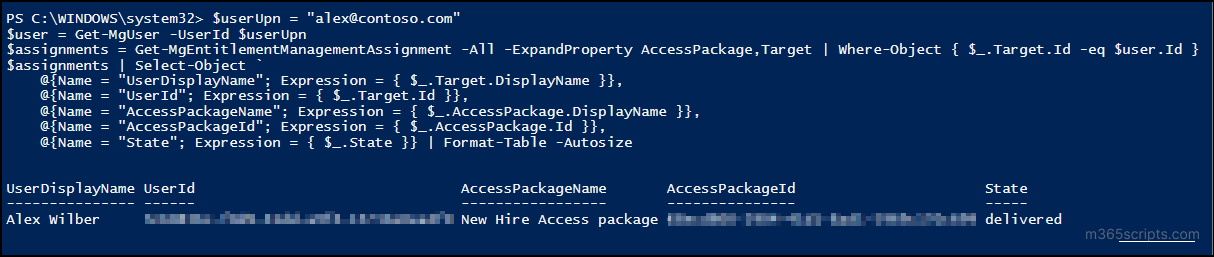
A user can be assigned multiple access packages during their lifecycle. For example, when they are first onboarded, they might receive an access package for initial access. Later, based on their role change or project requirement, additional access packages may be assigned.
This report helps you view all access packages associated with a specific user account, making it easier to analyse whether all of them are still essential for the user. To get this report, run the PowerShell cmdlet given below.
|
1 2 3 4 5 6 7 8 9 |
$userUpn = "<UserUPN>" $user = Get-MgUser -UserId $userUpn $assignments = Get-MgEntitlementManagementAssignment -All -ExpandProperty AccessPackage,Target | Where-Object { $_.Target.Id -eq $user.Id } $assignments | Select-Object ` @{Name = "UserDisplayName"; Expression = { $_.Target.DisplayName }}, @{Name = "UserId"; Expression = { $_.Target.Id }}, @{Name = "AccessPackageName"; Expression = { $_.AccessPackage.DisplayName }}, @{Name = "AccessPackageId"; Expression = { $_.AccessPackage.Id }}, @{Name = "State"; Expression = { $_.State }} | Format-Table -Autosize |
Replace <UserUPN> with the user principal name of the target user.
Output
And that’s a wrap! We hope this blog has helped you with monitoring access package reports using PowerShell. If you have any queries or questions, feel free to drop them in the comments below! We’d be happy to hear from you. Stay tuned for more upcoming blogs.