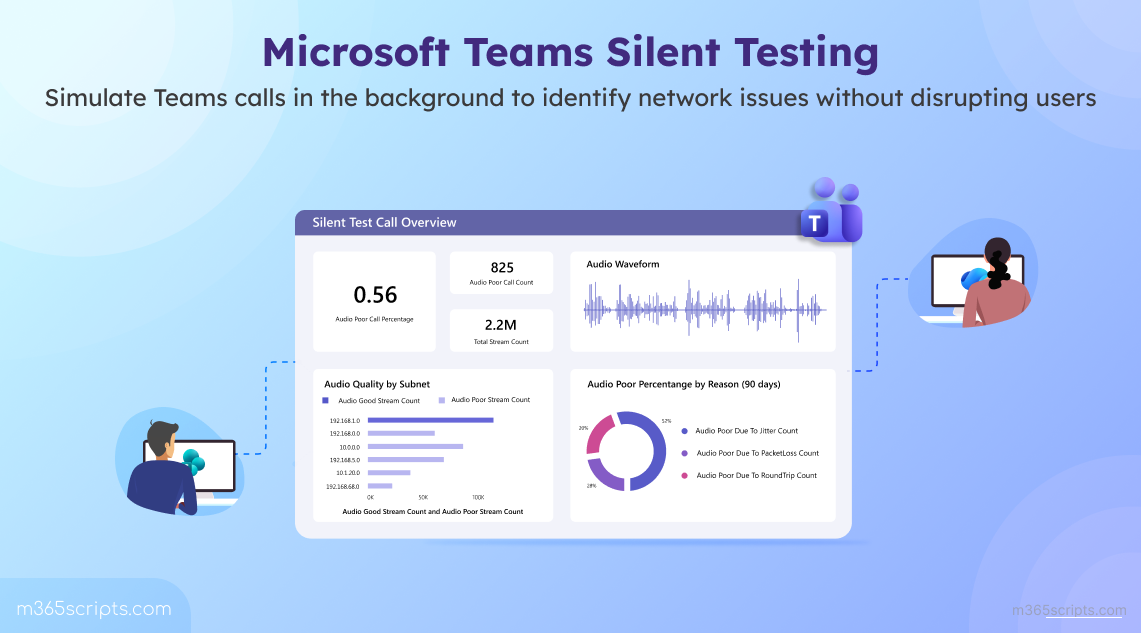
Configure Teams Silent Testing for Proactive Call Quality Monitoring
Microsoft Teams Silent Tests enable admins to proactively detect potential call quality and network issues before they impact users. By running scheduled, synthetic all tests to specific subnets, admins can monitor network readiness and maintain a consistent meeting experience across the organization.
“Prevention is better than cure”. We’ve all heard it. But in today’s modern workplace, it’s not just a saying; it’s a necessity.
Especially during high-stakes organizational meetings, staying ahead of issues is key to uninterrupted collaboration. Usually, admins rely on the Call Quality Dashboard, Call Analytics, real-time telemetry, or proactive rule-based alerts to gain detailed insights into network issues and call quality metrics. However, these insights are reactive, as they detect issues only after users experience them.
To overcome this limitation and shift toward a proactive approach, you can adopt a smarter Microsoft Teams feature called Silent Testing. With this feature in place, organizations can run silent tests automatically in the background at a scheduled time with zero user disruption. In this blog, we’ll explore what Teams Silent Testing is and how to configure it to ensure a seamless meeting experience across the organization.
Microsoft Teams Silent Testing is a proactive monitoring feature that allows admins to run background network tests at a scheduled time. It simulates real Teams calls between Microsoft calling servers and users in specified subnets. These tests run silently on selected devices at scheduled times, with no pop-ups, audio playback, or visible changes for end users. Instead of real meetings, Silent Testing generates synthetic media traffic to simulate real Teams scenarios and evaluate how the network handles audio streams. This allows admins to assess call quality without relying on actual user activity.
It includes two types of tests:
- Silent Test Calls: This testing stimulate standard Teams calls to evaluate call quality and network performance. Each test typically runs for around 60 seconds and measures key audio quality metrics such as latency, jitter, and packet loss. Tests calls can be scheduled to run at defined intervals.
- Silent Test Town halls: This test is specifically designed to simulate large-scale broadcast events and assess network capacity. These tests can run for up to 180 minutes and are executed once at the scheduled time.
📝Note: The Silent Test Town hall is currently being rolled out to Enterprise environments, so some organizations may not have access to it yet.
Once a test is complete, admins can view detailed call quality reports to detect and address network issues across subnets.
Silent Testing runs quietly in the background, using available devices within the targeted subnet to simulate real Microsoft Teams call scenarios. Its execution depends on a few underlying conditions.
- The user’s device must be located in the target subnet.
- The device must be powered on while the test is running.
- The Teams desktop client must be installed on the device.
- The device must be idle and not on an active Teams call.
- The device operating system must be either Windows or MacOS.
- The signed-in user must have a Teams Premium license for Silent Test Calls and a Teams Enterprise license for Silent Test Town halls.
These factors ensure that Teams Silent Testing can simulate real-world conditions accurately and generate reliable network and call quality insights.
Here are some common situations where Silent Testing helps ensure reliable Teams meeting experiences:
- High-Stakes Meetings: Before critical meetings such as executive briefings or client presentations, silent tests help detect possible network or call quality risks in advance. This reduces the chance of disruption in meeting.
- Setting Up a New Office: When setting up a new office location, Silent Testing helps check network readiness before starting Teams meetings or broadcasting.
- After Network Changes: If you change your firewall, Wi-Fi, or network settings, you can run Teams silent tests to ensure that everything is working properly before creating meetings.
- Meeting Capacity Planning: By running Silent Tests, admins can assess how the network performs under extra load. This helps identify potential bottlenecks and ensures the environment can support increased Teams usage.
- Regular Health Checks: By scheduling tests on a regular basis, admins can continuously monitor network performance, quickly identify any degradation, and prevent major disruptions.
Now that you understand how Teams Silent Testing helps avoid unwanted meeting disruptions, let’s look at how to configure it.
Before you configure Teams Silent Testing to analyze call quality metrics, ensure that the following prerequisites are met:
- Licensing requirements: You need a Teams Premium license for Silent Test Calls and a Teams Enterprise license for Silent Test Town halls. Additionally, a Power BI license is required to view the Silent Test Call reports.
- Role requirements: You should have the Global Administrator or Teams Administrator role to configure the Teams Silent Testing.
- Network requirements: Your network must allow outbound connections over port 443 (HTTPS/WebSocket over TCP) to the following domains. It ensures successful communication between Microsoft calling servers (Microsoft Teams services) and test user endpoints for proper silent test call execution.
- *.ecdn.teams.microsoft.com – Silent Test scheduling
- *.ecdn.teams.cloud.microsoft – Unified domain
To schedule a test call for a meeting or town hall in MS Teams, follow the steps below:
- Open the Teams admin center and navigate to Analytics & reports → Silent Tests.
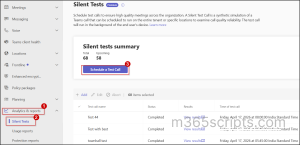
- Then, click Schedule a Test Call and choose one of the following test types based on your requirement.
- Meeting
- Town hall
- Enter a descriptive name for the Silent Test under Test name.
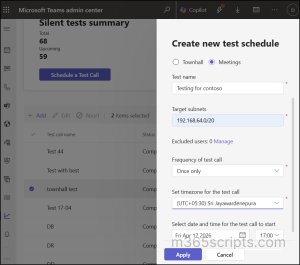
- Then, provide the subnet in valid CIDR notation under Target subnets. You can specify multiple subnets as a comma-separated values.
- Optionally, click Manage under Excluded users and select the users you want to exclude from the silent call tests.
- Set the “Frequency of the test call” based on the selected test type:
- Meetings: Once Only, Daily, Twice a week, Weekly, or Monthly.
- Town hall: Once Only.
- For Town hall test, configure the “Maximum test participants” (up to 20,000) and set the duration (up to 30 minutes).
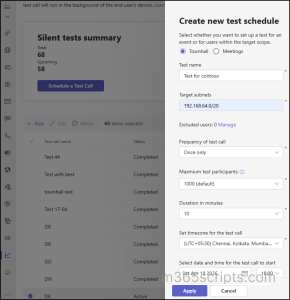
- Specify the time zone and configure the start date and time for the test call based on your requirements.
- Finally, click Apply to schedule the Teams silent test call.
Once scheduled, the Silent Test will execute automatically on eligible devices within the specified subnet at the configured time.
Once a Silent Test in Microsoft Teams is completed, admins can review detailed reports on call quality for meetings and town halls. To view Silent Test Call or Town hall reports, follow the steps below:
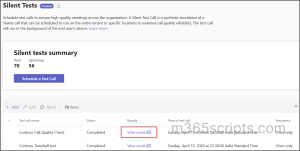
- On the Silent Tests page in Teams admin centre, click View results on the respective completed test run.
Silent Test Call Report for Meeting
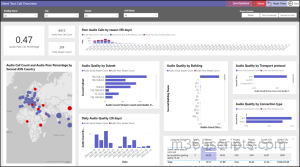
If the test call is scheduled for a meeting, the Power BI file is automatically downloaded upon clicking View results. You can open it in your Power BI Desktop using admin credentials.
In the Silent Test Call reports, you can monitor the following metrics.
- Overview: This page provides a summary of poor audio calls categorized by reason (90 days), audio quality by building, transport protocol, connection types, and more.
- Search: This page enables filtering call quality analysis based on user principal name (UPN), subnet, and ISP name to quickly narrow down specific results.
- Audio Health: This page offers detailed insights into audio quality across subnets and ISPs, including poor outbound rates by connection type (Wi-Fi or Ethernet), along with daily and weekly audio quality trends.
- User Health Details: This page presents detailed, per-user metrics such as average jitter, packet loss percentage, and device or system information for each test participant.
- Weekly Metrics: This page provides inbound and outbound jitter, latency, and packet loss metrics, along with discovered public network details, over a seven-day period.
- Daily Metrics: This page provides daily call quality insights on inbound and outbound jitter, latency, and packet loss, along with discovered public network details. It makes it easier to identify performance fluctuations throughout the day.
- Daily Reliability: This page includes tracking details of daily audio quality, setup failures, and dropped streams for each day over the past 30 days.
📝Note: Download and set up the CQD Power BI Connector
before viewing the report to avoid errors when analyzing silent test call metrics.
Silent Test Call Report for Town Hall
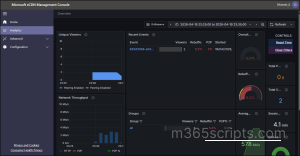
For Town Hall test calls, you will be redirected to the Microsoft eCDN analytics dashboard when you click View results. Here, you can view a detailed report on Town hall, such as Network Throughput, Average Bitrate, Session Length, Total Users, and more.
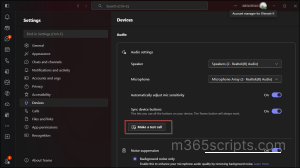
Most of us have used the Make a Test Call option in Microsoft Teams at some point. But if you’re wondering how that compares to Silent Test Calls running behind the scenes, here’s a quick breakdown.
| Feature | Make a Test Call | Teams Silent Test Call |
| Purpose | Basic validation of microphone, speaker and baseline network connectivity. | Organization-level proactive measure for analyzing overall network and audio quality. |
| Initiator | End user | Admins |
| Scope | User-level | Organization-level (subnets) |
| Execution | Manually triggered by user and runs instantly | Can be scheduled and automated by admins |
| Visibility | The user should wait and verify until the test runs are completed. | Runs in background with zero user disruption |
| Reports | No reports will be generated. | Reports can be viewed via Power BI or the Microsoft eCDN Management Console. |
| Usage scenario | Users can test their own setup before joining a meeting. | Admins can analyze network readiness for meeting and town hall tests using key metrics like jitter, latency, packet loss, and audio quality. |
Final Thoughts
As remote and hybrid work models continue to evolve, proactive call quality monitoring is becoming increasingly critical for improving the overall meeting experience. With Microsoft Teams Silent Tests, admins can implement early warning systems before critical Teams meetings begin. By incorporating this Silent Testing into regular operations, organizations can move from reactive troubleshooting to proactive optimization of their Teams environment.
We hope this blog helps you enhance meetings and troubleshoot call issues more effectively. If you have any questions, feel free to share them in the comments, we’d love to hear from you. Stay tuned for more blogs coming soon!