How to Stop Users From Sharing Their Own Calendars?
Prevent users from sharing Outlook calendars to protect work patterns, meeting details, and sensitive scheduling information. Configure calendar sharing restrictions tenant-wide or at the mailbox level using Exchange Online PowerShell. Mitigate risks of targeted phishing and unintended data exposure from overly permissive calendar sharing permissions.
Outlook calendars are essential for collaboration, helping users share meeting links, manage availability, and plan meetings efficiently. By default, user can easily share their calendar with anyone—colleagues, external partners, or even personal contacts. What’s risky is how effortless and lasting this sharing can be! 😢
At first, a simple calendar share can seem harmless, but lingering access can expose work patterns, enable targeted phishing, and lead to unintended data exposure. 🤯 That’s why controlling calendar sharing matters!
This blog shows you how to prevent users from sharing their calendars with other users, both tenant-wide and at the mailbox-level. Let’s dive in!
Calendar sharing is a core collaboration feature within organizations. But when a user shares their Outlook calendar, internally or externally, it can expose more than just availability.
For example, a project lead may share their calendar with a colleague or an external user without realizing the default permission level. If broad permissions like “Can view all details” is granted unknowingly, considering the risk, recipients can see meeting subjects, title, location and time. This would reveal the user’s complete work patterns and even sensitive contexts. Some of the risks are:
- Internal or external recipients can view meeting schedules and infer project timelines or client engagements.
- Meeting subjects, locations, and recurrence patterns may expose sensitive context, employee availability, and team structures, which can be exploited for targeted attacks.
- Users can share calendars without requiring administrative approval, which can invite even unauthorized users.
To mitigate these risks, many organizations choose to restrict calendar sharing and enforce consistent controls across the tenant. While these may raise concerns about collaboration, proper configurations aligned with organizational policies can strike a balance. With the risks clearly understood, let’s move on to how administrators can apply these controls.
Organizations do not need to block calendar sharing entirely; instead, admins can control how much information is shared.
By applying targeted restrictions rather than blanket blocks, you can support collaboration while preventing overly broad exposure. To implement these restrictions, you must have the Global Administrator role. If you are using the sharing policy configuration method, it requires the Organization Management role.
With these permissions in place, you can block users from sharing their calendars with anyone. The following sections explain how to restrict calendar sharing for users at different levels, based on your organization’s requirements.
- Disable external calendar sharing for all users
- Control users from sharing calendars externally using sharing policies
- Use Outlook calendar permissions to restrict calendar sharing
Disabling calendar sharing tenant-wide is an exceptional measure, not a standard practice, as it disrupts everyday collaboration! Most organizations avoid it for this reason. In rare, high-risk situations where even basic calendar patterns can reveal sensitive activity, organizations may temporarily pause calendar sharing across the tenant. The steps below show how to apply this restriction when needed.
- Sign in to the Microsoft 365 admin center.
- Navigate to Settings → Org settings.
- Under the Services tab, select Calendar.
- In the External sharing section, uncheck the ‘Let your users share their calendars with people outside of your organization who have Office 365 or Exchange’ box.
- Click Save to apply the changes.
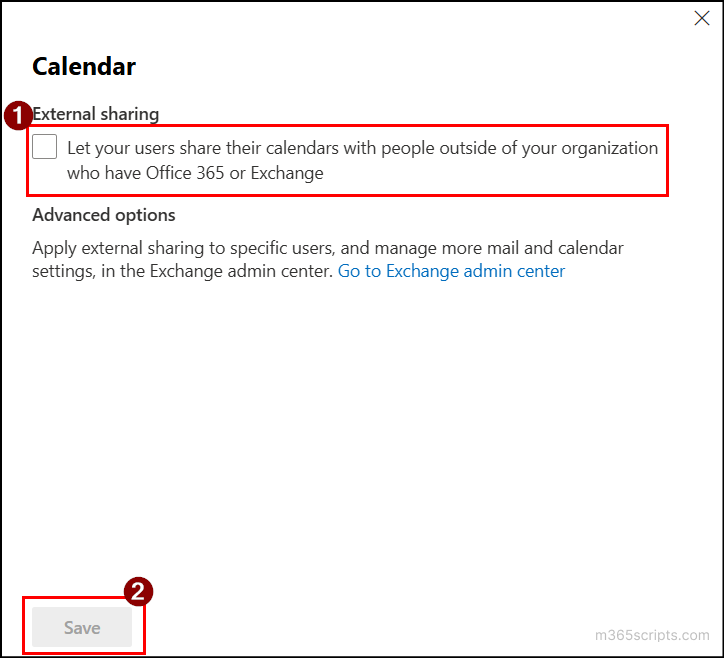
Once saved, users will no longer be able to share any of their calendars with any external users, enforcing tenant-wide restriction.
How this Calendar Sharing Restriction Works?
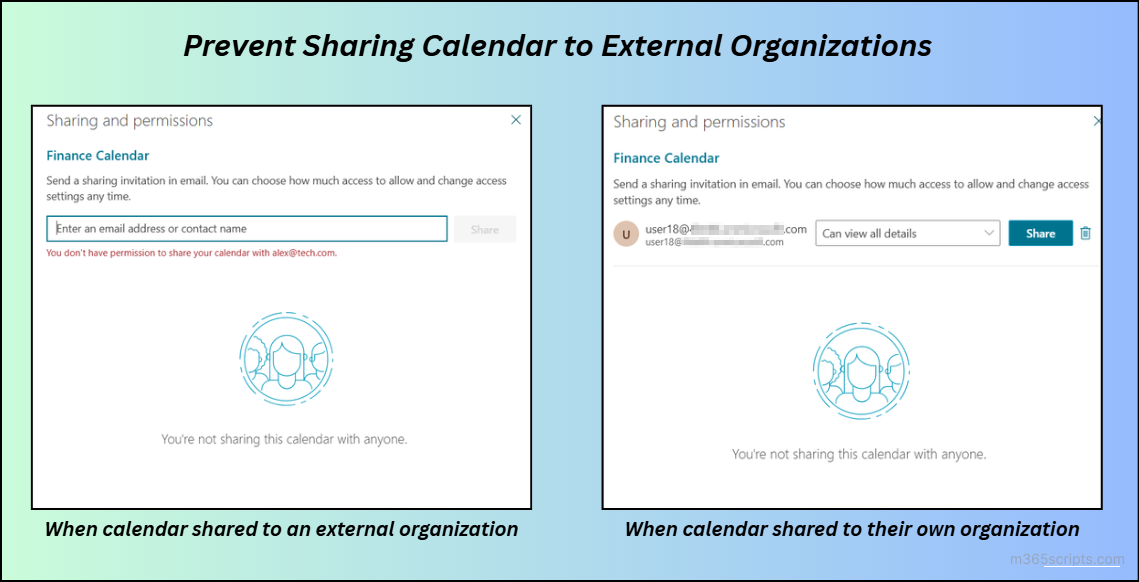
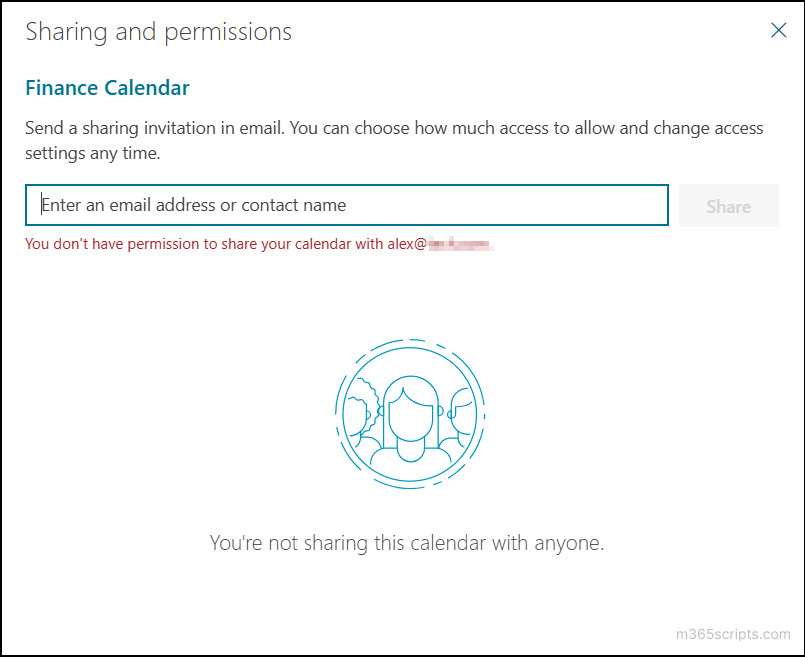
Let’s say Chris is an employee of the CONTOSO organization and attempts to share his Outlook calendar with an external user, Alex from TECHNO. When Chris tries to share the calendar externally, Outlook blocks the action and displays an error message:
“You don’t have permission to share your calendar with <TargetUserMail>”
However, Chris can still share his calendar freely with users within the CONTOSO organization, as internal sharing remains allowed.
Before applying a sharing policy, let’s first understand what it is, how it works, and why it’s important for controlling calendar sharing.
In Microsoft 365, administrators have the power to decide how calendars are shared with external users. Users cannot override these settings themselves; only admins can define the rules.
Sharing policies are designed to limit how much calendar information can be shared with external recipients. This helps limit the exposure of sensitive information and reduces the risk of accidental data leaks. These policies typically control external calendar sharing in three different ways.
- Calendar free/busy information with time only – Allows others to view only the user’s availability (busy or free time), without any additional details.
- Calendar free/busy information with time, subject, and location – Allows visibility into meeting times along with the meeting subject and location.
- All calendar appointment information, including time, subject, location and title – Provides full visibility into a user’s calendar, including time, subject, location, and appointment titles.
By default, the built-in sharing policy allows users to share calendar folders with ‘Calendar free/busy information with time only’, which allows to view the user’s available times. However, any custom sharing policies configured with calendar folder permissions can override the default sharing policy and enable broader calendar sharing.
Next, let’s look at how an admin can configure a sharing policy. These policies can be applied either to all external domains or to specific domains.
- Disable external calendar sharing for all domains
- Prevent users from sharing calendars with specific external domains
Suppose a financial consulting firm frequently schedules meetings with clients and external partners. By default, employees can share their Outlook calendars externally, which can expose critical employee or project finance details. In such cases, administrators can use a sharing policy to block users from sharing their calendars. This restriction can be applied to specific users or across all users.
Restrict External Calendar Sharing for a Specific Mailbox
In some cases, calendar sharing should be restricted only for high-privilege users such as executives, HR, or finance teams. Even a single shared calendar from these roles can expose sensitive meetings, decision timelines, and confidential schedules.
Instead of applying tenant-wide restrictions, you can limit calendar sharing for specific users by assigning a targeted sharing policy without impacting others. This approach blocks external calendar sharing for the selected mailbox only.
To do this, create a custom sharing policy with restricted permissions and assign it to the user’s mailbox using the steps below.
- Sign in to the Exchange admin center.
- From the left pane, navigate to Organization → Sharing.
- Switch to the Individual Sharing tab.
- Click Add individual sharing policy and provide a name for the policy. Then, click Next.
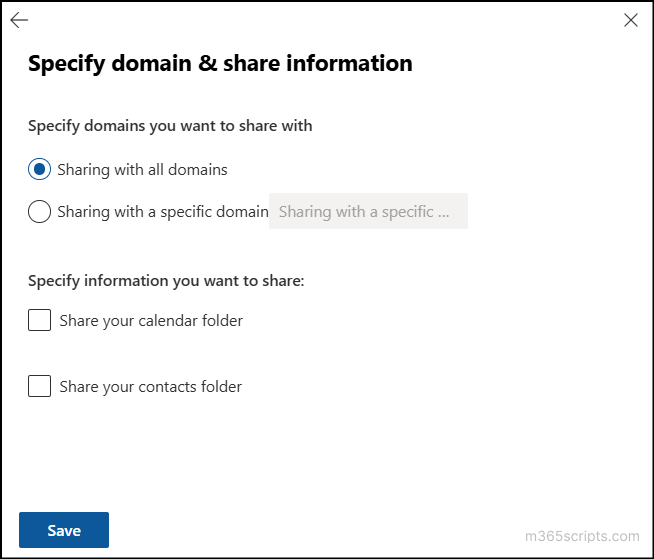
- Click Specify domain & share information and select Sharing with all domains.
- Make sure to uncheck the “Share your calendar folder” option. This will block the entire calendar from being shared. If you need to share the calendar with limited permissions, you can check the box and select the appropriate permission level.
- Then, click Save. Then, click Next to create the sharing policy.
- Now comes the main part. From the left pane, go to the Mailboxes tab.
- Click the target user mailbox for which you need to block calendar sharing.
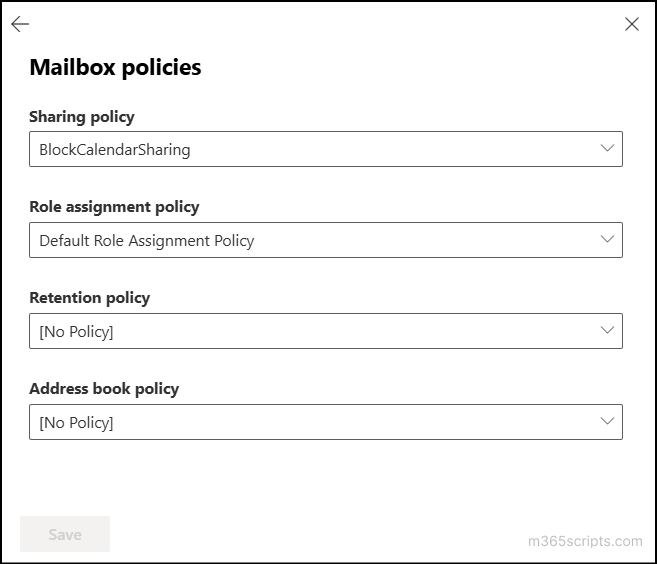
- Switch to the Mailbox tab. Under Mailbox policies, click Manage mailbox policies.
- In the Sharing policy dropdown, choose the sharing policy you created. Then, click Save to apply the policy to the user’s mailbox.
Note:
The policy may take up to 5 minutes to take effect.
After completing these steps, the sharing policy will block the mailbox from sharing its calendar with any external domains.
How to Block External Calendar Sharing for All Mailboxes
In environments where organizational information is highly sensitive, calendar sharing should be disabled tenant-wide. This ensures that no user can share their Outlook calendar with external domains. To configure this, create a restricted sharing policy using steps 1–7 from the previous section, then assign the policy to all mailboxes using the steps below.
- Navigate to the Mailboxes page.
- Select a user and press Ctrl + A to automatically select all mailboxes.
- Click Manage policies from the top banner.
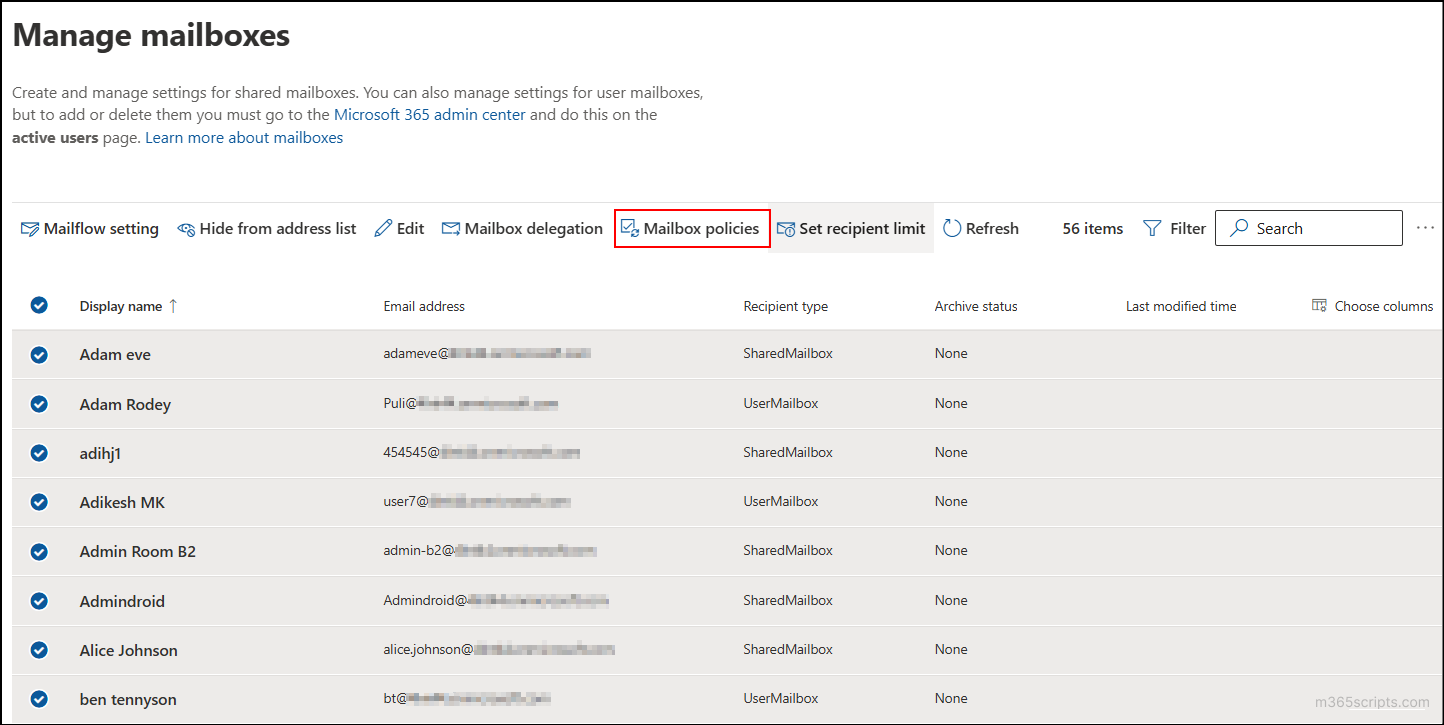
- Under the Sharing policy dropdown, choose the policy you just created and click Save. Once applied, all mailboxes are restricted from sharing their calendars with all external domains.
Let’s say an IT service provider manages multiple clients and needs to share calendars with them. By applying a specific domain restriction, the intended client domains can only view the calendars. This can also be applied to all mailboxes or a specific mailbox.
Allow Sharing Calendar with Specific Domains for Individual Mailboxes
The previous method restricted calendar sharing for all external domains. However, in some cases, you may need to collaborate with specific external vendors, partners, or clients. Instead, you can limit calendar sharing to approved domains while denying access to untrusted domains. This can be configured via both the Exchange admin center and PowerShell. In the Exchange admin center, follow the steps below.
- Navigate to Organization → Sharing → Individual Sharing.
- Click Add a sharing policy and provide a name for the policy.
- Click Specify domain & share information. Select Sharing with a specific domain, and enter a domain you want to block.
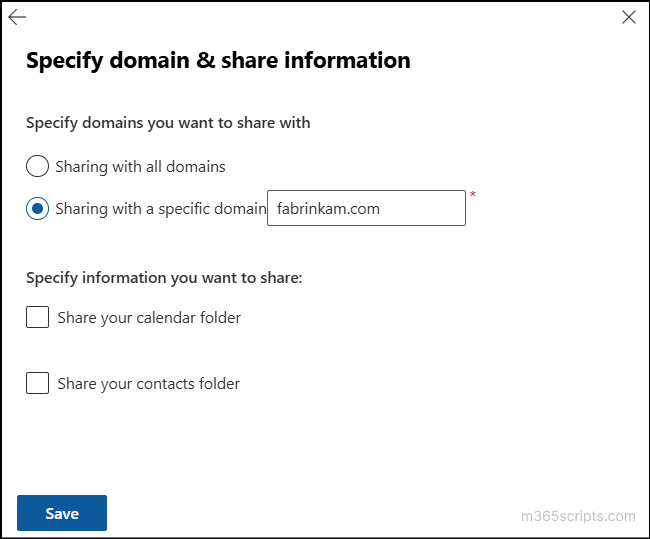
- Check the Share your calendar folder option and click Save.
- To add more domains, click the policy again and under Manage domains you can add domains.
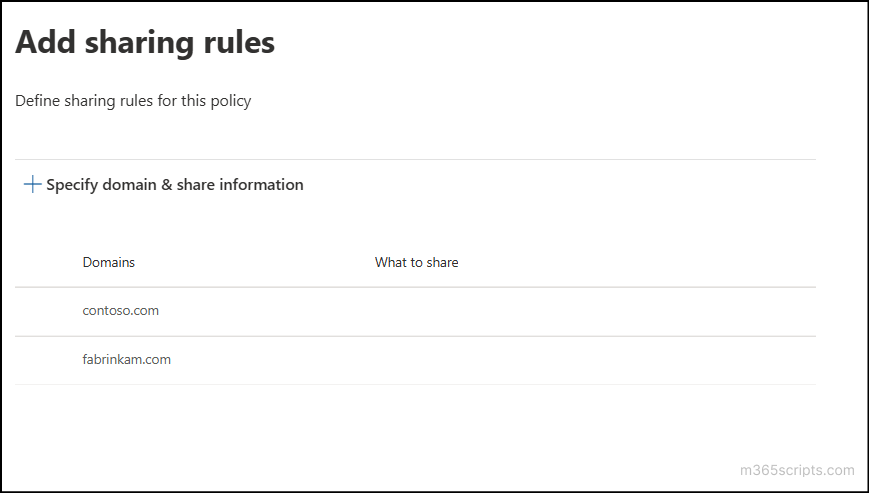
- Next, select the target mailbox and apply the previously created sharing policy.
How to Whitelist External Domains for Calendar Access
You can define approved external domains in a sharing policy and apply it to all mailboxes or use PowerShell for a faster and more flexible configuration.
|
1 2 3 4 5 6 7 8 |
#Create a sharing policy New-SharingPolicy -Name “<PolicyName>" -Domains ‘<Domain1>:0’,’<Domain2>:0’ -Enabled $False #Apply the sharing policy to all mailboxes $Mailboxes = Get-Mailbox -RecipientTypeDetails UserMailbox Foreach ($Mailbox in $Mailboxes) { Set-Mailbox -Identity $Mailbox.Identity -SharingPolicy "BlockMutipleDomainCalendarSharing"} #Verify the application of the policy for the mailboxes Get-Mailbox –ResultSize Unlimited | Format-Table Name, SharingPolicy |
Replace <PolicyName> with the name of the existing policy. Similarly, the -Domains ‘*:0’ refers to all the domains with no sharing permissions, and the status is set to $false to block the sharing policy.
When a user attempts to share their calendar with an unspecified domain, the action is blocked with the following error message.
“You don’t have permission to share your calendar with <TargetMailbox>.”
While sharing policies control external calendar sharing, unrestricted internal sharing can still pose security risks. Internal calendar access is controlled through calendar permissions, which can be managed by both administrators and end users.
By default, the calendar permissions are set to AvailabilityOnly, exposing free/busy information across the organization. However, users may unintentionally grant higher permission levels, unaware of the risk!
To reduce this risk, calendar permissions should be regularly reviewed and adjusted. The following sections explain how both users and admins can manage these permissions effectively.
- [End-user] Block Default Calendar Sharing to a Specific User
- [Admin] Block Default Calendar Sharing Using PowerShell
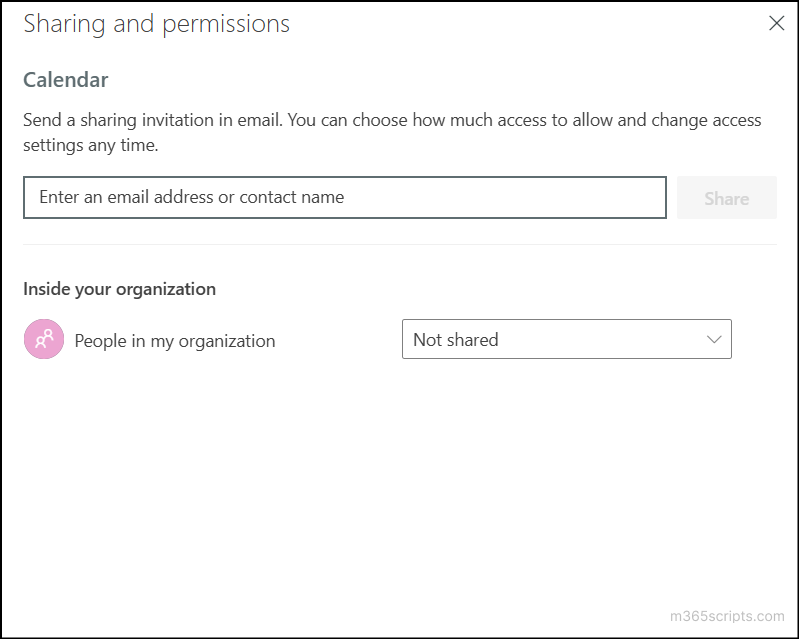
Every mailbox includes a calendar that exposes free/busy information by default. To prevent others from viewing the calendar, users can change the default permission to “Not shared.” With this setting, sharing invitations may still be sent, but recipients cannot view or add the calendar, eliminating unintended visibility.
- Open Outlook and go to the Calendar view.
- Select a user’s default calendar (displayed as ‘Calendar’) and select Share.
- Under Inside your organization tile, set the People in my Organization option as Not Shared.
Note:
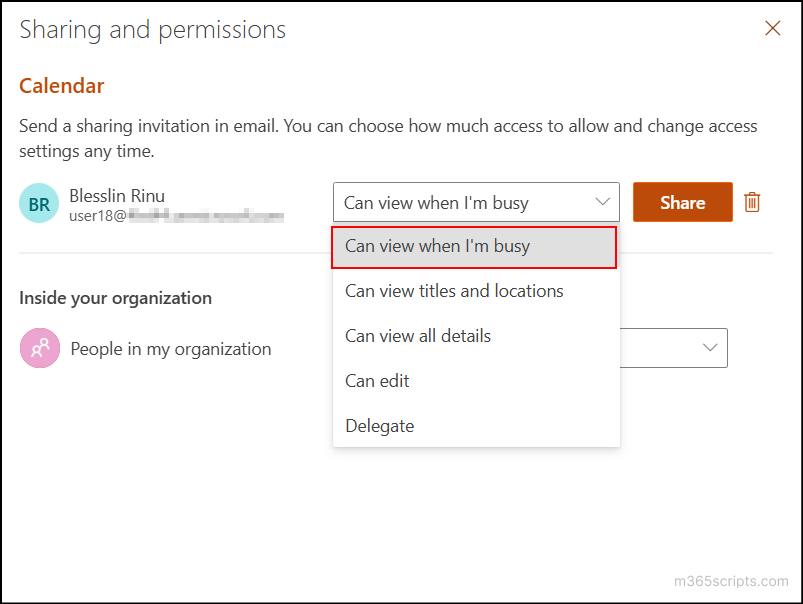
‘Sharing and permission’ setting is available only for the default calendar of the mailbox. For additional calendars, you can limit visibility by configuring their specific calendar permissions.
For least-privileged sharing, use “Can view when I’m busy.” This limits visibility to free/busy times only, even if another user adds the calendar.
Similar to how users can disable default calendar sharing in Outlook, administrators can modify a user’s default calendar permissions and set them to None. This change affects meeting visibility and availability lookups in both Outlook and Microsoft Teams. Use this configuration only when strict calendar privacy is required for a user.
To apply this setting, run the cmdlet below:
|
1 |
Set-MailboxFolderPermission -Identity "<UserPrincipalName>:\Calendar" -User Default -AccessRights None |
Replace <UserPrincipalName> with the UPN of the target user. Once applied, no internal users will be able to view the user’s calendar, including free/busy information.
How to Manage Internal Calendar Visibility for All Users Using PowerShell
Instead of completely blocking collaboration, you can limit default calendar visibility to Free/Busy information only. The PowerShell script below sets the default calendar permission to AvailabilityOnly, which allows users to view only the free/busy information. You can view the current calendar permissions of all users using the ‘Get-MailboxFolderPermission *:\Calendar’ cmdlet.
|
1 2 3 4 5 6 7 8 9 10 11 12 |
Get-Mailbox -RecipientTypeDetails UserMailbox | ForEach-Object { $CalendarPath = "$($_.Alias):\Calendar" $DefaultPerm = Get-MailboxFolderPermission -Identity $CalendarPath -ErrorAction SilentlyContinue | Where-Object { $_.User -eq "Default" } if ($DefaultPerm -and $DefaultPerm.AccessRights -ne "None") { Set-MailboxFolderPermission -Identity $CalendarPath -User Default -AccessRights AvailabilityOnly Write-Host "Updated:" $_.Alias -ForegroundColor Green } else { Write-Host "Already restricted:" $_.Alias -ForegroundColor Green } } Get-MailboxFolderPermission -Identity $CalendarPath |
Secure Calendar Permissions for High-Privileged Accounts in Microsoft 365
In addition to the scenarios above, some users may already hold elevated calendar permissions—such as Owner or Editor—often granted for temporary collaboration or administrative needs. When left unreviewed, these permissions create unnecessary access and increase the risk of unintended changes or sensitive information exposure.
To enforce least-privilege access, elevated calendar permissions should be regularly reviewed and reduced. The PowerShell script below identifies users with high-level calendar access and downgrades their permissions to AvailabilityOnly, upon your confirmation.
|
1 2 3 4 5 6 7 8 9 10 11 12 13 14 15 16 17 18 19 20 21 22 23 24 |
$CsvReport = "E:\HighCalendarPermissions.csv" $Report = Get-Mailbox -RecipientTypeDetails UserMailbox | ForEach-Object { $CalPath = "$($_.Alias):\Calendar" Get-MailboxFolderPermission $CalPath -ErrorAction SilentlyContinue | Where-Object {($_.AccessRights -match "Owner|Editor|PublishingEditor|PublishingAuthor|Author")} | Select-Object @{n="Mailbox";e={$_.Identity.Split(":")[0]}}, @{n="CalendarPath";e={$CalPath}},@{n="User";e={$_.User}},@{n="UserDisplayName";e={(Get-Recipient $_.User -ErrorAction Stop).DisplayName }},@{n="ExistingPermission";e={ $_.AccessRights -join ", " }} } $Report | Export-Csv $CsvReport -NoTypeInformation Write-Host "Found $($Report.Count) high-privilege entries. Report exported to $CsvReport" $updated = foreach ($Item in $Report) { $Approval = Read-Host "Change '$($Item.ExistingPermission)' for the calendar '$CalPath' on user '$($Item.User)'to AvailabilityOnly? (Y/N)" if ($Approval -match "^[Yy]$") { Set-MailboxFolderPermission -Identity $Item.CalendarPath -User $Item.User -AccessRights AvailabilityOnly $NewPerm = "AvailabilityOnly" } else { $NewPerm = $Item.ExistingPermission } [PSCustomObject]@{ CalendarPath = $CalPath User = $Item.User OldPermission = $Item.ExistingPermission NewPermission = $NewPerm } } $Updated | Format-Table -AutoSize |
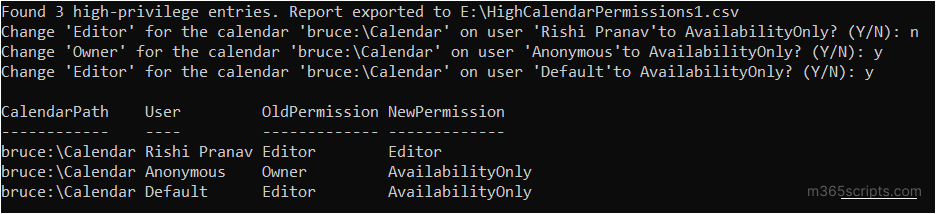
And that’s a wrap! We hope this blog has helped you prevent users from sharing calendars, both internally and externally. By restricting calendar sharing, you can prevent misuse of availability data and strengthen your overall Microsoft 365 security posture. Have any questions? Feel free to reach out through the comments. We’d love to hear from you. Stay tuned for more upcoming blogs!