Difference Between Wiki Pages, Web Part Pages, and Site Pages in SharePoint
Choose between wiki pages, web part pages, and site pages in SharePoint Online based on your content requirements. Site pages offer modern editing with flexible layouts and branding options, while web part pages provide classic structured zones. Understand each page type’s capabilities to create effective knowledge bases, dashboards, and intranet experiences.
Site pages in SharePoint plays a central role in how information is presented and discovered across Microsoft 365. They help highlight important content, explain how information is structured, and guide users on where to find what they need. Because of this, admins use SharePoint pages to build knowledge bases, dashboards, and intranet page experiences that support communication and collaboration. However, the real challenge is not creating a page but choosing the right type of SharePoint page for a specific scenario.
For admins who are new to SharePoint Online, page options like web part pages, wiki pages, and site pages often lack clear context.
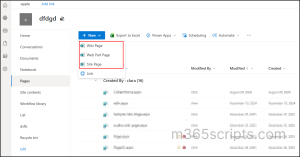
Choosing the wrong page can lead to poor layouts, limited functionality, reduced collaboration, issues with branding in SharePoint, and unnecessary rework. In this blog, we clearly explain the differences between web part pages, wiki pages, and site pages, and help you confidently choose the right option for each scenario.
Before understanding a web part page, it is important to know what web parts are, as they play the main role in web part pages.
Web parts are the core building blocks of SharePoint pages, allowing admins to add rich content and useful features without writing a single line of code. They can display text, images, SharePoint lists, document libraries, announcements, videos, and data from Microsoft 365 services such as Yammer/Viva Engage and Power BI.
When multiple web parts are combined, a page evolves from static content into a focused, purpose driven workspace. This allows admins to easily add, move, or remove web parts, giving them full control over how information is presented. As a result, content stays organized, readability improves, and collaboration is supported by placing the right information in the right place. Now, let’s get into the main thing!

A web part page provides the classic SharePoint experience by organizing content into predefined zones that hold web parts. These zones allow administrators to place and arrange web parts such as lists, document libraries, and other SharePoint components together in a clear and structured layout.
As a result, a web part page brings content into one centralized workspace instead of spreading it across multiple pages. From this single page, users can view, interact with, and act on SharePoint data, while administrators maintain control over layout and organization. This makes web part pages well suited for dashboards, team overviews, and data driven pages where consistency and structure matter more than visual flexibility.
- In classic SharePoint, these pages are typically stored in the Document library, or site pages, depending on the site setup.
SharePoint admins often turn to web part pages to manage real business challenges more efficiently. By bringing all relevant information into one organized view, these pages make monitoring and review much easier.
Here are some scenarios where web part pages are especially useful.
- For project reporting, admins often need to present all project details in one place. A single page can include a task list to track status, a document library for project files, and a status list for updates. This setup allows site members to quickly view progress without jumping between multiple pages.
- Web part pages can work as dynamic dashboards that show live status changes. For example, a task page can automatically update to display completed and pending tasks. This helps users see progress in real time from one place.
Limitations of Web Part Pages in SharePoint
Despite their benefits, below are some limitations of web part pages.
- Classic web part pages do not support modern responsive design features.
- The page layout is fixed and web parts can only be placed in specific zones, which limits design flexibility.
- Adding many web parts to one page can slow it down. The page may take longer to load.
- Writing long text is difficult because web part pages are not meant for articles or blog style content.
- Images cannot be easily placed inline with text and usually appear in separate sections.
- Pages do not adjust well to different screen sizes, especially on mobile devices.
A wiki page in SharePoint is part of the classic experience and is mainly used for content creation and collaboration. These pages are stored in the wiki page library and allow multiple users to edit content directly on the page using simple inline editing, similar to a shared document.
- Users can easily format text and add images, links, and tables without technical skills.
- The page remains content-driven and can be used with or without web parts, depending on the need.
- It supports check-out in SharePoint Online, where admins can control editing when required and avoid conflicting changes.
Admins use wiki pages when they need a simple way to manage shared content, like the examples below.
- For onboarding users, admins often create wiki pages in SharePoint Online to share procedures, how to guide, and reference information that changes over time.
- For process documentation, wiki pages are used to record steps and notes that teams update often.
- Teams can add tables, images, and use check-out and check-in to manage edits. Admins can also include a document library web part to share related files in one place.
What Are the Limitations of Wiki Pages?
While wiki pages are useful, they also come up with certain limitations.
- Wiki pages are part of the classic SharePoint experience and do not support modern page features or responsive layouts.
- They do not have a proper structure and work more like free form pages, which makes them less suitable for branding and better suited for simple knowledge sharing.
- The page may load slower if too much text, images, or embedded content is added.
- Wiki pages are not ideal when you need to place multiple components on a single page, as organizing different elements together can be difficult.
Note: You can experience the classic pages within the modern experience by navigating to Settings → Library Settings of the desired site. From there, add the required web part page or wiki page to view and use it seamlessly.
Let’s delve into the main part and explore site pages in SharePoint, the recommended approach for building modern and scalable pages.
Site pages represent SharePoint’s move from classic page designs to a modern and flexible experience. They overcome the limitations of web part pages and wiki pages by offering an intuitive, responsive layout built for long term use in SharePoint Online.
With a clean, modern design and built in mobile responsiveness, site pages make content easy to read and navigate on any device. Their structured layout supports consistent branding, while modern web parts work seamlessly together to deliver richer content and create a more engaging user experience.
Admins use site pages when they need a modern, structured way to present information using SharePoint web parts, like the examples below.
- For intranet home pages, admins use site pages to share company news, announcements, and key updates. The page can include a news web part for updates, a hero web part for important links, and a document library web part for quick access to files. This helps users stay informed from one central page.
- For project overview pages, admins create site pages to present project information clearly. The page can include a Tasks or Planner web part for status, a document library for project files, and a text web part for updates. This gives team members a quick view of project progress in one page
Advantages of Site Pages in SharePoint Online
Beyond addressing the limitations of classic pages, site pages offer multiple advantages in SharePoint Online.
- Site pages offer better performance and easier content management.
- Site pages can also show live content by using web parts.
- A built-in comments feature can be enabled, allowing users to collaborate and provide feedback directly on the page.
Now that we’ve seen what each page type is used for and the extra features modern site pages offer, let’s bring everything together. The table below gives a clear overview of how these page types compare, making it easier to understand why moving to modern site pages is the preferred choice.
| Criteria | Web Part Page | Wiki Page | Site Page (Recommended) |
| SharePoint Experience | Classic | Classic | Modern |
| Main Purpose | Build dynamic dashboard and portals to monitor and manage data | Collaborative content creation and updates | Create clean, modern, responsive pages |
| Page Layout Structure | Predefined structure with fixed zones | No fixed structure, works like a free-form document | Flexible sections and layouts designed for branding |
| Collaboration | Not available | Strong collaboration | Supports collaboration |
| Web Parts Support | Classic web parts only | Limited web parts | Rich modern web parts that work seamlessly together |
| Responsive Design | Not responsive | Not responsive | Fully responsive, delivering a consistent experience across screens |
| Best Used For | Intranets and admin dashboards | FAQs and documentation | Branded intranet homepages, portals, and information hubs to securely store, organize, and collaborate on content. |
| Visual Experience | Outdated look | Text-heavy and plain | Clean, modern, visually rich |
| Version History | Available | Available and displays the most recent version after saving. | Clear version history with better UI |
| Branding | Limited branding support | Not suitable for branding | Supports consistent branding and design |
| Check-out/ Check-in | Supported | Supported | Supported |
This table breaks down the differences between web part Pages, wiki pages, and modern site pages, making it clear why admins often choose site pages as their go-to option.
We hope this blog gives you a clear idea of web part pages, wiki pages, and site pages in SharePoint. Thanks for reading, and feel free to drop your questions or thoughts in the comments.