How to Find the Right Scope for Microsoft Graph Cmdlets
Identify the correct Microsoft Graph PowerShell scopes by understanding delegated versus application permissions. Stop guessing permissions and follow the principle of least privilege when connecting to Graph API. Use proper scope naming patterns like User.Read.All or Mail.Send to grant only necessary access for your automation scripts and applications.
When working with Microsoft Graph PowerShell cmdlets for automating tasks, creating scripts, or managing Microsoft 365 resources, we often rely on permissions without fully understanding them.
This leads to permission errors that break your script midway, block automation workflows, or force you to figure out which scope is actually required. The usual fix? Search online, copy a working example, and use whatever high-privilege scope is suggested. It works, so we move on.
Finding the right scope isn’t just about making your script work. It’s about following the principle of least privilege, avoiding unnecessary admin consent, and understanding what access you’re actually granting. In this guide, we will walk you through how to find the right scope for any Microsoft Graph cmdlet, so you can stop guessing and start using permissions correctly.
Scopes are simply permissions. They control what your application or script can access in Microsoft 365. When you connect to Microsoft Graph PowerShell, you’re not just logging in – you’re requesting specific permissions to read or modify data like users, groups, and more. Scopes exist to:
- Limit access to only what’s required
- Protect sensitive data from unauthorized access
- Ensure apps and scripts operate only within approved permissions
- Meet compliance requirements by enforcing the principle of least privilege
Microsoft Graph scopes follow predictable naming patterns. Once you understand them, finding the right scope becomes much easier. Some of the commonly used scopes include:
- User.Read.All – Read all users
- User.ReadWrite.All – Read and write all users
- Mail.Send – Send mail as the signed-in user
- Group.ReadWrite.All – Read and write all groups
- Calendars.Read – Read the signed-in user’s calendar
There are two types of permissions(scopes) in Microsoft Graph, and understanding the difference is critical:
| Aspect | Delegated Permissions | Application Permissions |
| Who’s acting? | The signed-in user | The application itself |
| Usage context | Interactive scripts, user-driven actions | Background jobs, automation, service accounts |
| Access level | Limited to what the user can access | Can access all data (tenant-wide) |
| Consent required | User consent (sometimes admin consent) | Always requires admin consent |
| Example scenario | Script that sends email as the current user | Nightly job that exports all users for reporting |
| Scope example |
|
|
Using the correct scope isn’t just a best practice – it’s a security and compliance requirement. Yet, most people get it wrong because finding the right permission isn’t intuitive.
Common mistakes when choosing scopes:
- Guessing at scopes: You tryUser.Read, itdoesn’t work. You try User.ReadWrite.All, it works. You move on without understanding what you just granted.
- Copying from randomwebsites:Someone online solves a similar problem, so you copy their Connect-MgGraph command. Their script might have been doing something completely different, but you’re now using their permissions.
- Always usingDirectory.ReadWrite.All: This scope gives read and write access to your entire directory. Many scripts use this permission even when they only need to read a single user or send an email. This breaks the principle of least privilege.
Real-world scenario for using the right Microsoft Graph scope:
- If you try to run Update-MgUser with onlyUser.Read.All, the command will fail.
Updating user properties requires write permissions, such as User.ReadWrite.All. - On the flip side, using a high-privilege scope like Directory.ReadWrite.All just to read user details is unnecessary and risky. A simple read-only task works perfectly with User.Read.All, without triggering broad admin consent or overexposing tenant data.
Commonly Used High-Privilege Scopes in Microsoft 365
Certain scopes have extensive access and should be used only when necessary:
- Directory.ReadWrite.All – Full read/write access to all directory objects (users, groups, devices, apps).
- User.ReadWrite.All – Modify any user profile, including admin accounts.
- Group.ReadWrite.All – Create, modify, or delete any group (including security groups).
- Files.ReadWrite.All – Full access to all OneDrive and SharePoint files across the tenant.
- Application.ReadWrite.All – Create apps, modify credentials, and grant permissions.
- Sites.FullControl.All – Full control over all SharePoint sites.
Now that you understand what scopes are and why using the right ones matter, let’s look at practical methods to find the exact permissions, a Microsoft Graph cmdlet requires.
- Use built-in PowerShell commands to find the right scope
- Find the right MS Graph scopes using official Microsoft documentation
- Discover required scopes with Microsoft Graph Explorer
Microsoft Graph provides various built-in cmdlets that help you discover the exact permissions, a cmdlet requires.
1. Find Permissions Using Keywords in Microsoft Graph
The Find-MgGraphPermission cmdlet lets you search Microsoft Graph scopes using a keyword or search string. It’s useful when you know what you want to do but aren’t sure which scope to use. Run the following cmdlet to list all Microsoft Graph scopes related to user cmdlets:
|
1 |
Find-MgGraphPermission -SearchString "User" |
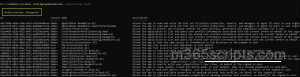
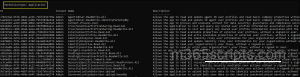
This command lists all Microsoft Graph scope related to users, grouping them by PermissionType: Delegated and Application. Each entry provides details, such as ID, consent type, scope name, and description, helping you understand what each permission allows and whether it requires a signed-in user or not.
If you want to find permissions related to groups or sites, simply replace “User” in the -SearchString parameter with “Group” or “Sites”. For example:
Find-MgGraphPermission –SearchString “Group”
Find-MgGraphPermission –SearchString “Sites”
2. Filter Microsoft Graph Permissions by Type
When you want to clearly understand what your app or script can do. For example, whether it requires a signed-in user (delegated permissions) or can run independently (application permissions), breaking down permissions by type is the key.
This distinction helps you grant only the permissions needed for a task, such as reading user data without unnecessary admin consent. It also ensures updates are performed safely with the appropriate permissions.
Use the following cmdlet to do this:
|
1 |
Find-MgGraphPermission -SearchString "User" -PermissionType Application | Select-Object Name |
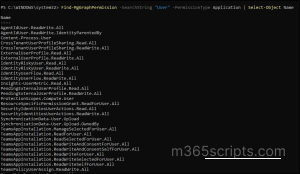
This command lists all application-only Microsoft Graph permissions related to users, helping you identify the exact scopes your script or app needs.
3. Find Required Microsoft Graph Scope for a Single Cmdlet
When you want to know exactly what permissions a specific Microsoft Graph cmdlet requires, Find-MgGraphCommand is the most direct approach. This helps ensure your script has the right scopes without over-granting permissions.
|
1 |
Find-MgGraphCommand -Command Update-MgGroup |

This command returns the permissions required to run Update-MgGroup, so you know which scope to request before executing the cmdlet.
⚠️Note: You need to choose the least-privilege permission from the list to minimize access risks.
4. Find Required Microsoft Graph Scope for Multiple Cmdlets
When your script uses multiple Microsoft Graph cmdlets, it’s important to identify all the permissions required for the script to run successfully. This prevents unexpected failures due to missing scopes. Run the below cmdlet to see all the required permissions:
|
1 2 3 4 |
$cmdlets = 'Get-MgDevice', 'New-MgApplication' $cmdlets | ForEach-Object { Find-MgGraphCommand $_ } | Select-Object Command, Permissions |

This command lists each cmdlet along with its required permissions, giving you a complete view of the scopes needed for all the commands in your script. You can then request only those specific permissions, keeping your tenant secure and following the principle of least privilege.
5. Check Required Permissions for a Specific Microsoft Graph API Version
Some Microsoft Graph properties and parameters are available only in certain API endpoints (v1.0 vs beta). Attempting to access beta-only properties using v1.0 may result in missing data or errors. Use the following cmdlet to list all required permissions for a specific API version:
|
1 |
(Find-MgGraphCommand -Command Get-MgSite -ApiVersion v1.0).Permissions | fl * |
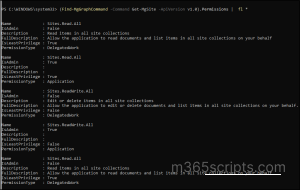
The command provides detailed information about each permission for the selected API version, including delegated vs application permissions, whether it qualifies as a least-privilege scope, and a description of what the permission will do.
By specifying the API version, you can compare permissions between the v1.0 and beta endpoints, helping ensure that your scripts use the appropriate scopes and avoid unnecessary high-privilege access.
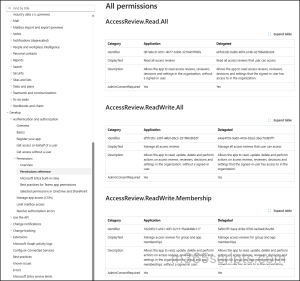
Microsoft’s official graph permissions documentation is the authoritative source for understanding Microsoft Graph permissions and scopes. It provides comprehensive, up-to-date details about what each permission allows and how it should be used.
- Browse permissions by resource type: Explore available permissions for Users, Groups, Mail, Calendar, Applications, and more.
- Understand permission capabilities: Know exactly what each permission allows and what it does not allow.
- Identify required permissions for API operations: See which Graph API operations need specific permissions.
- Check admin consent requirements: Determine which permissions need administrator approval.
- Access permission IDs: Use IDs for app registrations, consent workflows, and troubleshooting permission issues.
You can also use Merill’s Microsoft Graph Permissions Explorer, a community-maintained website that makes exploring permissions easier and more visual. It allows you to quickly search, filter, and compare delegated and application permissions, see related API endpoints, and understand consent requirements at a glance.
This tool is especially helpful during design and troubleshooting when you want a faster, more interactive way to explore permissions alongside the official Microsoft documentation.

Microsoft Graph Explorer is an interactive web-based tool that lets you test Graph API calls and discover required permissions without writing any code.
Access Graph Explorer: Go to https://developer.microsoft.com/en-us/graph/graph-explorer
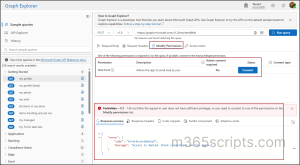
Scenario: You want to send an email but don’t know which permission you need
- In Graph Explorer, select: POST https://graph.microsoft.com/v1.0/me/sendMail.
- Click “Run query”.
- You will see the error as “Either the signed-in user does not have sufficient privileges, or you need to consent to one of the permissions on the Modify permissions tab”.
- Click “Modify permissions” tab and consent to Mail.Send.
- Try running the query again; it works now.
Now that you know how to connect to Microsoft Graph using the right scopes, you can authorize your script or app with only the permissions it needs. This ensures your tenant stays secure while allowing your script to function properly.
|
1 |
Connect-MgGraph -Scopes $perms |
The above command establishes a connection to Microsoft Graph with only the permissions defined in $perms. Your session now has limited access to perform only the tasks for which these scopes are needed.
When you want to verify which permissions are active in your current Graph session, run the below cmdlet:
|
1 |
Get-MgContext | Select-Object -ExpandProperty Scopes |
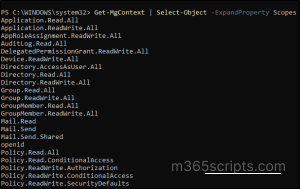
This returns a list of all permissions (scopes) currently granted in your active Graph session.
When working with Microsoft Graph API permissions, following best practices ensures security, compliance, and smoother app behavior:
- Use the minimum scope required: Only request permissions that your application truly needs. This reduces risk and simplifies consent for users and admins.
- Avoid using “.All” scopes unless necessary: Permissions ending with “.All” provide access across the entire tenant. Only use these when tenant-wide access is necessary.
- Prefer Read over ReadWrite scope: If your app only needs to view data, use read-only permissions. Granting write access unnecessarily increases risk.
- Test with least privilege first: Start with minimal permissions during development and testing. Only escalate to higher privileges if your app cannot function without them.
Following these practices helps maintain security hygiene, minimizes friction during consent, and aligns with Microsoft’s recommended approach for app permissions.
We hope this blog has given you a clear understanding of how to use the right scopes in Microsoft Graph. Thank you for reading! For more questions, feel free to reach out to us through the comments section.