How to Find and Unpublish Internet Calendars in Microsoft 365
Identify Outlook calendars that are published to the internet and accessible publicly. Use PowerShell to check their publishing status and permissions. By revoking published links, you can mitigate the risks of unauthorized access, phishing, and exposure of sensitive events.
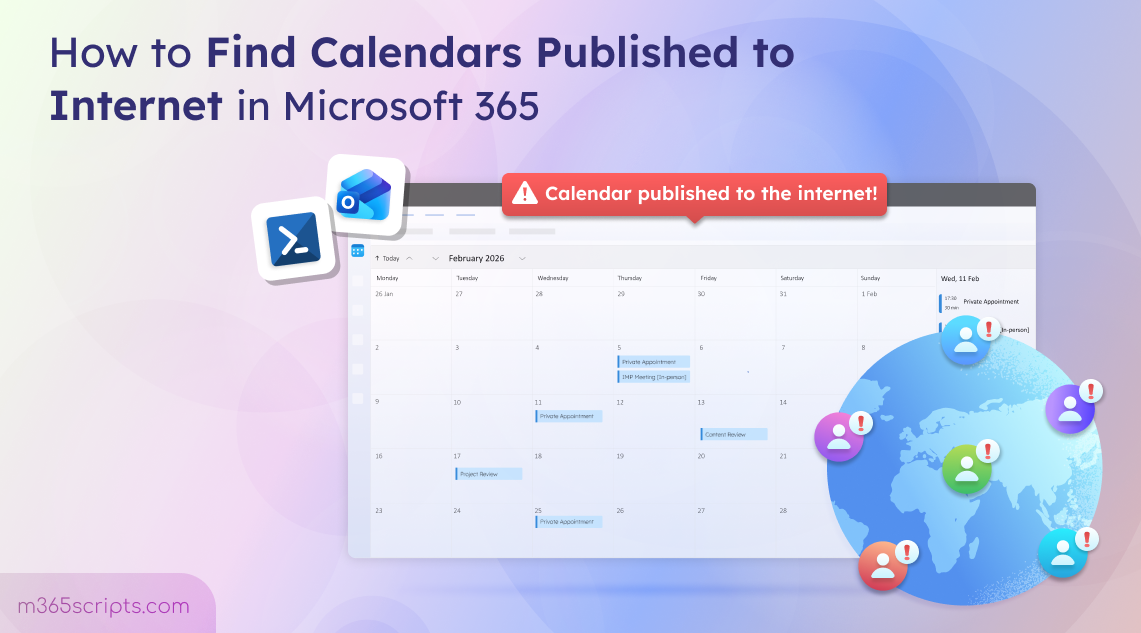
Microsoft 365 calendars are central to daily business operations—driving meetings, availability, and collaboration across Teams. Yet beyond efficiency, they carry a hidden security dimension: features like publishing a calendar to the internet can make calendar data publicly accessible, sometimes without oversight. What begins as a convenience for sharing availability can inadvertently expose sensitive details, schedules, or organizational patterns to unintended audiences. Because of this, it’s essential to actively track and unpublish internet calendars which are accessible anonymously in the Outlook.
So, how do you identify such calendars published to the internet? And more importantly, how do you unpublish internet calendars to reduce unnecessary exposure? Let’s explore.
Microsoft 365 offers two primary ways to extend calendar access:
Both methods allow others to access a calendar, but they differ significantly in terms of control, visibility, and security impact. For a quick and clear comparison, check the difference table below.
With the calendar sharing option in Outlook, you can share your calendar with specific people, inside or outside your organization, by choosing what they are allowed to view or manage.
Depending on the calendar permission level assigned, recipients can:
- View free/busy availability
- View meeting details (subject, location, time, organizer, etc.)
- Edit calendar events
- Create or delete appointments
- Act as a delegate to manage the calendar on behalf of the owner
Calendar sharing operates on explicit permissions. Access is granted only to identified users, and it can be modified or revoked at any time. In short, sharing is controlled and identity based.
Unlike sharing, publishing an Outlook calendar online makes the calendar accessible to anyone on the internet through a public link without log-on.
When a calendar is published:
- It is accessible via an HTML link (browser view) or an iCalendar (.ics) link.
- Anyone with the link can view or subscribe to it.
- The calendar refreshes automatically (every 20 minutes).
- Access remains active until manually revoked.
Publishing does not rely on individual user permissions. Instead, it creates a publicly accessible endpoint that can be shared unknown.
This feature is often used by civic groups, sports clubs, training centers, or community organizations that need a simple way to distribute event schedules. Instead of maintaining email distribution lists or sending repeated invites, you can publish your calendar from OWA and share a single link.
However, from a security perspective, publishing turns a private calendar into a publicly reachable feed that updates in real time. It leads to potentially exposing sensitive meeting details and organizational patterns beyond intended audiences.
Although publishing calendars to the internet is generally not recommended due to the potential security risks involved, it may offer limited practical use cases in certain scenarios. For example, organizations might use it to share team availability, shift schedules, training programs, without granting direct mailbox access. Even in these cases, publishing exposes calendar data publicly, which makes it a poor practice for sensitive information.
Note: Calendar publishing is available only if external calendar sharing is enabled at the tenant level in the Microsoft 365 admin center. The ability to generate publishing links and calendar exposing details depends on the external sharing policy settings. You can enable this configuration by following the steps outlined in this section below.
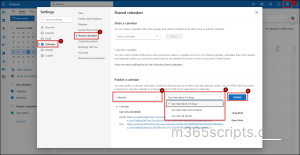
- Go to Settings in Outlook on the web.
- Navigate to Calendar → Shared calendars.
- Under Publish a calendar, choose the calendar you want to publish.
- Select the level of detail you want others to see.
- Can view when I’m busy: Shows only free/busy status without revealing meeting titles, locations, or details.
- Can view titles and locations: Displays the meeting subject and location, but hides descriptions, attendees, and other sensitive details.
- Can view all details: Provides full visibility into the calendar, including subject, location, description, and other event information.
- Click Publish. You’ll see two link options:
- HTML link: Use this if you simply want others to view your calendar in a browser.
- ICS link: Use this if you want others to subscribe to your calendar. When someone subscribes using the ICS link, any changes you make will be reflected automatically. You can also unpublish internet calendars or reset links when required.
Note: When publishing a calendar using the Outlook web interface, users can only generate an anonymous sharing link for the entire calendar. The UI does not provide an option to limit publishing to a specific date range. If time-based publishing or more granular control is required, PowerShell must be used (refer to the PowerShell section below).
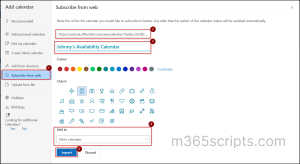
Users can subscribe to a calendar published on the internet using the ICS link. Subscribing through ICS adds the calendar directly into their Outlook and keeps it automatically synced with updates from the source calendar.
To subscribe in Outlook on the web: navigate to Calendar, select Add calendar, choose Subscribe from web. Now, paste the published ICS link, name the calendar, and click Import.
While convenient, publishing a calendar makes it accessible to anyone who has the link, meaning visibility is no longer restricted to your organization. After anonymous publishing, anyone with the link can access the calendar, and the owner has no control over how widely the link is shared. Key risks include:
- Exposure of operational patterns: External viewers may analyse recurring meetings, workload trends, leadership routines, or project milestones to understand how the organization functions.
- No strong authentication: Published calendar URLs rely on unguessable tokens and don’t require sign-in or MFA. If the link is shared or leaked, attackers can access the calendar, causing data theft or account hijacking.
- Increased phishing or social engineering opportunities: Attackers can exploit exposed calendar details to send highly convincing targeted phishing messages that reference real meetings or projects. With the rise of calendar invite attacks, .ics files can contain clickable URLs in fields like description or location. If a published calendar contains malicious links, users who access or subscribe to it could be tricked into clicking them.
- Targeted attacks against executives or VIP users: Knowledge of high-level meetings or leadership schedules can be leveraged for impersonation or business email compromise (BEC) attempts.
- Exploitation of absence patterns: Visibility into vacations or out-of-office periods can allow attackers to time phishing campaigns, impersonate employees, or submit fraudulent payment requests when key approvers or finance staff are unavailable.
- Misuse of embedded meeting details: Exposed Zoom links, Teams meeting URLs, or passwords could allow unauthorized access to live meetings.
Internet-published calendars can expose organizational information without centralized visibility. Since publishing is configured at the mailbox level in Outlook and not controlled in the EAC, admins have no default report to track which calendars are publicly accessible. So, PowerShell is the only way to audit those activities. Proactive auditing is therefore necessary to detect and prevent this exposure.
Let’s explore multiple use cases to identify internet calendar publishing using PowerShell.
- Check specific user calendar publishing status and permission
- Run a bulk audit of calendar publishing status
- Identify mailboxes with published calendars tenant level
To quickly verify if a mailbox has its calendar published and see the calendar permission level, connect to Exchange Online PowerShell and replace ‘[email protected]’ with the actual mailbox identity before executing.
For organizations using different language versions of Outlook, the default calendar folder may appear as “Kalendar” or another localized name. Adjust the cmdlet below accordingly to check the correct folder for each user:
|
1 2 |
Get-MailboxCalendarFolder -Identity [email protected]:\Calendar | Select-Object Identity, PublishEnabled, DetailLevel |
This cmdlet returns ‘True’ if the user has published their calendar, or ‘False’ if they haven’t published. DetailLevel shows what information is shared anonymously.
Checking calendar publishing status for each mailbox individually can be time-consuming, but it is useful when investigating specific high-risk accounts, such as C-suite executives, service accounts, or users who frequently share calendars externally.
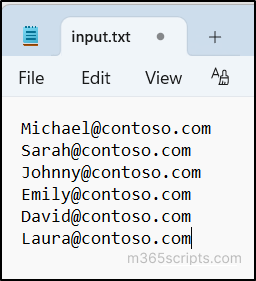
For such assessments, it is more efficient to import a list of the specific mailboxes and audit them in bulk instead of checking each one manually This approach is especially helpful during compliance reviews or organization-wide security assessments. Create an input text file with the list of user principal names and replace the InputFile parameter path before running the script.
Sample input file:
|
1 2 3 4 5 6 7 8 9 10 11 12 13 |
$InputFile = "<C:\Users\input.txt>" $OutputFile = "CalendarPublishingEnabled.csv" $Users = Get-Content $InputFile $Results = foreach ($User in $Users) { $Calendar = Get-MailboxCalendarFolder -Identity "$User`:\Calendar" [PSCustomObject]@{ Identity = $User PublishEnabled = $Calendar.PublishEnabled PermissionDetail = if ($Calendar.PublishEnabled -eq $true) { $Calendar.DetailLevel } else { "Not Published" } PublishedCalendarUrl = if ($Calendar.PublishEnabled -eq $true) { $Calendar.PublishedCalendarUrl } else { "N/A" } } } $Results | Export-Csv -Path $OutputFile -NoTypeInformation |
To identify all mailboxes with internet calendar publishing enabled, run the following script in Exchange Online PowerShell. The script scans every mailbox in your Microsoft 365 environment and exports a consolidated report of all calendars published to the internet. It shows the mailboxes along with their assigned permission levels and accessible links.
Tip: The current filter focus only on user mailbox, if you want to target any other specific mailbox type, then you can modify RecipientTypeDetails accordingly.
|
1 2 3 4 5 6 7 8 9 10 11 12 13 14 15 16 17 18 19 20 21 |
$OutputFile="AllPublishedCalendarsReport.csv" $Mailboxes = Get-Mailbox -RecipientTypeDetails UserMailbox -ResultSize Unlimited $Results = $Mailboxes | ForEach-Object { $Calendar = Get-MailboxCalendarFolder -Identity "$($_.PrimarySmtpAddress):\Calendar" -ErrorAction SilentlyContinue -ErrorVariable err if ($null -ne $Calendar -and $Calendar.PublishEnabled -eq $true) { [PSCustomObject]@{ Identity = $_.PrimarySmtpAddress PublishEnabled = $Calendar.PublishEnabled PermissionDetail = $Calendar.DetailLevel PublishedCalendarUrl= $Calendar.PublishedCalendarUrl } } elseif ($err) { Write-Warning "Failed to process mailbox $($_.PrimarySmtpAddress): $($err[0].Exception.Message)" } } if ($Results -and $Results.Count -gt 0) { $Results | Export-Csv -Path $OutputFile –NoTypeInformation } else { Write-Output "No calendars are published for any mailbox in the tenant." } |
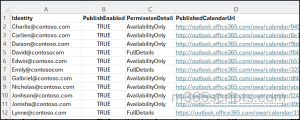
If calendars have been published anonymously, they can unintentionally expose sensitive organizational information. Acting quickly to revoke access is crucial to protect employee schedules and prevent potential phishing or social engineering attacks.
Admins have full control over calendar publishing; they can disable it for individual users or enforce tenant-wide restrictions. Whether you want to turn off publishing for specific high-risk accounts or clean up all published calendars across the organization in bulk, the methods below provide clear, actionable steps to regain control and secure your environment.
- Disable published calendars for specific users
- Unpublish internet calendars for all users
- Disable calendar publishing tenant level
When you need to immediately disable calendar publishing for an individual mailbox, replace ‘[email protected]’ with the target user’s UPN, and then run the cmdlet below.
|
1 |
Set-MailboxCalendarFolder -Identity "[email protected]:\Calendar" -PublishEnabled $false |
If manually exporting reports and disabling published calendars feels overwhelming, this approach simplifies the process. The script below automatically detects all published calendars in your Microsoft 365 environment and unpublish internet calendars immediately. It is ideal for tenant-wide security remediation, incident response, or compliance cleanup initiatives. By combining detection and remediation into a single operation, you can identify exposed calendars and secure them instantly.
You can modify RecipientTypeDetails attribute to explicitly mention which mailbox type you want to unpublish internet calendars. It exports a status report in CSV format listing the mailboxes where publishing was disabled.
|
1 2 3 4 5 6 7 8 9 10 11 12 13 14 15 16 17 18 19 20 21 22 23 |
$OutputFile = "DisablePublishedCalendar.csv" $Mailboxes = Get-Mailbox -RecipientTypeDetails UserMailbox -ResultSize Unlimited $Results = foreach ($mbx in $Mailboxes) { $cal = Get-MailboxCalendarFolder -Identity "$($mbx.PrimarySmtpAddress):\Calendar" -ErrorAction SilentlyContinue -ErrorVariable err if ($null -ne $cal -and $cal.PublishEnabled -eq $true) { Set-MailboxCalendarFolder -Identity "$($mbx.PrimarySmtpAddress):\Calendar" -PublishEnabled $false -ErrorAction SilentlyContinue [PSCustomObject]@{ Identity = $mbx.PrimarySmtpAddress PreviousPublishState = "Enabled" ActionTaken = "Publishing Disabled" PermissionDetail = $cal.DetailLevel PublishedCalendarUrl = $cal.PublishedCalendarUrl } } elseif ($err) { Write-Warning "Failed to process mailbox $($mbx.PrimarySmtpAddress): $($err[0].Exception.Message)" } } if ($Results -and $Results.Count -gt 0) { $Results | Export-Csv -Path $OutputFile –NoTypeInformation } else { Write-Output "No calendars are published for any mailbox in the tenant." } |
If public calendar publishing is not required in your environment, consider disabling it organization-wide to eliminate the risk of unintended external exposure.
Important: This change also prevents all external calendar sharing. Users will no longer be able to share their calendars with external users. Previously published calendars remained accessible until they are individually unpublished or removed.
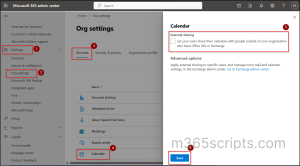
- Sign in to the Microsoft 365 Admin Center.
- Navigate to Settings → Org settings.
- Under Services tab, select Calendar.
- In External sharing panel, uncheck: “Let your users share their calendars with people outside of your organization who have Office 365 or Exchange”
- Click Save to apply the changes.
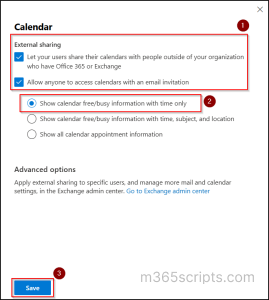
Even if publishing or external sharing is required for collaboration, you can control how much information is exposed. By modifying the default sharing policy, only availability (Free/Busy) information is visible externally, meeting subjects, locations, and full details remains private.
This approach does not disable calendar publishing or sharing entirely but ensures that if a calendar is published or shared externally, sensitive details aren’t exposed. By combining tenant-level restrictions with default sharing policies, admins can maintain both collaboration and security.
- Sign in to the Microsoft 365 Admin Center.
- Navigate to Settings → Org settings.
- Under Services tab, select Calendar.
- In the external sharing panel, enable both “Let your users share their calendars with people outside of your organization who have Office 365 or Exchange” and “Allow Anyone to access calendars with an email invitation”, and check: “Show calendar free/busy information with time only”.
- Click Save to apply the changes.
Instead of disabling publishing entirely, admins can define a controlled, rolling visibility window. Time-based publishing enables you to control how much past and future calendar events remains visible. This control is not available in the Outlook UI, and end users cannot configure it themselves. Only admins can enforce this setting using PowerShell. When you modify the publishing date range, Exchange automatically unpublishes events outside the newly defined window. This is particularly useful when:
- Overshared historical meetings are identified.
- Sensitive past events need to be withdrawn from public view.
- Leadership calendars require controlled external visibility.
Let’s see how to restrict published calendars using a time-limited window.
When a user’s calendar is published externally, administrators may not always need to disable publishing entirely. In some cases, the goal is to limit exposure by removing previously published events while keeping current or future publishing active.
This time-based approach adjusts the published date range to exclude past meetings and scheduling details. It provides a controlled way to restrict access while maintaining necessary publishing settings.
Begin by auditing the current publishing configuration across all user mailboxes:
|
1 2 3 4 5 |
Get-Mailbox -RecipientTypeDetails UserMailbox -ResultSize Unlimited | ForEach-Object { Get-MailboxCalendarFolder -Identity "$($_.UserPrincipalName):\Calendar" } | Select Identity, PublishEnabled, PublishDateRangeFrom, PublishDateRangeTo |
This confirms whether publishing is enabled, how far back events are visible, and how far into the future events are exposed.

After verifying the publishing time range for a specific user, you can limit exposure by defining a rolling window for their calendar events using the below params.
- -PublishDateRangeFrom – Specifies how far back in the past calendar events remain visible. Events older than this range are automatically unpublished.
- -PublishDateRangeTo – Specifies how far into the future calendar events remain visible. Events beyond this range are automatically unpublished.
- Supported values: OneDay, ThreeDays, OneWeek, OneMonth, ThreeMonths, SixMonths, OneYear.
For example, if you want to limit a user’s calendar to show only one month of past events and three months into the future, run the below cmdlet.
|
1 |
Set-MailboxCalendarFolder -Identity "[email protected]:\Calendar" -PublishDateRangeFrom OneMonth -PublishDateRangeTo ThreeMonths -PublishEnabled $true |
This configuration ensures that only events within the defined rolling window remain visible, automatically unpublish internet calendars outside that range, prevents long-term historical and forward schedule exposure.
In scenarios where multiple users have published their calendars, admins can enforce standard time-based publishing controls across the entire organization. This approach ensures consistent exposure limits without disabling collaboration features.
In this example, if you need the published view is limited to one month in the past and three months into the future, run the below script. Older meetings beyond one month are automatically removed from public visibility, while active publishing continues for relevant time periods.
|
1 2 3 4 5 6 |
$Mailboxes = Get-Mailbox -ResultSize Unlimited foreach ($Mailbox in $Mailboxes) { $Calendar = Get-MailboxCalendarFolder -Identity "$($Mailbox.UserPrincipalName):\Calendar" -ErrorAction SilentlyContinue if ($Calendar -and $Calendar.PublishEnabled -eq $true) { Set-MailboxCalendarFolder -Identity "$($Mailbox.UserPrincipalName):\Calendar" -PublishDateRangeFrom OneMonth -PublishDateRangeTo ThreeMonths } } |
This ensures that only events within the defined time window remain accessible via internet-published calendar links.
Imagine a scenario where sensitive meeting details are visible to anyone online, that’s the risk when published calendars are misunderstood! While both sharing and publishing make calendar data available outside a mailbox, they serve fundamentally different purposes. Misapplying controls or confusing the two can leave your organization exposed to data leaks, privacy violations, and even targeted attacks.
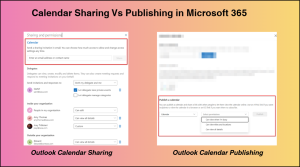
The table below highlights the key differences between calendar sharing and internet calendar publishing, so you know exactly what is at stake.
| Feature | Calendar Sharing | Internet Calendar Publishing |
| Purpose | Share calendar with specific people or teams. (internal/external) | Publish calendar to the public internet. |
| How it’s Shared | Via sharing invitation (direct permission). | Via a public HTML/ICS link. |
| Access Type
|
Permission-based access. You define what others can do. | View-only access. No editing or modification allowed.
|
| Permission Levels
|
Can be free/busy, limited details, full details, editor, delegate, behalf.
|
Only view levels (free/busy, full details or limited details).
|
| Subscription Behaviour | Updates depend on mailbox permissions and client synchronization. | ICS subscribers receive periodic automatic updates. |
| External Restrictions | Able to restrict sharing to specific external domain. | Cannot be restricted to specific domains. Anyone with the link can access it. |
| Example | Share your calendar with a partner user so they can view full details or manage meetings on your behalf. | Publish a company events calendar so non-EUI users can view events on a public webpage. |
Limit published detail to free/busy only – When publishing is necessary, restrict the detail level to show only free/busy availability. Avoid exposing subject lines, locations, or meeting descriptions.
Disable external publishing – Disable the ability to share calendars anonymously if it is not required. This prevents users from creating new public HTML or ICS links and reduces future exposure risk.
Unpublish internet calendars when no longer needed – Periodically audit all published calendars to identify outdated or unnecessary links. Remove calendars that no longer need to be visible publicly. This stops external subscribers from receiving future updates and prevents unintended access.
Educate users on risks – Make sure users understand that published links are public and cannot be restricted to specific domains. Encourage careful considerations before publishing.
Prefer sharing policies for controlled access – If you need to restrict access to specific domains, users, or permission levels, use sharing a calendar instead of publishing. Sharing allows users to directly manage calendar permissions, while publishing provides broad, link-based visibility.
Use calendar snapshots for one-time sharing – When you only need to share a static view of a calendar, send a one-time calendar snapshot via email instead of publishing. This prevents continuous external exposure.
That’s it! I hope this blog helps you identify and disable internet-published calendars in your organization. By following above best practices, you can reduce unnecessary exposure and maintain control over calendar data. If you have any questions or doubts, feel free to ask in the comments below!