Get Rule-Based Alerts for In-Progress Microsoft Teams Meeting Quality Issues
Meeting quality problems can happen without warning, leaving users frustrated and admins reacting only after complaints arise. Rule-based alerts for in-progress meetings proactively notify admins when the meeting quality metrics of selected users exceed configured thresholds. This enables faster troubleshooting and a better meeting experience.
Microsoft Teams meetings don’t always go smoothly. Call drops, poor audio/video quality, and network issues can impact the meeting experience in seconds. Traditionally, troubleshooting these issues meant relying on the Call Quality Dashboard or Call Analytics, but that only tells you what went wrong after the meeting has ended. While real-time telemetry dashboard improves this visibility by offering data during ongoing meetings, it focuses on per-user insights and requires you to navigate each account to analyse issues. As a result, detection becomes slower and less efficient.
This is where in-progress meeting quality alerts comes in. Instead of manually looking for issues or waiting for users to report, you can configure alerts to continuously monitor meeting quality and automatically notify you the moment quality drops. In this blog, let’s explore rule-based alerts for in-progress Teams meetings and how they can improve your users’ Microsoft Teams meeting experience.
Proactive monitoring alerts for in-progress meetings are a Microsoft Teams Premium feature that lets you set up alerts for in-progress meeting quality issues for specific users and get notified as soon as those issues occur.
Teams continuously monitors key indicators such as latency, jitter, packet loss, and device-related issues across audio, video, and screen-sharing sessions. If any of these metrics cross predefined thresholds, an alert is generated in real time.
The biggest advantage is that you can act while the meeting is still in progress. Whether it’s a network issue, hardware problem, or poor call quality, you’ll know about it immediately and can begin troubleshooting before the issue disrupts the entire meeting experience.
Rather than spending time manually checking dashboards or investigating problems after the fact, you gain visibility into issues as they happen, helping you reduce user frustration and deliver a more reliable Teams experience.
Rule-based proactive monitoring of meeting quality in Teams Premium follows a simple automated workflow. Here’s how it works:
- First, you define the meeting quality metrics and threshold values that should trigger an alert for audio, video, and screen-sharing sessions. These metrics can include latency, jitter, packet loss, hardware issues, and other quality indicators used to identify meeting quality degradation.
- Then, you assign the rule to specific users. Only meetings involving these users are monitored under the configured conditions.
- Once the rule is activated, Microsoft Teams continuously monitors the quality of specified users’ in-progress meetings. It evaluates telemetry such as network performance, device health, and media quality signals during the session.
- If any configured metrics exceed the defined threshold within the monitoring period, Teams identifies it as a quality issue. Based on the rule configuration, Teams then triggers an alert.
- These alerts are sent through Microsoft Teams channels or webhook address, allowing you to receive notifications while the meeting is still in progress. This enables you to investigate and respond immediately instead of waiting for user complaints.
Now that you understand how rule-based Teams monitoring alerts work, let’s set up alerts for in-progress Teams meeting quality issues.
To configure in-progress Microsoft Teams meeting quality alerts, the following prerequisites must be in place:
- Role requirement: You must have either the Teams Administrator or Global Administrator role to configure rule-based alerts for in-progress meetings in the Teams admin center.
- License requirement:
- Admins don’t need any specific license to configure proactive monitoring alert rules in Teams admin center.
- Users included in the monitoring scope must be assigned a Microsoft Teams premium license.
- Teams Rooms devices included in monitoring scope must have either a Microsoft Teams Room Pro or a Microsoft Teams Premium license.
Once the requirements are met, you can follow the steps below to set up custom alerts for users’ meeting quality issues in Teams.
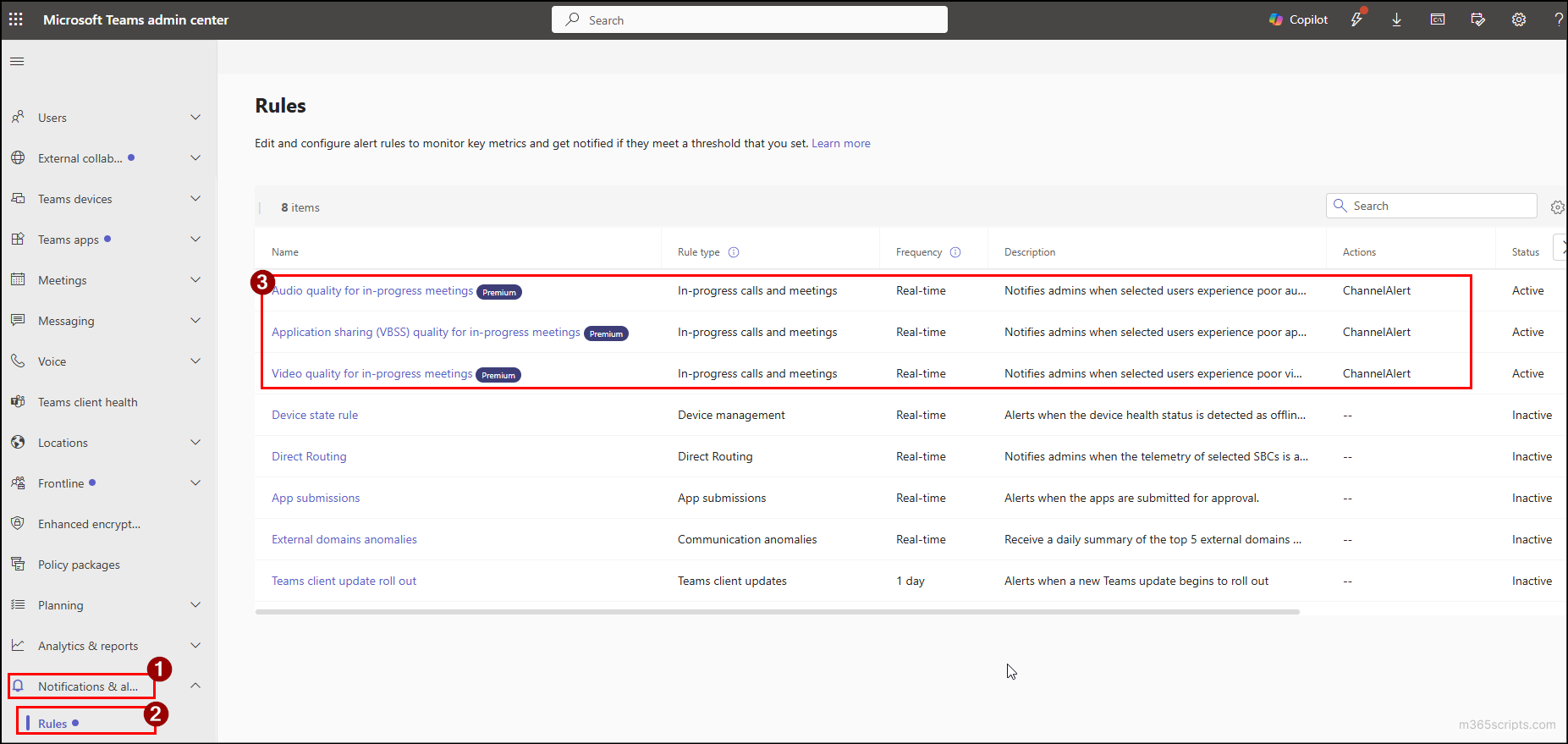
- Sign in to the Microsoft Teams admin center.
- Navigate to Notifications & alerts → Rules.
- Select any of the following meeting quality alert rules and configure the required metrics and threshold values in each section as needed.
- Audio quality for in-progress meetings
- Video quality for in-progress meetings
- Application sharing (VBSS) quality for in-progress meetings
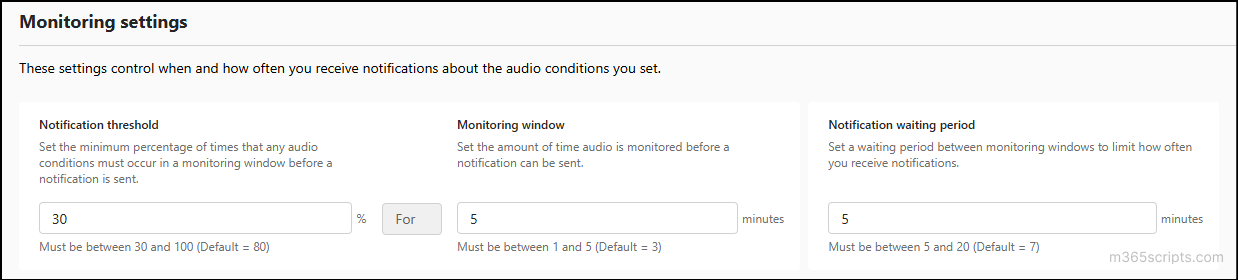
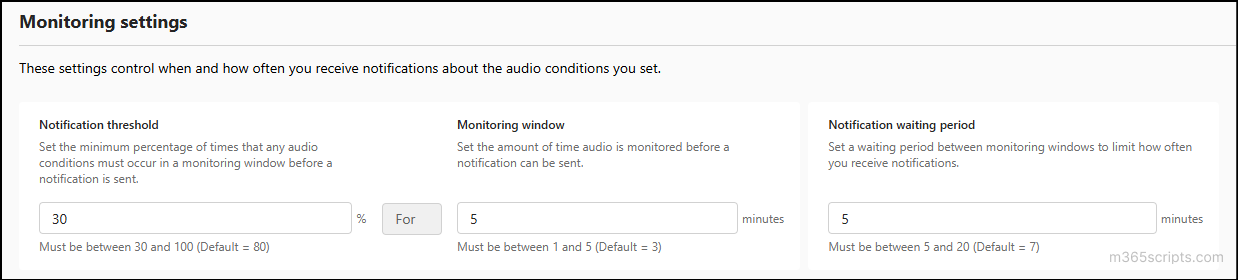
- Under Monitoring settings, configure when alerts should be triggered and how frequently notifications should be sent.
- Notification threshold: Determines how long a quality issue must persist before Teams sends an alert. For example, if you set the threshold to 80%, the issue must occur for at least 80% of the monitoring window before a notification is sent. The default value is 80. You can set the value between 30 and 100.
- Monitoring window: Specifies the time period during which Teams evaluates meeting quality before deciding whether to send an alert. For example, a monitoring window of 3 minutes means Teams analyses meeting quality over 3 minutes and checks whether the configured threshold has been met. Default value is 3 minutes, and you can set a value between 1 and 5 minutes.
- Notification waiting period: Controls how long Teams waits before sending another alert for the same meeting after a notification has already been generated. This helps prevent excessive notifications for ongoing issues. The default value is 7 minutes, but you can set it between 5 and 20 minutes.
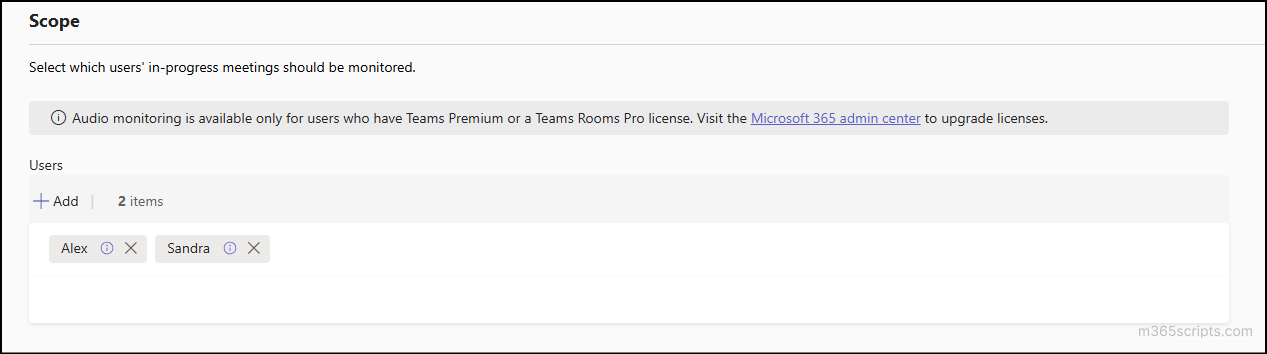
- Next, in the Scope section, add the required users whose meetings you want to monitor.
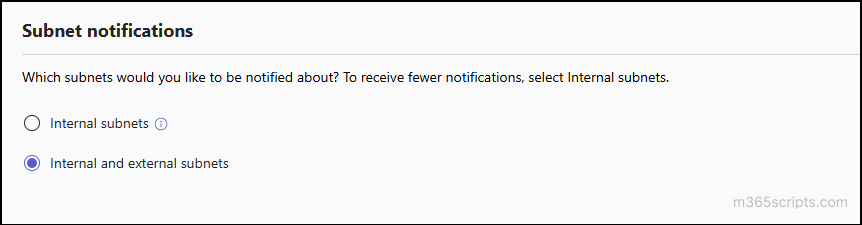
- In Subnet notifications, choose the network locations for which you want to receive meeting quality alerts.
- Internal subnets: Receive alerts only for users connected to network locations other than common external subnets, such as home Wi-Fi, hotels, cafés, and public networks. This option helps reduce the number of notifications and focus on issues within your managed network.
- Internal and external subnets: Receive alerts for users connected from both corporate and external networks, including home, hotel, and public internet connections. This provides broader visibility into meeting quality issues regardless of user location.
- Under Actions, choose where you want to receive meeting quality alerts, either in a Microsoft Teams channel or through a webhook.
- If you choose Microsoft Teams, notifications can be automatically sent to a specific channel or to the default team created for meeting quality alerts. By default, Global Administrators and Teams Administrators are included in the default team.
- Alternatively, you can configure a webhook address to send alerts to external IT service management or monitoring platforms, such as ServiceNow.
- Then, toggle the Status to Active and click Save to enable the alert.
To configure effective rule-based monitoring alerts, it is important to understand the purpose of each metric used in monitoring meeting quality. The following section explains the key monitoring parameters, their recommended threshold values, and the potential issues when values become high or low:
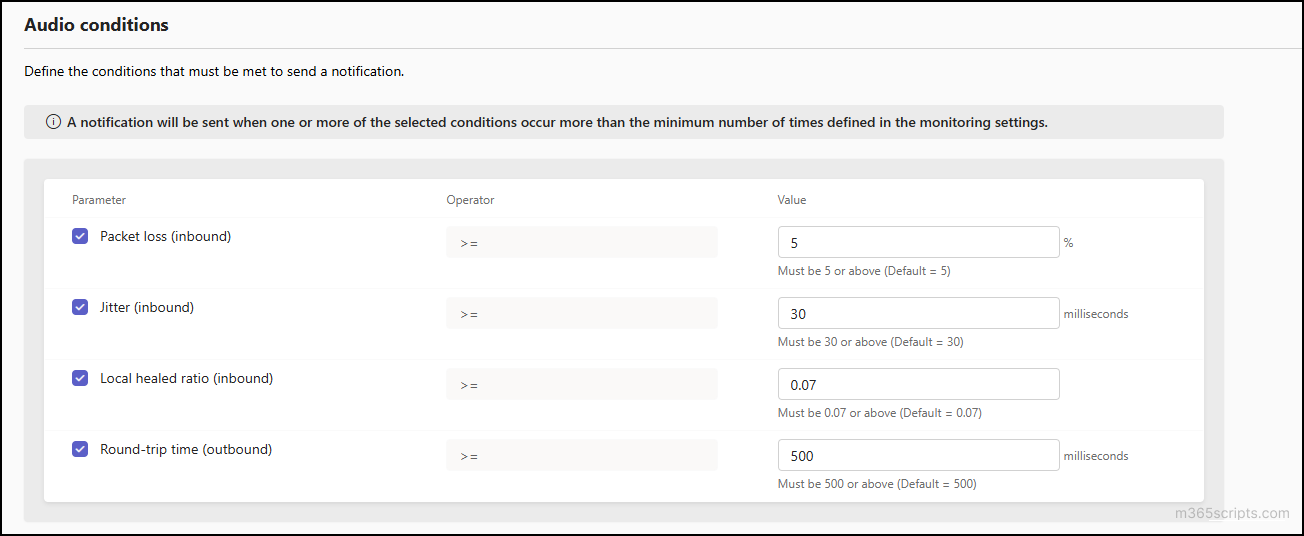
Audio monitoring focuses on call clarity and stability. It helps track issues such as dropped calls, call disconnects, choppy audio, and lag. It evaluates the following parameters:
| Metrics | Purpose | Healthy Range | Issues When Threshold is Exceeded |
| Packet loss (inbound) | Measures the percentage of incoming audio packets that fail to reach the user’s device during a meeting. | < 5% | Choppy or robotic-sounding audio, missed syllables, brief audio dropouts, and reduced speech intelligibility. |
| Jitter (inbound) | Measures the time difference between each incoming audio packet. | < 30 ms | Distorted or robotic audio, unstable voice quality. |
| Local healed ratio (inbound) | Measures how often Teams has to reconstruct missing or delayed audio packets. | < 0.07 | Audio gaps, robotic sound, reduced call stability. |
| Round trip time (outbound) | Measures the time taken for data packets to travel from the sender to the receiver and back again. | < 500 ms | Delay, lag in conversation, audio overlapping, and possible call drops. |
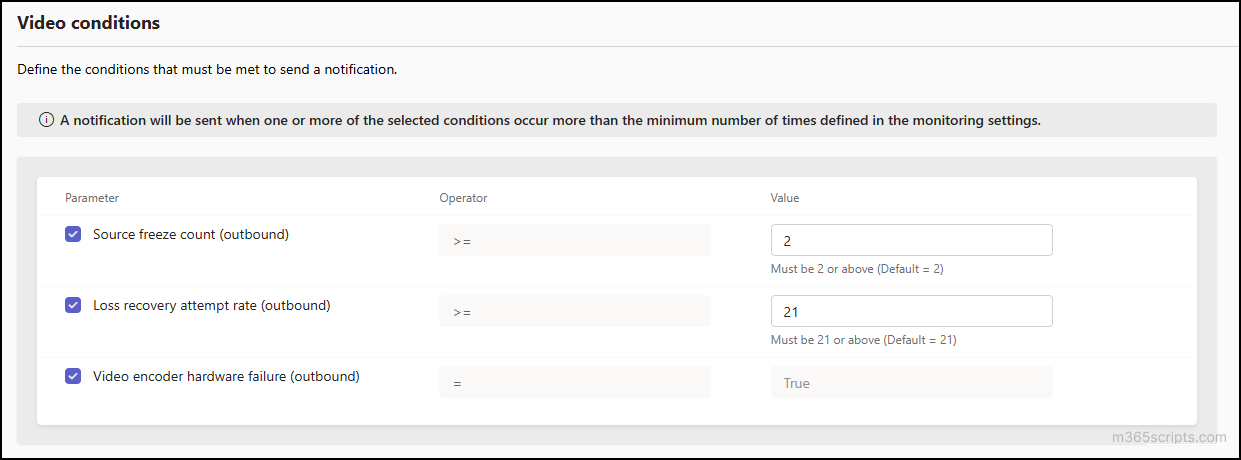
Video monitoring evaluates the overall video experience and helps detect issues such as video freezing, lag, and choppy playback. Use the following parameters to assess video quality:
| Metrics | Purpose | Healthy Range | Issues When Threshold is Exceeded |
| Source freeze count (outbound) | Measures the number of times the camera/video source failed to generate new frames. | < 2 | Frozen, stuttering, or delayed video playback for remote participants. |
| Loss recovery attempt rate (outbound) | Indicates how often Teams tries to recover lost video data due to network issues. | < 21 | Video freezing, choppy playback, and pixelated video. |
| Video encoder hardware failure (outbound) | Detect whether Teams is unable to use the device’s hardware (GPU) for video encoding. | False (no failures) | Poor video quality, choppy video, higher CPU usage, and potential meeting performance degradation. |
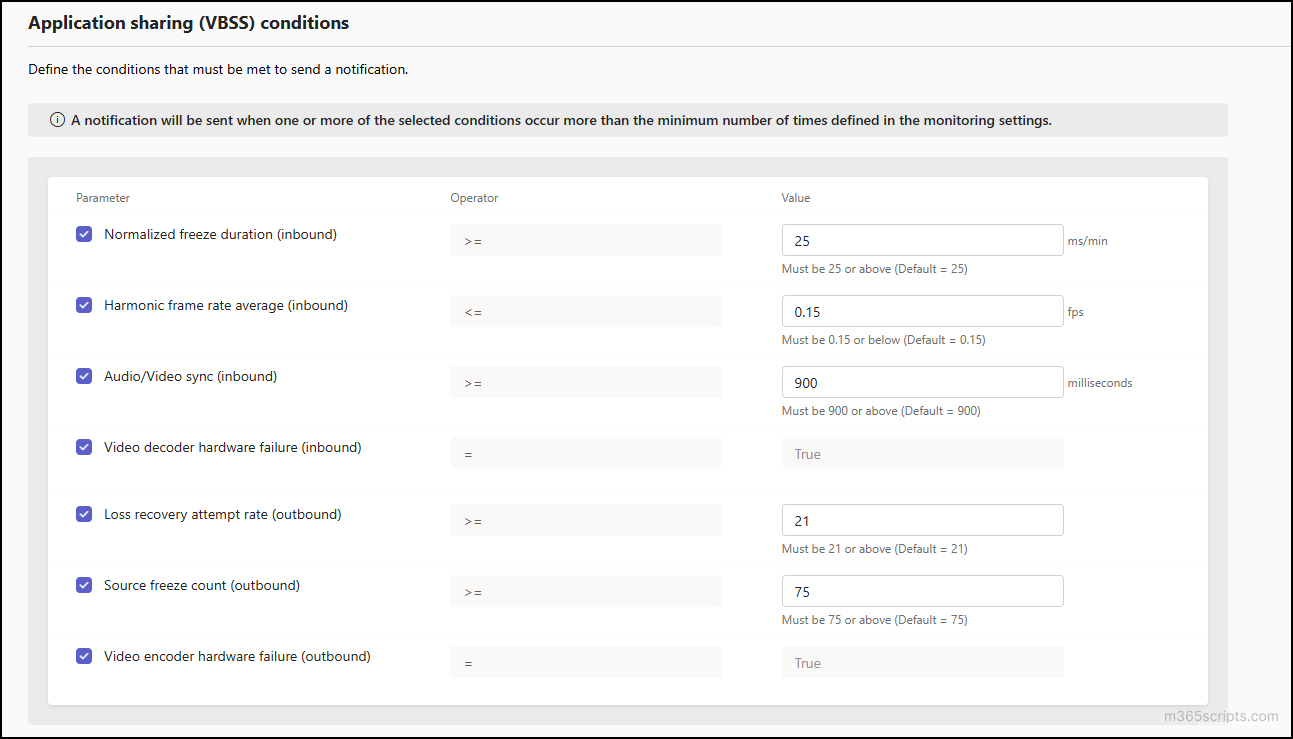
Application sharing monitoring ensures the quality of screen-sharing sessions and helps detect issues like screen-sharing freezing and lag or delay in screen updates. The key parameters include:
| Metrics | Purpose | Healthy Range | Potential Issues |
| Normalized freeze duration (inbound) | Measures how long the shared screen remains frozen on the viewer side. | < 25 ms/min | Frozen video or screen stops updating, making shared content difficult to follow. |
| Harmonic frame rate average (inbound) | Indicates how many video frames are received per second during screensharing. | > 0.15 fps | Choppy screen-sharing, frozen screens, and unclear content. |
| Audio/video sync (inbound) | Ensures that the audio matches the corresponding video or screen movement during a meeting. | < 900 ms | Audio and video visuals become out of sync, and delayed playback, making it confusing to follow conversations or presentations. |
| Video encoder/decoder hardware failure (outbound/inbound) | Detects whether the device is unable to properly encode/decode video due to hardware limitations. | False (no issues) | Poor video quality, choppy video, high CPU usage, and degraded meeting performance. |
| Source freeze count (outbound) | Measures how often the screen-sharing source stops generating new frames. | < 75 | Frozen, stuttering, or delayed screen display for remote participants. |
| Loss Recovery Attempt Rate (outbound) | Indicates how often Teams tries to recover lost screen-sharing data due to network issues. | < 21 | Screen freezing, choppy playback, and pixelated screen. |
Admin Experience: Microsoft Teams Proactive Monitoring Alerts for In-Progress Users’ Meeting Quality Issues
Once rule-based monitoring is enabled, the quality of in-progress meetings for the specified users is continuously monitored. When a meeting quality metric crosses the configured threshold, an alert is automatically sent to the configured destination.
A sample notification generated by rule-based monitoring in a Teams channel is shown below.
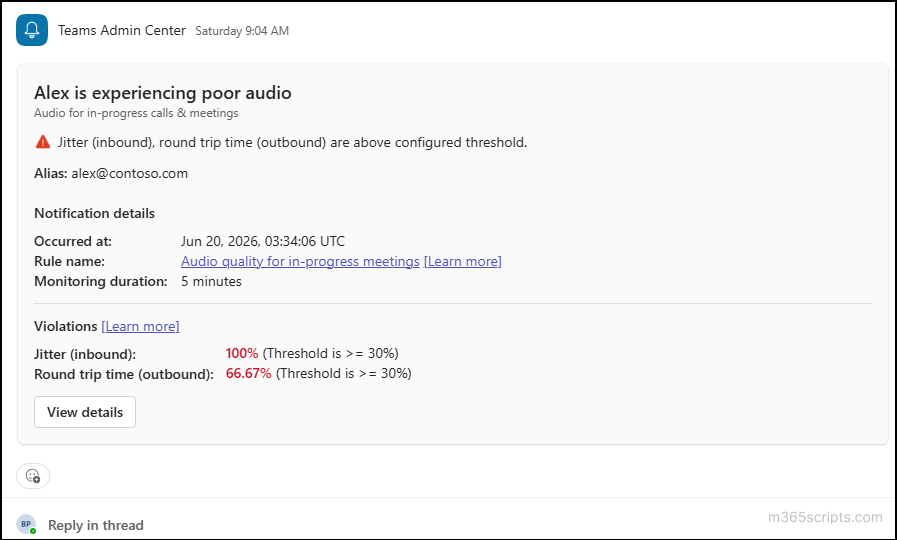
The notification indicates that Alex is experiencing poor audio quality because jitter and round-trip time have exceeded the configured threshold.
Once you receive a notification, you can investigate the issue by following the steps below to identify and resolve the root cause.
- Review the alert details: In the notification you received, click the View details button to open the user’s real-time telemetry dashboard. Here, you can analyze the metrics that triggered the alert and identify the affected area, such as audio, video, or screen-sharing quality.
- Identify the root cause: To get complete insights into the issue, click the See details option in the Issues section of the real-time telemetry dashboard. This provides detailed information to determine whether the issue is related to network conditions or device performance.
- If it appears to be a network issue, check the user’s network stability (Wi-Fi vs wired connection), bandwidth availability, and possible congestion. In addition, verify whether VPN or proxy usage is impacting performance.
- If the issue appears to be device-related, check CPU and GPU usage and ensure that background processes are not overloading the device. In some cases, hardware limitations may also contribute to poor performance.
- Apply corrective actions: Based on the findings, take appropriate actions such as asking the user to reconnect to the meeting, switching to a wired network, disabling video temporarily to stabilize audio, restarting the Teams client, or moving the user to a different network if needed.
- Monitor and escalate if needed: Continue monitoring the telemetry dashboard to confirm whether metrics return within recommended thresholds and whether the alert status stabilizes. If the issue persists, escalate it to the appropriate network or endpoint support team for further investigation.
Prevention is better than cure
. Taking proactive measures helps avoid issues before they occur. The following are some proactive steps to ensure better performance and stability.
- Check network health: A healthy network is critical for a good Microsoft Teams experience. To ensure optimal meeting performance, it is essential to review and prepare your organization’s network for Microsoft Teams. This preparation focusses on key areas such as network requirements, bandwidth planning, QoS implementation, port configuration, and so on.
- Check hardware issues: Verify that hardware components such as the GPU, camera, and network adapter are functioning properly, and ensure their drivers are functioning properly.
- Use proactive monitoring: Use the best practice configuration dashboard in the Teams admin center to monitor Teams media traffic and identify potential problems early. This helps you detect locations with incorrect port configurations, regions with outdated Teams clients, areas where media traffic usage is high, etc. This helps maintain a healthy Microsoft Teams meeting experience.
- Run test Teams meetings: Before proceeding with a real meeting, you can perform a silent test in Microsoft Teams on users’ devices to evaluate call quality. These tests run in the background and help identify potential audio, video, or network issues before users join a real meeting, allowing you to resolve problems proactively.
Closing Lines
That’s it! We hope this blog helped you understand how to set up real-time alerts for users’ in-progress meeting quality issues in Microsoft Teams using rule-based monitoring. Have you tried this feature in your organization? We’d love to hear about your experience. Share your thoughts or questions in the comments section below. Stay tuned for more Microsoft 365 blogs.