How to Create Adaptive Scopes in Microsoft Purview
Create adaptive scopes in Microsoft Purview to dynamically apply compliance and retention policies based on Entra attributes or site properties. Eliminate manual policy updates during user onboarding, offboarding, or department changes. Target users, groups, and SharePoint sites automatically as organizational conditions change for consistent data governance.
Managing compliance policies in Microsoft 365 becomes difficult when they are manually assigned to users, groups, and sites. For example, during user onboarding or offboarding, retention gaps often occur when policies are applied using static selection. As users move between departments or regions, compliance policies need frequent manual updates. This can result in missed updates, uneven retention, security risks, and other issues that make the environment less stable.
Adaptive scopes in Microsoft Purview provide a cleaner approach by using rules that adjust automatically as your organization changes. They remove the need for constant updates and give admins a dependable way to apply policies across users and sites with accuracy. This guide explains how to create and use adaptive scopes in Microsoft Purview to support lifecycle workflow, data governance, and broader information protection.
Before moving forward, it’s important to know what these scopes are and why they are used.
Adaptive scopes are dynamic, query-based targeting mechanisms that define how compliance and retention policies are applied. Using this approach, administrators can ensure policies automatically target the correct users, groups, or sites as conditions change. By relying on attribute and property-based queries instead of static lists, adaptive scopes significantly reduce the need for manual updates.
These scopes rely on queries built from Microsoft Entra attributes or site properties. When applied to a policy, memberships update automatically as attributes change. This keeps policy management simple, consistent, and scalable.
A single policy can use one or multiple adaptive scopes to precisely target the right audience at the right time. This approach is supported by different types of adaptive scopes that allow policies to target users, groups, or sites as needed.
Each adaptive scope type allows policies to be targeted more precisely based on users, collaboration spaces, or content.
- User Adaptive Scope
This scope targets users using Microsoft Entra ID attributes such as department, job title, location, and more. It is ideal when compliance or retention policies need to apply to specific roles or teams.
Example: Apply a retention policy only to users in the Finance department by setting a condition where Department equals Finance. - Site Adaptive Scope
This scope targets SharePoint sites using site properties such as URL patterns, site templates, sensitivity labels, and more. It helps apply policies without manually selecting each site.
Example: Apply a retention policy to all SharePoint sites labeled as confidential. - Group Adaptive Scope
This helps create an adaptive scope based on groups by targeting group properties like description, alias, and more. It is commonly used to apply policies to collaboration tools like Microsoft Teams or group mailboxes.
Example: Apply a Compliance policy to all Microsoft 365 groups created for customer support teams
After understanding the different adaptive scope types, it’s also important to understand how scope targeting can be limited to specific parts of the organization. This is where administrative units come into play in Microsoft Purview.
Adaptive scopes define which users or devices a policy targets, while administrative units define the management boundary within which those scopes can be created and applied.
For example, if an admin is assigned to manage only users in Australia and India, they can create adaptive scopes that evaluate users only within those administrative units. When new users are onboarded in Australia or India, the policies apply automatically. Users outside the administrative units are never evaluated, keeping targeting accurate and eliminating manual updates.
Before moving to the configuration part, it’s important to understand the basic prerequisites required to implement adaptive scopes in Microsoft Purview. Here are some:
- Microsoft 365 E5 licensing is required to configure and use adaptive scopes.
- Create the administrative unit first if your setup requires one, as it must exist before configuring an adaptive scope.
- Any built-in role group in Microsoft Defender that includes the Scope Manager role can create an adaptive scope.
With the prerequisites covered, it’s time to create an adaptive scope in Microsoft Purview.
Consider a scenario where you want users to be automatically included in a scope based on their department and location. In this example, the adaptive scope includes users from the IT department who are located in India.
You can create adaptive scopes in two ways and use them in compliance or retention policies in Microsoft 365.
To create this adaptive scope using Microsoft Purview, follow the steps below.
- Sign in to the Microsoft Purview portal and navigate to Settings >> Roles and scopes >> Adaptive scopes.
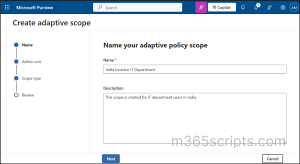
- Select + Create scope on Adaptive scopes page and enter Name, Description in Create adaptive scope page.
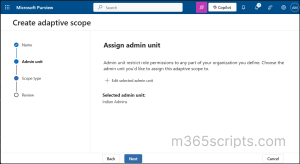
- After, the scope name is validated, select Next, and you will be taken to the Assign admin unit page.
- Choose + Select admin unit to select the administrative unit, or leave it as Full directory, and then select Next to continue.
- Then, select the type of scope you want to create. Based on the selected scope type, the relevant attributes or properties will be available to choose for building dynamic membership on the next page.
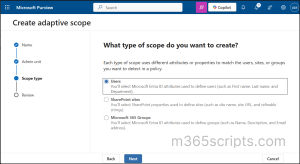
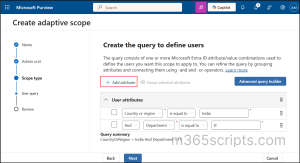
- Use + Add attribute to include additional attributes with any combination as needed to further refine the scope membership.Note: Administrative units are not supported for SharePoint site adaptive scopes.
- In this example, a user-based adaptive scope is created for IT users in the India region. The required attribute values are Department and Country or region, which are set to IT and India respectively.
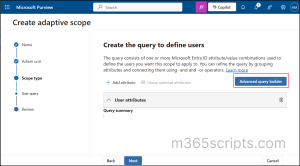
- Alternatively, you can also use Advanced query builder to specify more customized queries.
- Click Next, review the details, and click Submit to save the scope.
Note:
Adaptive scope queries can take up to three days to fully populate, so changes are not immediate. It’s recommended to wait a few days after creating a new adaptive scope before using it in retention or compliance policies.
Now let’s see advanced queries in adaptive scope and validation of queries.
Advanced queries in adaptive scopes use OPath syntax for user and group scopes, and KQL for SharePoint site scopes. These queries allow more flexible conditions using operators like eq, lt, gt, and like.
In the example, the following OPath filtering query is used for a user-based adaptive scope:
|
1 |
(Department -eq "<Dept>") -and (CountryOrRegion -eq "<Country>") |
Replace <Dept> and <Country> with the required department and country values. This sets the Department to IT and the Country or Region to India.
After creating an adaptive scope with advanced query, it is important to validate the query to confirm that it returns the intended users.
The following method is used to validate the advanced query used in the example.
- Open Powershell as administrator and connect to Exchange Online PowerShell module.
Then, run the following cmdlet to validate the advanced OPath query:
|
1 |
Get-User -Filter {(Department -eq "<Dept>") -and (CountryOrRegion -eq "<Country>")} |
- Replace the <Dept> with department value and <Country> with the respective country. It helps to verify that user objects exist that match the specified criteria.
Similarly, you can use the below cmdlets for other attributes or properties.
- Get-User is used to validate directory-level user attributes.
- Get-Mailbox is used to validate mailbox-specific objects.
- Get-Recipient is used to validate all mail-enabled recipients.
As mentioned, you can also use PowerShell cmdlets to create adaptive scopes in Microsoft Purview. This helps to automate configuration and ensure consistency. This is ideal for managing scopes at a scale.
First, connect to Security & Compliance PowerShell module.
Next, to create an adaptive scope limited to an administrative unit, we have to initially retrieve administrative unit ID. Make sure to connect the Microsoft Graph PowerShell module before running the cmdlet.
|
1 |
Get-MgDirectoryAdministrativeUnit | Select DisplayName, Id |
Using the above cmdlet identify the administrative unit and copy its Id (GUID).
Now, use the following cmdlet to create an adaptive scope limited to an Administrative Unit.
|
1 2 3 4 5 6 7 |
New-AdaptiveScope -Name "<ScopeName>" ` -LocationType User ` -AdministrativeUnit "<GUID>" ` -Filter '{"Conjunction":"And","Conditions":[{"Name":"Department","Operator":"Equals","Value":"<Dept>"},{"Name":"CountryOrRegion","Operator":"Equals","Value":"<Country>"}]}' |
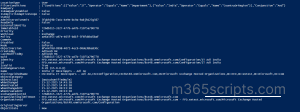
In the above cmdlet replace the <GUID> with the actual GUID of the admin unit and <ScopeName> with the desired scope name. Also replaces <Dept> with actual department and <Country> with country or region. This limits the adaptive scope to the specified administrative unit used in the cmdlet. By running this cmdlet, all users whose Department is IT and whose Country or Region is India are automatically included in the scope.
After creating the scopes, use the below cmdlet to verify the membership details of the scope.
|
1 |
Get-AdaptiveScope -Identity "<ScopeName>" |
This cmdlet helps to view the adaptive scope configuration using PowerShell.
Use the following steps to view the member details of an adaptive scope in Microsoft Purview.
- In Microsoft Purview portal, navigate to Settings >> Roles and scopes >> Adaptive scopes.
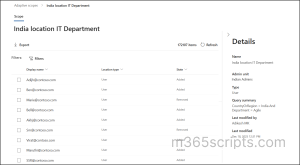
- Select an existing adaptive scope from the list and in the Details flyout pane, choose Scope details.
- Under the Scope tab, the State column shows Added for members currently included and Removed for members that were previously included but no longer match the scope query.
- In the Details flyout pane, the scope details like name, Admin unit of the scope, query summary and more is shown.
- Additionally, you can also export the details using the Export option in csv format.
Note: Up to 5 days may be required for changes in member status (Added or Removed) to be reflected in the adaptive scope member details.
After verifying the scope membership, let’s look at where can we apply adaptive scopes.
After creating the required adaptive scope, it’s important to understand where and how it can be used. Adaptive scopes can be applied when creating a retention policy or a communication compliance policy.
In the example, a new retention policy should be created with the adaptive scope configured for retaining data for 2 years.
For that Open Microsoft purview and navigate to Solution>> Data Lifecycle Management >> Policies >> Retention Policies.
- Create a new retention policy and choose Adaptive for the type of the retention policy to create.
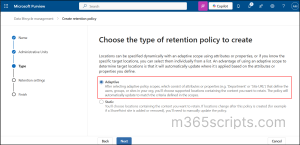
2. Then select the adaptive scopes to be included in the policy using +Add scope.
Note: Any number of adaptive scopes can be included in a policy.
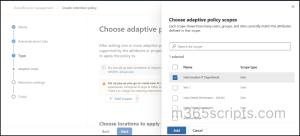
After including the adaptive scopes, choose the locations to apply and create the policy.
Real-time Testing of Adaptive Scope
After the retention policy is created, it’s important to verify the details of the policy. This shows the list of members to whom the policy is applied.
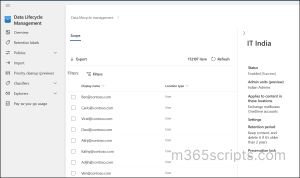
Once the retention policy membership is verified, the benefits of using adaptive scopes become clear.
- Adaptive scopes have no limits on the number of items per policy, reducing the need to create multiple policies.
- Multiple locations like Microsoft Teams and Viva Engage can be included in one policy, eliminating the need for individual policies per location.
- They allow powerful targeting based on attributes such as job title, department, office location, or country/region.
- Query-based scopes remain reliable even when business changes are not reflected in group membership.
- They support Microsoft Entra administrative units for better administrative control.
I hope this guide helps you understand how to create and view adaptive scopes in Microsoft Purview. Feel free to reach out through the comments section if you have any questions or need further assistance.