How to Find Which Retention Policies Are Applied to SharePoint Sites
SharePoint site deletions often fail due to hidden retention or label policies. This blog explains how to discover which policies apply to individual or multiple sites using Purview and PowerShell. It also walks through excluding sites so deletion can proceed without compliance blocks.
Retention policies in Microsoft 365 are the silent guardians of organizational data, deciding what stays, what goes, and for how long. While they quietly manage compliance in the background, their set-it-and-forget-it nature creates a dangerous lack of visibility. When configuring retention policies on SharePoint Online sites, these rules operate at the site level and often remain unnoticed during day-to-day administration. But as sites multiply, that silence quickly becomes a liability.
Without clear insight, administrators are left guessing which policies govern which assets. These blind spots don’t just stall routine site lifecycle tasks, they create compliance gaps that can lead to unintended data retention or unexpected deletion risks. It’s time to eliminate guesswork. This blog shows you how to accurately identify which retention policies are applied to your SharePoint sites and take control of your cleanup and compliance efforts.
Before proceeding with policy discovery, it is important to understand why organizations apply retention policies across SharePoint sites in the first place. Organizations implement retention policies on SharePoint sites for several important reasons:
Compliance requirements: Regulatory frameworks (such as GDPR, HIPAA, or industry-specific mandates) require organizations to retain data for defined periods.
Legal hold and eDiscovery readiness: Retention ensures that business records remain available during investigations, audits, or litigation.
Data lifecycle management: With retention policies in place, content is automatically retained, archived, or deleted at the right time based on age or policy rules. This reduces manual monitoring, saves storage costs, and keeps your SharePoint environment clutter-free.
Data loss prevention: Retention policies act as a safeguard against accidental or intentional deletion of important files by users. By enforcing how long content must be preserved, they prevent premature data loss while ensuring outdated data is eventually cleaned up.
Because of these protections, having retention visibility is a crucial prerequisite for effective site lifecycle management.
Administrators often need to delete SharePoint sites when projects are completed, test sites are no longer required, duplicates are created by mistake, or abandoned sites need cleanup to free storage. While deletion is usually straightforward, it can sometimes fail.
Let’s say you’re attempting to delete a SharePoint site named ProjectOne, but the deletion fails due to a compliance restriction. You may encounter errors such as:
- A compliance policy is currently blocking this site deletion. (or)
- This library contains items that have been modified or deleted but must remain available due to eDiscovery holds. Items cannot be modified or removed.
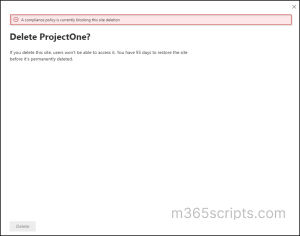
In many cases, the root cause of compliance error is an active retention policy, retention label policy, or auto-labeling policy that prevents deletion. Therefore, before deleting the site ProjectOne, make sure to:
- Check for applied retention policies using policy lookup
- Exclude the site from applicable retention policies
- Delete the site only after policy exclusions are complete
With that foundation in place, the first step is to determine which policies are currently protecting the site.
To edit a retention policy and use the policy lookup tool in the Microsoft Purview compliance portal, the following license and administrative roles are required:
Licensing: Your tenant must have Microsoft 365 E3/E5 plans that include Microsoft Purview Data Lifecycle Management capabilities.
Required Roles: You need to be either a Compliance Administrator or Global Administrator.
Once the pre-requisites are in place, begin by verifying whether any retention or label policies are still enforcing protection on the ProjectOne site.
Skipping this validation step often leads to repeated deletion failures and unnecessary troubleshooting cycles. Now, let’s see how to:
- Get all retention policies applied to a single SharePoint site in MS Purview
- Check retention policies across multiple SharePoint sites using PowerShell
For quick validation of an individual site, the Policy lookup experience in Microsoft Purview provides the fastest starting point. It helps you get all retention policies applied to a SharePoint Online site, including those at the list, list content type, and site content type levels.
- Sign in to the Microsoft Purview compliance portal.
- Navigate to Solutions → Data Lifecycle Management → Policies → Policy lookup.
- From the ‘Find policies that include a’ dropdown, select Site as the workload.
- Enter the site URL you want to validate in the ‘Enter a site’s exact URL’ field (for example, the ProjectOne site URL).
- Click Search to run the lookup.
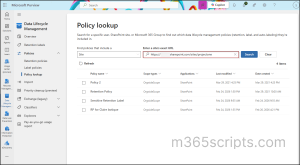
🚩 Important: Policy lookup results in Purview don’t clearly show the specific policy type. It lists retention policies, retention label policies, and auto-labeling policies together. Therefore, admins must manually verify whether the site is impacted by a retention policy, a label policy, or an auto-labeling rule.
| Retention Policies vs. Retention Labels in Microsoft 365
To clarify the difference between retention policies and retention label policies, here is a simple breakdown: Retention Policy – Applies broad retention settings at the container level, such as mailboxes, SharePoint sites, OneDrive accounts, or Teams. For example: “Keep all content in this site for 7 years.” The policy automatically governs all content within the selected locations without requiring user action. Retention Label Policy – Publishes retention labels to selected locations so they can be applied to individual items such as documents, folders, or emails. For example: “Keep documents labeled ‘Finance Record’ for 10 years.” The label provides the item-level retention control and can be applied manually by users or automatically through auto-labeling. |
While the UI-based method is convenient and administrator friendly, it is primarily designed for single site validation. In environments with many SharePoint sites, repeatedly performing manual lookups becomes time-consuming and operationally inefficient. The UI also does not provide an easy way to generate tenant-wide reports or validate large batches of sites in one pass.
When administrators need to assess retention coverage across multiple sites, or across the entire tenant, PowerShell becomes the preferred approach. This is why we have developed a PowerShell script to retrieve SharePoint sites and identify the retention policies applied to each site.
Download Script: GetSPOSitesRetentionPolicies.ps1
Sample Output
Upon execution, the PowerShell script will generate SharePoint sites with retention policies as follows. The exported report lists attributes like Site URL, Applied Retention Policies, and Applied Policies Count.
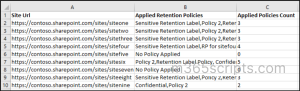
1. Find Retention Policies for All SharePoint Sites
By default, the script retrieves all SharePoint Online sites in the tenant and evaluates the retention policies applied to each site.
|
1 |
.\GetSPOSitesRetentionPolicies.ps1 |
After executing this script, you’ll receive a consolidated report showing each SharePoint site and the applied retention policies associated with it. Note that disabled policies are automatically excluded.
2. Identify Retention Policies for Multiple SharePoint Sites
If you need to analyze a defined set of SharePoint sites, the script supports bulk processing through the -SitesCSV parameter. This approach is helpful during migration planning, targeted audits, or when reviewing specific business unit sites. The input CSV file should contain the site URLs you want to evaluate with a header ‘SiteUrl’.
Input CSV Format:
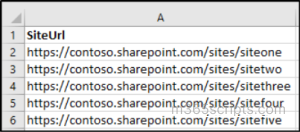
To retrieve retention policies for multiple sites, run the below. Replace –SitesCSV with the path to your CSV file that contains the SharePoint site URLs.
|
1 |
.\GetSPOSitesRetentionPolicies.ps1 -SitesCSV "<InputFileLocation>.csv" |
Running this command produces a filtered report focused only on the provided sites, allowing administrators to quickly validate retention coverage without scanning the entire tenant.
3. Determine Retention Policy for a Specific SharePoint Site
For focused troubleshooting, such as when a particular site cannot be deleted, you can use the -SiteURL parameter to check retention coverage for a single site. Replace the -SiteURL parameter with the actual SharePoint site URL you want to investigate.
|
1 |
.\GetSPOSitesRetentionPolicies.ps1 -SiteURL "<siteurl>" |
Executing this command returns the retention policies that apply to the specified site. This is particularly useful during deletion investigations, compliance checks, or support scenarios where quick validation is required.
Now that the retention and label policies blocking the “ProjectOne” site have been identified, the next step is to exclude the site from each applicable policy.
Be sure to check all policies returned by Policy lookup and apply the same exclusion steps below to each policy that lists the ProjectOne site.
- Go to the Microsoft Purview compliance portal.
- Navigate to Data Lifecycle Management → Policies
- If it’s a retention policy, click on Retention policies.
- If it’s a retention label policy, click on Label policies.
- Locate and select the retention policy that applies to the site you want to delete. Select Edit icon.
- Click Next until you reach Locations, where you can review the Microsoft 365 locations the policy applies to.
- Under ‘SharePoint classic and communication sites’ location, click on Edit under Excluded section.
- Paste the URL of the site in the search bar you want to delete and Click +.
- After checking the site URL box, click Done.
- Click on Next and Submit the changes.
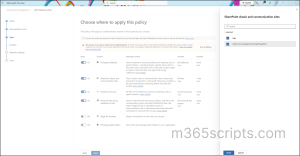
After saving any policy changes, allow time for synchronization across Microsoft 365. Policy updates are not immediate, and the retention policy may continue to appear in the lookup list for several days before it disappears.
What Happens When You Exclude a Site from Retention Policy
When a SharePoint site is excluded from a retention policy, the policy stops applying to future content, but previously protected content is not released immediately.
In most cases, a temporary grace period (up to 30 days) applies while Microsoft Purview processes the change. During this time, deleted files may still be preserved in the Preservation Hold Library, which can cause site deletion to fail even after exclusion. Be sure to verify and clear the Preservation Hold Library before retrying site deletion.
Note: Admins cannot exclude a site from a retention policy when a Preservation Lock is active in SharePoint Online.
Once the ProjectOne site is no longer protected by any retention or label policies, you can proceed with deletion.
- Go to the SharePoint admin center and navigate to Active sites.
- Select the site. Click Delete and confirm.
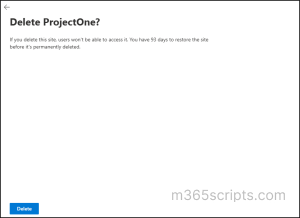
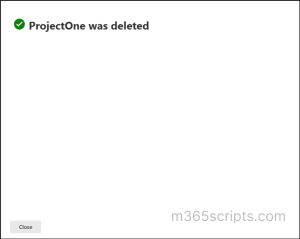
At this point, the deletion should complete successfully without retention-related blocks.
That’s it!
I hope this guide helped you gain clarity on how to identify retention policies applied to SharePoint sites and handle deletion scenarios more effectively. Feel free to reach us through the comments section if you have any questions.