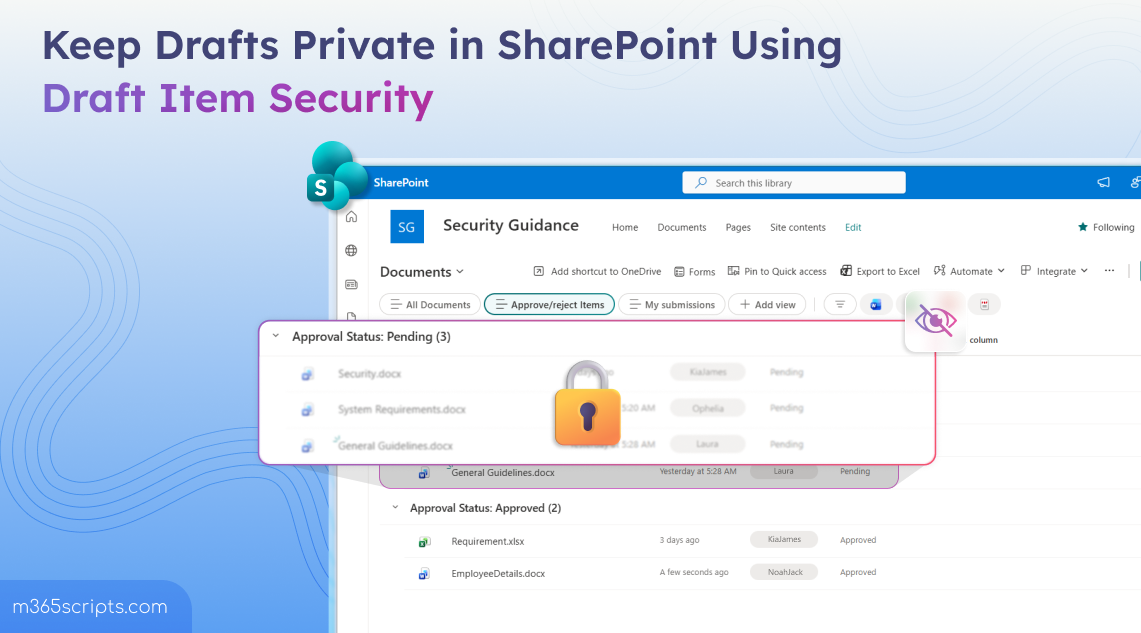
How to Set Up Draft Item Security in SharePoint Online
Draft item security in SharePoint protects in-progress documents by limiting who can view them before approval. This ensures only the right users can access sensitive content during collaboration. You can choose whether drafts are visible to readers, contributors, or only approvers. With both UI and PowerShell options, these settings can be applied efficiently across libraries and scaled with ease.
In SharePoint Online, documents are constantly drafted, edited, and reshaped by multiple contributors before reaching a final version. These early drafts often contain sensitive details from internal discussions, incomplete data, or strategic plans that aren’t meant for broad visibility. If these unfinished files are exposed too soon, they can trigger confusion, premature decisions, or even compromise competitive advantage. That’s where draft item security in SharePoint Online becomes essential.
In this blog, we’ll explore how organizations can safeguard drafted content using draft item security and maintain better control over sensitive work-in-progress documents.
Draft item security decides who can view a document before it’s finalized or approved. Imagine a team is preparing an internal proposal in a SharePoint document library. The document goes through multiple edits before leadership approval, and it’s important that only the author and reviewers can see the draft version until it’s finalized. In such cases, draft item security ensures unfinished documents remain restricted. Draft item security can also be useful in scenarios such as:
- Executive or strategic documents: Limit early access to leadership and key stakeholders only.
- HR and confidential records: Ensure sensitive drafts are visible only to authorized personnel.
- Content publishing sites: Prevent readers from seeing incomplete or unapproved content.
- Project-based collaboration: Allow contributors to work on drafts while restricting visibility for others.
Note: Draft items are typically not crawled by SharePoint search and won’t appear in search results until they are approved.
By default, the draft item security option is greyed out in the settings. It becomes available only after content approval is enabled, as draft visibility controls depend on the approval process. So, before configuring draft item security, ensure content approval is enabled in the document library.
Note: You need to be a site owner or SharePoint admin to enable this setting.
To configure content approval in SharePoint Online:
- Open the document library where you want to enable content approval.
- Go to Settings → Library settings.
- Select More library settings → Versioning settings.
- Under Content Approval, choose “Require content approval for submitted items”, to Yes.
- Click OK to apply changes.
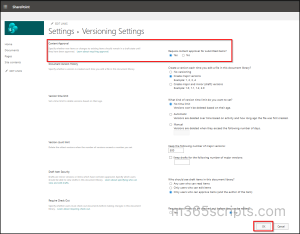
Enabling content approval allows documents to go through an approval process before they become visible to everyone.
Once content approval is enabled, the option to configure draft item security becomes editable. You can enable draft item security in two ways:
Follow the steps below to configure draft item security for documents and lists from SharePoint.
- Navigate to SharePoint Online and open the site where your document library or list is located.
- Open the version settings page using any of the following navigation:
- For a document library: Document library → Settings → Library settings → More library settings → Versioning settings.
- For a list: Site → Site contents and select the list → Settings → List settings → Versioning settings.
- In the Versioning Settings page, locate the Draft Item Security section.
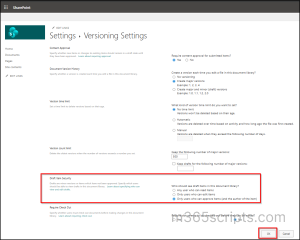
4. Choose who should be allowed to see draft items:
-
- Any user who can read items – Allows all users with read access to view draft content, even before approval.
- Only users who can edit items – Restricts draft visibility to contributors who can create or modify content.
- Only users who can approve items and the author of the item – Limits access to approvers and the original author, ensuring maximum control over unpublished content.
5. Click OK to save the configuration.
Once configured, draft items will only be visible to the selected group of users until the content is approved or published.
While configuring draft item security in the SharePoint interface works for individual libraries, admins often prefer PowerShell for consistency and scale. It lets them apply settings quickly across multiple sites without navigating through pages. You can use PowerShell to configure draft item security for the following cases:
- Configure draft item security for a specific SharePoint site
- Configure draft item security for multiple SharePoint sites
Configure Draft Item Security for a Specific SharePoint Site
Run the below script to enable content approval and set up draft item security for a specific document library or list. Before running the script, replace the following placeholders with your environment details:
- $siteUrl: Replace this with your SharePoint site URL.
- $listName: Replace this with the name of your document library or list.
The script will connect to the site using PnP PowerShell, enable content approval if it’s not already configured, and then set the draft item security based on the visibility value you specify. Set the value according to your requirement:
- 0 = Any user who can read items.
- 1 = Only users who can edit items.
- 2 = Only users who can approve items as well as author.
|
1 2 3 4 5 6 7 8 9 10 11 12 13 14 15 16 17 18 19 20 21 22 23 24 |
$siteUrl = "<siteurl>” $listName = “<Documents/lists>" $draftVisibility = 2 # Change this to 0, 1, or 2 as needed Connect-PnPOnline -Url $siteUrl –Interactive $list = Get-PnPList -Identity $listName -Includes DraftVersionVisibility, EnableModeration if ($list.EnableModeration -eq $false) { $list.EnableModeration = $true $list.Update() Invoke-PnPQuery Write-Host "Content Approval has been enabled for '$listName'." -ForegroundColor Yellow } $list.DraftVersionVisibility = $draftVisibility $list.Update() Invoke-PnPQuery if ($draftVisibility -eq 0) { $message = "Any user who can read items" } elseif ($draftVisibility -eq 1) { $message = "Only users who can edit items" } elseif ($draftVisibility -eq 2) { $message = "Only users who can approve items" } Write-Host "Draft Item Security for '$listName' has been updated to '$draftVisibility' ($message)." -ForegroundColor Green |
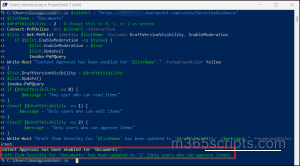
Once the value is specified and the script runs, it will apply the configuration and display a confirmation message reflecting the selected visibility level.
Set Up Draft Item Security by Bulk Importing SharePoint Documents/Lists
Instead of configuring each library individually, administrators can use PowerShell with a bulk import approach to apply draft item security across multiple locations in a single run. In this method, the required site URLs and library/list names are stored in a CSV file, and the script processes each entry automatically. This makes it easier to standardize configuration across multiple sites.
Your input CSV file should contain entries such as:
- SiteUrl: URL of each SharePoint site.
- LibraryName: Corresponding library or list name.
Sample input file:
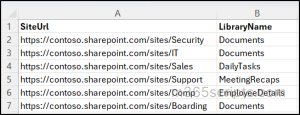
Once the CSV file is prepared, run the following PowerShell script to configure draft item security for all listed locations. Before executing the script, replace the CSV file path in the $sites variable and set the desired value in $list.DraftVersionVisibility based on your needs.
|
1 2 3 4 5 6 7 8 9 10 11 12 13 14 15 16 17 18 19 20 21 |
$sites = Import-Csv "C:\Path\To\InputFile.csv" foreach ($row in $sites) { Write-Host "Processing: $($row.SiteUrl)..." -ForegroundColor Cyan try { Connect-PnPOnline -Url $row.SiteUrl -Interactive $list = Get-PnPList -Identity $row.LibraryName -Includes DraftVersionVisibility, EnableModeration if ($list.EnableModeration -eq $false) { $list.EnableModeration = $true $list.Update() Invoke-PnPQuery Write-Host " -> Content Approval enabled." -ForegroundColor Yellow } $list.DraftVersionVisibility = 2 # Replace with 0, 1, or 2 as needed $list.Update() Invoke-PnPQuery Write-Host " -> Draft item security updated successfully." -ForegroundColor Green } catch { Write-Host " -> Error processing $($row.SiteUrl): $_" -ForegroundColor Red } } |
Once the script runs, it automatically verifies and enables content approval if it’s disabled and then configures draft item security based on the selected visibility level. This ensures that unfinished documents remain restricted until they are reviewed or approved.
You can also set up workflows to automate content approval using Power Automate for a more granular approach. These workflows send notifications to reviewers, record their decisions, and automatically publish content once it’s approved. This makes the approval process faster, easier to track, and less dependent on manual effort.
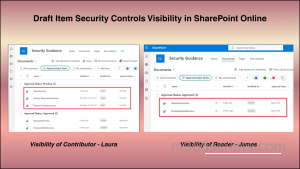
Let’s take a SharePoint site named “Security Guidance”, where content approval is enabled and draft item security is set to Only users who can edit items.
Now, when John (Member) uploads a document named “General Guidelines” in the SharePoint site, an Approval Status column is added by default, and the document is set to Pending.
In this state, users will experience the following based on their permission levels in the site:
- Laura (Contributor): Can view and edit the document while it is in Pending state.
- James (Reader): Cannot see the document until it is approved.
Note: If you disable content approval after it has been enabled, items that were previously in Pending or Rejected status may become visible in public views to users with read access. This could expose unfinished or previously restricted content.
There is also another similar feature in SharePoint Online called check-in/check-out, which controls how documents are edited and locked during collaboration. While both draft item security and check-in/check-out help manage document access, they serve different purposes. The table below highlights their key differences and when each should be used.
| Feature | Draft Item Security | Check-In / Check-Out |
| Primary Purpose | Controls who can view draft or unapproved content. | Controls who can edit a document at a time. |
| Focus Area | Visibility control | Editing control |
| Content Approval Dependency | Requires content approval to be enabled. | Does not require content approval. |
| Who Can Access Drafts | Only authors, editors, or approvers, depending on configuration. | Anyone with permission can see the last checked-in version. |
| Editing Behaviour | Multiple users can still edit depending on permissions. | Only the user who checked out the file can edit it. |
| Approval Process | Approvers can review and approve drafts based on visibility settings. | Approvers cannot approve a document until it is checked in. |
| Best Use Case | Protect work-in-progress or sensitive drafts before publishing. | Prevent simultaneous edits and version conflicts. |
That’s a wrap! I hope this blog helped you understand how to configure and manage draft item security in SharePoint to protect work-in-progress documents. If you have any questions or insights to share, feel free to drop them in the comments below.