Difference Between Root Site, Home Site, and Hub Site in SharePoint
Understand the distinctions between SharePoint root site, home site, and hub site to build an effective intranet structure. The root site serves as the tenant anchor, home sites provide organizational landing pages with Viva Connections integration, and hub sites connect related sites through shared navigation and branding. Choose the right configuration for your needs.
If you’re new to SharePoint, one of the first confusing moments usually comes from the terminology. You open SharePoint and see a page. Then you hear words like root site, home site, and hub site – often used interchangeably in discussions.
Understanding the difference between these concepts isn’t just about learning SharePoint terms. Many common issues, like poor navigation, duplicate sites, unused pages, or frequent “Where should I go?” questions from users, often stem from not grasping these basics early on.
This blog will break down the following SharePoint concepts in simple terms from a beginner’s perspective:
We’ll start with the SharePoint Start Page, which is the first thing users see when they open SharePoint.
When you click the SharePoint icon from the Microsoft 365 app launcher, the page that opens is called the SharePoint Start page. This page is not a SharePoint site. Instead, it is a personalized landing experience designed to help users quickly find the sites and content that matter to them. You can access the SharePoint Start page anytime by clicking the Home icon in the left-hand navigation, even when you’re working inside another site.
URL format to access the SharePoint start page:
https://<tenant>.sharepoint.com/_layouts/15/sharepoint.aspx

The SharePoint Start page is personalized. What you see may differ from what someone else sees. It typically shows:
- Frequently visited sites
- Followed sites
- Recent files
- A search bar to find sites, files, and people
- Create sites & news post
- Track pages from one place (Preview)
The SharePoint Start Page helps users get back to their work without needing to remember site URLs. You cannot store content on it, and it cannot be customized like a communication or team site.
The root site is the default top-level site of a SharePoint Online tenant. It is created automatically when your organization subscribes to Microsoft 365. Every tenant starts with one root site. Its primary purpose is to provide a starting point for your SharePoint environment.
Key Characteristics of the Root Site
- There is only one root site in a tenant.
- It has a predictable URL: https://<tenant>.sharepoint.com.
- You cannot create a root site manually.
- The root site can serve as a home site, a hub site, or both, which is a common and recommended pattern for intranets.
- A root site cannot be deleted.
- The root site can’t be connected to a Microsoft 365 group.
- Sometimes, you may want to replace the default root site with a modern communication site to provide a better landing page or intranet experience for your organization. In such cases, you can swap the root site.
After the swap, the site specified with -SourceUrl becomes the new root site and assumes the root URL (https://<tenant>.sharepoint.com). As a result, the /sites/ or /teams/ path is no longer part of the URL.
You can also find the root site in the SharePoint admin center under Active sites. It’s typically a communication site, which makes it easy to identify among your other sites.
It’s a common misunderstanding that the root site is automatically the home site. But that’s not the case. To clear up the confusion, let’s take a closer look at what a home site is and how it differs from the root site.
A home site is a specially designated SharePoint site that acts as the main landing page for your organization. Unlike a root site, it must be assigned from an existing site by an admin.
Think of it as the “front door” of your organization’s SharePoint where employees access news, quick links, resources, and collaboration hubs.
Key Characteristics of a Home Site
- By default, only one home site per tenant is allowed, but with Viva Connections, you can have multiple home sites.
- Must be a modern communication site.
- A home site can also act as a hub site and a root site.
You should create a home site when you want a central place for employees to find important news, resources, and sites.
For example, when your company wants a single starting point for all employees to:
- See official company announcements first
- Find content faster using a consistent intranet search, instead of depending only on the personalized SharePoint Start page.
- Navigate easily with a consistent menu and company branding
- Access intranet news and resources directly in Microsoft Teams
Microsoft also recommends converting the root site into a home site because the default root site may exist only as a technical top-level site.
By converting it, you turn it into a modern, user-friendly intranet landing page. It providing employees a clear starting point for all internal resources without having to create a new site from scratch.
Assign a Site as Home Site in SharePoint Using PowerShell
For creating a single home site, you can use PowerShell or the Microsoft 365 Admin Center for multiple home sites (Viva Connections experiences).
Connect to SharePoint Online PowerShell and run the command:
|
1 |
Set-SPOHomeSite -HomeSiteUrl https://tenant.sharepoint.com/sites/YourHomeSite |
You can check if a site is designated as a home site using the Get-SPOHomeSite PowerShell command. However, if you’ve created multiple sites using Viva Connections, those sites won’t appear when using this command.
How to Create a Home Site from Microsoft 365 Admin Center
With Viva Connections, organizations can create multiple home sites (up to 50), each tied to a separate Viva Connections experience. This is useful for large or diverse organizations where different business units, regions, or teams need their own personalized landing pages. At the same time, it helps maintain a consistent look, shared navigation, and centralized access to resources across the intranet.
Note: To create multiple home sites for Viva Connections experiences, each user in the organization must have a Microsoft Viva Suite or Viva Communications and Communities license.
To set up multiple home sites using Viva Connections:
- Sign in to the Microsoft 365 admin center with your admin credentials.
- Navigate to Settings -> Viva -> Viva Connections.
- Click Create and manage Viva Connections experiences. If your communication site has already been assigned as a home site, it will appear here.
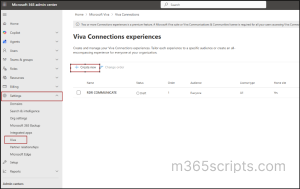
4. Click Create new -> Build from an existing portal to set a home site.
5. Enter the URL of the communication site you want to use as home site and click Next.
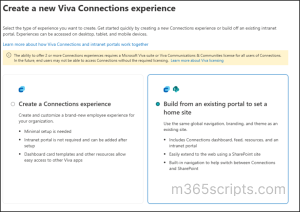
6. Click Create experience to finalize the home site setup.
Once the home site is created, you can assign permissions, configure audience targeting, and set the display order for multiple Viva Connections experiences.
While the home site serves as the organization’s main landing page, it doesn’t work in isolation. This is where hub sites come in.
A hub site links different SharePoint sites together, so they act like one central place. For example, your company could have a hub site called “ZAVA”, and link the HR, IT, Finance, and Projects sites to it. This way, employees can easily go from the main site to the department they need without searching for it.
When to Create a Hub Site in SharePoint Online
- To give all connected sites the same navigation menu
- To use the same look and branding on all sites
- To show news and updates from all linked sites in one place
Home sites and hub sites often feel similar because both focus on navigation and content discovery, but they serve different roles. The home site is the starting point, and hub sites help connect related sites and extend that experience across the intranet.
If your teams have different sites but you want them to feel connected and easy to use, a hub site keeps everything organized and simple for users.
💡Tip: Registering the root site as a hub site helps centralize your intranet by connecting related sites under a shared structure.
It provides consistent navigation and branding and aggregates content such as news and search across associated sites, creating a cohesive user experience and better organization.
- Go to the SharePoint admin center -> Active sites.
- Select the site you want to register.
- Click Hub -> Register as hub site.
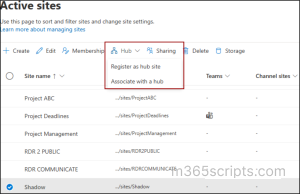
Once sites are registered as hub sites, you can use PowerShell to retrieve a list of all hub sites in SharePoint. To connect other sites to a hub: Select the site -> click Hub -> Associate with a hub -> select the parent hub. Other modern team or communication sites can be associated with it.
Associated sites will:
- Inherit the hub’s theme and navigation, but not permissions.
- Roll up content to the hub site.
- Appear in hub site search results.
Many people confuse subsites and hub sites in SharePoint because both help organize multiple sites. Here’s an easy way to tell them apart:
Subsites
- Created under a parent site, forming a hierarchical structure.
- Inherit permissions from the parent site by default. Changes in the parent site can affect who can access the subsite.
- Inherit navigation and branding from the parent site. Changes in the parent site can automatically appear in the subsite.
- URL format: https://tenant.sharepoint.com/sites/ParentSite/SubsiteName
- Use Case: Marketing team creating separate project sites under their main Marketing site for campaigns.
Hub Sites
- Created by registering an existing modern communication or team site as a hub.
- Each associated site maintains its own permissions independently; joining a hub does not change how permissions are managed.
- Provide centralized navigation, consistent branding, and aggregated content across associated sites.
- URL format: https://tenant.sharepoint.com/sites/HubSiteName (associated sites keep their original URLs)
- Use Case: An organization creating a “Company Intranet” hub that links HR, IT, and Finance sites, providing consistent navigation and news across departments.
| Aspect | Root Site | Home Site | Hub Site |
| Definition | The default top-level site that acts as the anchor for a SharePoint tenant. | A designated communication site that serves as the organization’s intranet landing page. | A registered site that connects related sites through shared navigation, branding, and content aggregation. |
| Creation | Available by default when the tenant is created. | Admins must designate an existing modern communication site as the home site, as it is not created by default. | An existing modern team or communication site can be registered as a hub site. |
| Permissions | Has its own unique permissions. | Has its own unique permissions. | Each associated site retains its own permissions; the hub site does not enforce access to associated sites. |
| Number per Tenant | 1 (can be swapped with another site). | 1 by default; up to 50 home sites when using Viva Connections experiences (requires Viva licensing). | Multiple hub sites (up to 2000) can exist within a tenant. |
| Relationship with Other Sites | Acts as the tenant anchor site; other sites exist alongside it in a flat architecture. | Can be the root site or any communication site; acts as the intranet gateway for users. | Aggregates content from directly associated sites; sites are linked in a flat structure, not a parent-child hierarchy. |
| Primary Purpose | Technical foundation for SharePoint and legacy compatibility; not designed as a modern intranet by default. | Organization-wide landing page for intranet content, news, navigation, and Viva Connections integration. | Organize related departments, projects, or regions while maintaining a modern, flat intranet architecture. |
| Conversion |
|
|
|
| Use Case scenario |
Default top-level site for technical operations, tenant-wide settings, or legacy site references.
|
Company intranet landing page with news, resources, global navigation, and Viva Connections integration. | Project-specific sites aggregated under a hub to make project updates, documents, and announcements easily accessible to stakeholders.
|
We hope this blog has helped clarify the differences for you. Thanks for reading, and if you have any questions, feel free to share them in the comments section.