How to Revoke User Sessions Using Microsoft Entra ID
User access in Microsoft Entra ID can continue even after password resets or account disablement due to active sessions. This blog shows how to revoke user sessions using the Entra admin center and PowerShell to quickly block access when an account is compromised.
Managing user access in Microsoft 365 becomes critical when token-based threats are involved. For example, in scenarios such as refresh token theft, token replay attacks, or refresh token hijacking, an attacker can maintain access without needing credentials, as stolen tokens allow continued authentication.
To mitigate these risks, admins can revoke sessions in Entra ID. This action invalidates refresh tokens and forces users to sign in again, helping admins quickly regain control. This blog explains what tokens are, why revoking them is important, and how to revoke sessions for both individual and multiple users using different methods.
When a user signs in to a Microsoft application, Entra ID first verifies the user’s identity and checks whether they are authorized to access the requested application/service.
Once authenticated, users don’t need to sign in again for every application. Instead, Microsoft Entra ID issues tokens that maintains the user’s session and allow seamless access across multiple services.
These tokens come in two types: access tokens and refresh tokens, each playing a key role in maintaining secure and continuous access. To understand how these tokens function in a real-world scenario, consider a simple analogy.
A Simple Bowling Analogy to Understand Token Behaviour
- Access Token (The Game Ticket) – Imagine walking up to a bowling counter and getting a ticket that lets you play for a short time. Once that time is over, the lane stops and you can’t continue playing without a new ticket. In the same way, after signing in, Microsoft Entra ID issues an access token that allows access to an app or service for a limited time. Typically, this access token is valid for about 1 hour.
- Refresh Token (Membership Pass) – If you’re a regular member, you get a membership pass along with your game ticket, which lasts much longer. When the game ticket expires, this pass is used to automatically get a new one, so play continues without interruption. Similarly, Microsoft Entra ID issues a refresh token to obtain new access tokens without requiring users to sign in again. This refresh token can last up to 90 days.
The above tokens are mainly used by client applications and helps to operate in the background without user involvement.
In browser-based applications, the approach is slightly different. Instead of access and refresh tokens, browser-based applications mainly rely on session tokens. When a user opens a browser and signs in to an application using Microsoft Entra ID, two session tokens are created: one by Microsoft Entra ID and another with the application.
The application maintains its own session that keeps the user logged in without requiring repeated authentication. This session token allows continuous access without checking Microsoft Entra ID every time. To fully stop access, the application session must be terminated.
Now that you understand how access, refresh, and session tokens keep users signed in, it’s important to understand what token revocation means in Microsoft 365.
Revoking tokens in Microsoft Entra ID invalidates refresh tokens and active sessions, forcing users to sign out of all Microsoft 365 sessions. This removes persistent access and prevents previously issued tokens from being reused. Users will be required to sign in again once existing access tokens expire, making this especially effective for cutting off access across multiple devices.
Previously, Microsoft Entra ID had an option called “Revoke MFA sessions” along with session revocation. This action only forced users to complete MFA again, but did not terminate active sessions, which often caused confusion. To address this, Microsoft replaced Revoke MFA sessions with Revoke Sessions, which invalidates refresh tokens and signs users out of all sessions.
Revoking tokens becomes critical in situations where immediate access control is required, particularly during security incidents. Some common scenarios include:
- Block access instantly when an account compromise or breach is suspected to prevent further data exfiltration.
- Reduce risk when a device is lost or stolen by removing access from active sessions.
- Ensure a clean break during employee offboarding or role changes to prevent unauthorized access.
- Mitigate suspicious sign-in activity, such as logins from unusual locations or impossible travel scenarios, by revoking tokens and disrupting active sessions.
- Require users to reauthenticate after maintenance or policy changes to ensure updated security controls are applied.
- Remove access across multiple devices by invalidating sessions and requiring users to sign in again on all devices.
With that understanding in place, let’s now see how to terminate active user sessions in Microsoft 365 and effectively block user access.
You can revoke user sessions using the Microsoft Entra admin center or PowerShell, based on your requirements.
- Revoke sessions for a user using Microsoft Entra ID
- Terminate sessions in Microsoft 365 using PowerShell
In the below steps, we will see how to kill an active user session in Microsoft 365 using Entra ID.
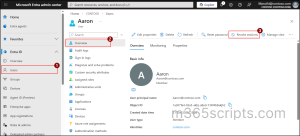
- Open the Microsoft Entra admin center and navigate to Entra ID >> Users.
- Under All users section, click the respective user, and on the user Overview page, select Revoke sessions option.
- Then, select Yes in the “Do you want to revoke all sessions for the user?” prompt to confirm the action.
Using the Entra admin center, you can revoke active sessions for multiple users at once by following the steps below.
- In the Microsoft Entra admin center, go to All users page and select the checkboxes for the users whose active sessions need to be revoked.
- Then click Edit, select Revoke Sessions, and confirm the prompt to force sign out the selected users in Microsoft 365.
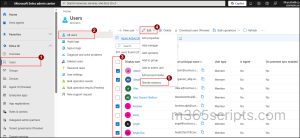
Tip: You can also terminate sessions across your Microsoft 365 organization by selecting all users and choosing Revoke Sessions option.
While Entra is useful for manual tasks, PowerShell provides a faster and more efficient way to terminate user access without navigating through the portal.
Microsoft provides three cmdlets to revoke user tokens, such as:
- Revoke-EntraUserAllRefreshToken: Terminates refresh tokens for a specific user by resetting “refreshTokensValidFromDateTime”. This invalidates refresh tokens and requires users to obtain new tokens for continued access.
- Revoke-EntraSignedInUserAllRefreshToken: Invalidates refresh tokens for the currently signed-in user, meaning it is used to revoke their own sessions. This cmdlet cannot be used to target other users.
- Revoke-MgUserSignInSession: Revokes sign-in sessions and refresh tokens by resetting “signInSessionsValidFromDateTime”. This enables broader session invalidation and forces reauthentication across applications.
Among these, Revoke-MgUserSignInSession is the most flexible and scalable option, especially for managing multiple users or organization-wide scenarios. It uses Microsoft Graph PowerShell to revoke full sign-in sessions, providing broader control compared to the Entra PowerShell cmdlets that focus on refresh token invalidation. This makes it better for bulk operations, automation, and scenarios like account compromise remediation.
Before running any cmdlets, connect to the Microsoft Graph PowerShell module with the appropriate permissions (such as User.ReadWrite.All) to revoke user sessions.
To invalidate all the sessions for a user account in Microsoft 365 follow the steps below.
- Execute the Revoke-MgUserSignInSession cmdlet as shown below to revoke all sessions for a specific user.
- Then, replace <UserPrincipalName> with the desired user principal name (UPN) before execution.
|
1 |
Revoke-MgUserSignInSession -UserId “<UserPrincipalName>” |
 Note: You can specify multiple user UPNs as comma separated values to terminate sessions for those users.
To terminate sessions for multiple users in Microsoft 365, follow the steps below.
- Create a CSV file with a column named UserPrincipalName, and enter the user principal names of all users whose active sessions you want to revoke.
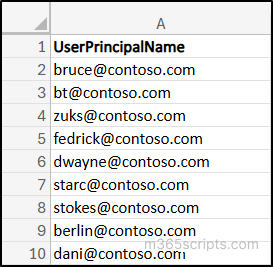
- Run the following cmdlet after updating the file paths:
- <ImportCSVFilePath>: Replace with the path of the CSV file that contains the users.
- <ExportCSVFilePath>: Replace with the path where you want to save the results and add <filename> to customize the output file name. The file will include the action results for each user.
|
1 2 3 4 5 6 7 8 9 10 11 12 13 14 15 16 17 18 19 20 21 |
$users = Import-Csv -Path "<ImportCSVFilePath>" $results = @() foreach ($user in $users) { try { Revoke-MgUserSignInSession -UserId $user.UserPrincipalName -ErrorAction Stop $results += [PSCustomObject]@{ UserPrincipalName = $user.UserPrincipalName Status = "Success" } } catch { $results += [PSCustomObject]@{ UserPrincipalName = $user.UserPrincipalName Status = "Failed" Error = $_.Exception.Message } } } $results | Export-Csv -Path "< ExportCSVFilePath\<filename>> " -NoTypeInformation |
Terminating all user sessions is essential when a widespread compromise or organization-wide security breach is suspected. Use the following cmdlet to revoke all active sessions across your organization.
|
1 2 3 |
Get-MgUser -All | ForEach-Object { Revoke-MgUserSignInSession -UserId $_.Id } |
Note: This approach affects all users and may cause significant disruption by forcing everyone to sign in again.
Use the following cmdlet to terminate sessions for all high-risk users in your Microsoft 365 organization.
|
1 2 3 4 |
$users = Get-MgRiskyUser -Filter "riskLevel eq 'high'" foreach ($user in $users) { Revoke-MgUserSignInSession -UserId $user.Id } |
 Note: To successfully run this cmdlet, “IdentityRiskyUser.Read.All” permission is required.
While the above methods effectively revoke refresh tokens and active sessions, they do not immediately invalidate already issued access tokens. This means a user may continue to access resources until the access token expires. As a result, there can be a short delay before access is fully blocked.
This gap can pose a security risk, especially if the token is stolen/compromised. To address this limitation, Microsoft Entra ID provides Continuous Access Evaluation (CAE), which helps enforce access policies in near real time and reduces this delay.
Continuous Access Evaluation (CAE) is a feature in Microsoft Entra ID that enforces access decisions in near real time. It allows access to be stopped immediately when critical changes occur, eliminating the need to wait for session tokens or sessions to expire.
For example, if a user’s password is changed or their access is revoked, CAE instantly blocks access and forces the user to sign in again. Without CAE, a user may continue to access resources for a short period even after access has been revoked.
- Microsoft Entra ID recommends to disable the account, revoke sessions, and disable user device as part of standard approach to block user access.
- When offboarding an employee account, use token revocation in Microsoft 365 with password reset or MFA enforcement to block access while keeping the account available for admin use instead of disabling the account.
- In a hybrid setup, disable the on-prem account, reset the password twice, and revoke sessions in Entra ID to fully cut off access.
- Regularly monitor sign-in logs in Entra admin center to identify when to revoke tokens in Microsoft and act promptly.
- You can also use Microsoft Entra Lifecycle Workflows to automatically remove user access from apps and systems when they leave, reducing manual effort and delays.
We hope this blog helps you understand how to revoke sessions for users in Microsoft Entra ID effortlessly. Feel free to reach out through the comments section if you have any questions or need further assistance.