Default Groups in SharePoint Online Sites
In SharePoint Online, every site comes with default groups such as Site Owners, Site Members, and Site Visitors. These groups define access levels and help ensure permissions are managed consistently without assigning access individually. This blog walks through the default groups in SharePoint and how to manage them effectively to maintain proper access control.
When a user needs access to a SharePoint site content, the quick fix is often to share it directly with them. It seems simple, but over time, the same site may be shared multiple times with different permission levels. This leads to permission sprawl, making it harder to track who has access and increasing the risk of unintended exposure.
This is where default SharePoint groups come into play. Every site comes with built-in groups, each designed to provide specific levels of access. Instead of assigning permissions individually, you can add users to these groups to keep access structured and manageable. In this blog, let’s explore SharePoint Online default groups and how to manage them effectively to maintain clear and controlled access.
When a new Team site or communication site is created in SharePoint Online, a set of permission groups is automatically created, known as SharePoint default groups. These groups help control access to SharePoint content based on permission levels, eliminating the need to assign permissions to each user individually. The default groups in a SharePoint site are:
- Site Owners – Users in this group have Full Control, which is the highest level of access to the site. They can manage settings, permissions, and all content without restrictions. They can also create and manage custom groups to provide flexible access. This group is best suited for site administrators or users who need full control over the site. It is recommended to keep this group limited to a small number of users to avoid accidental changes to permissions or site configuration.
- Site Members – This group provides Edit access to users and is the second level of access to the site. Users in this group can add, edit, and delete SharePoint site content such as lists, document libraries, and items. However, they cannot manage site-level permissions or settings. This group is typically used for active contributors, such as team members who work on files regularly.
- Site Visitors – Users in this group have the least level of permission, with Read access. They can view content but cannot make any changes. This is suitable for auditors, stakeholders, or users who only need visibility into the content. It helps ensure information is accessible without risking edits or deletions.
With this understanding, let’s explore managing these default groups in SharePoint.
To manage default groups in SharePoint Online, ensure you meet the following requirements:
- Role requirement: You must have Site Owner or Site Collection Administrator permissions.
- License requirement: You must have a Microsoft 365 license that includes SharePoint Online.
- PowerShell requirement: You must have PowerShell version of 7.4.0 or later to manage SharePoint default groups using PowerShell.
Once these prerequisites are in place, you can start managing these groups effectively.
Managing default groups helps you control who can access your site and what actions they can perform. By organizing users into the right groups, you can maintain clear, consistent, and secure permission management.
Below are the management actions you can perform on SharePoint default groups.
- Add a user or group to a SharePoint default group
- Assign multiple users and groups to default groups in a SharePoint site
- Remove a user or group from a default SharePoint group
- Bulk remove users and groups from default SharePoint groups
- View default group membership in SharePoint Online
- Change permissions for a default group in SharePoint site
- Change default group settings in a SharePoint Online site
When creating a site in the SharePoint admin center, you can assign owners for a communication site and both owners and members for a Team site. To provide access to additional users or groups later, s, you can add them to the appropriate default groups within the site.
Tip: Before adding a user to a group, check permissions in SharePoint Online to understand current access levels and plan accordingly.
To assign a user or group to a built-in SharePoint group, follow the steps below:
- Open the SharePoint site where you want to add the user or group.
- Then, follow the steps based on your site type:
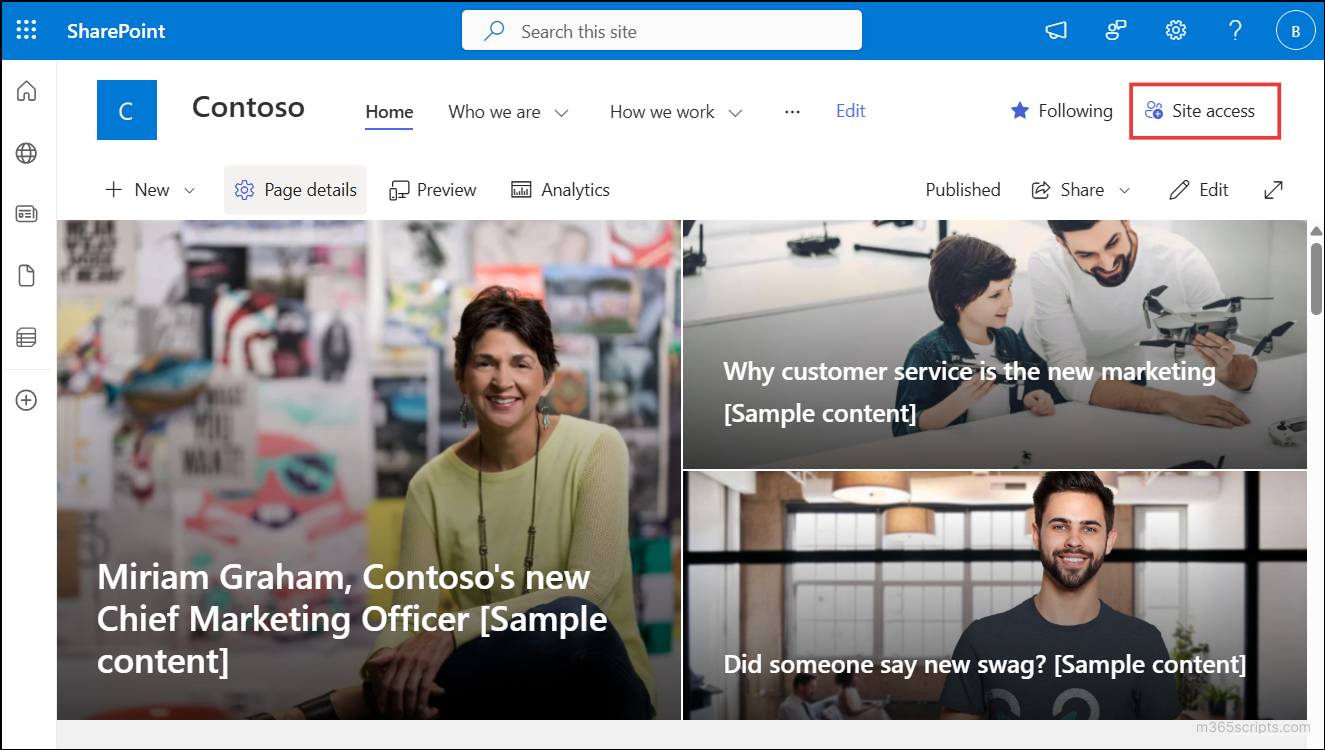
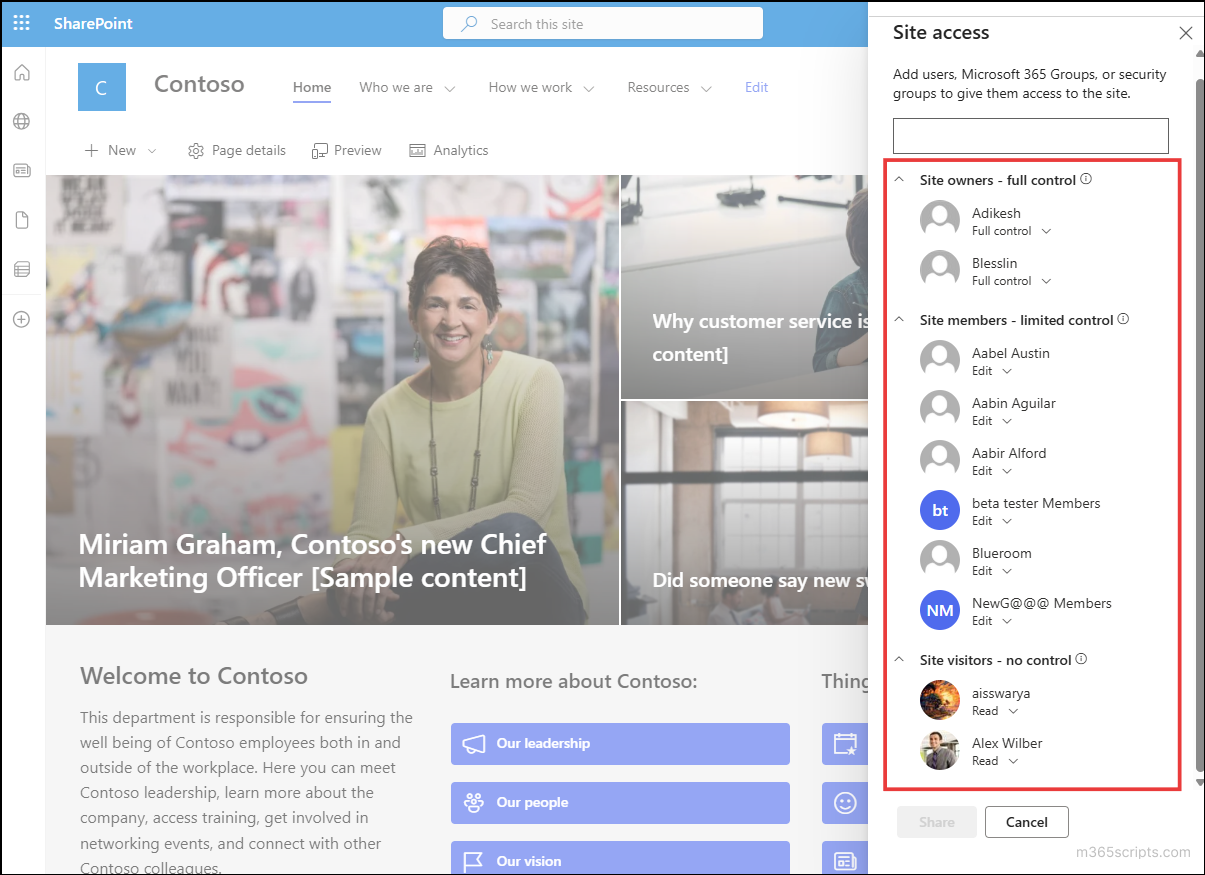
- Communication site: From the top-right corner, click Site access.
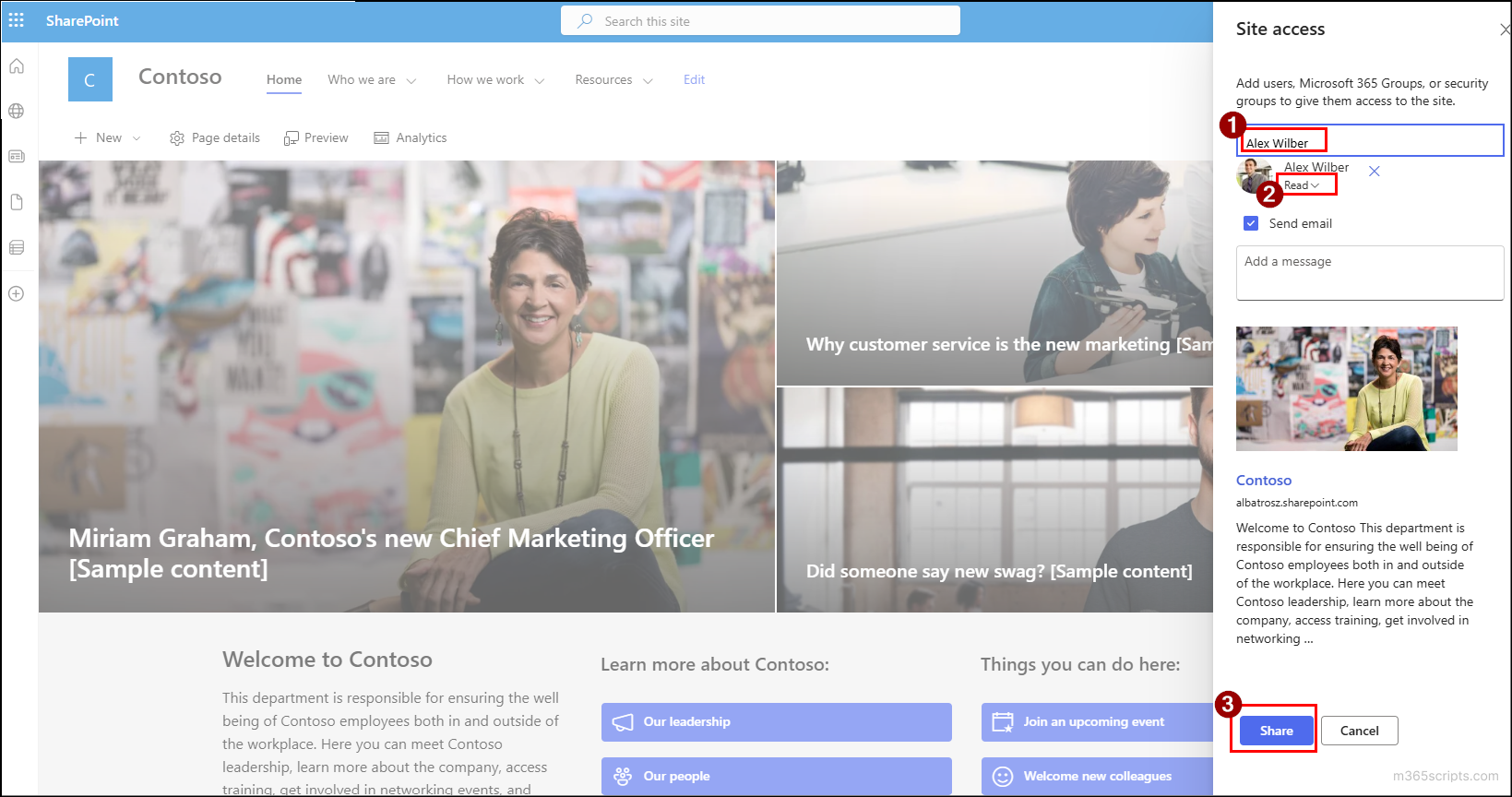
 Then, enter the user or group name, select the permission level (Full Control, Edit, or Read) based on the group you want to add the user, and click Share.
- Team site: From the top navigation bar, go to Settings (⚙️) → Site permissions, click Add members and select Share site only.
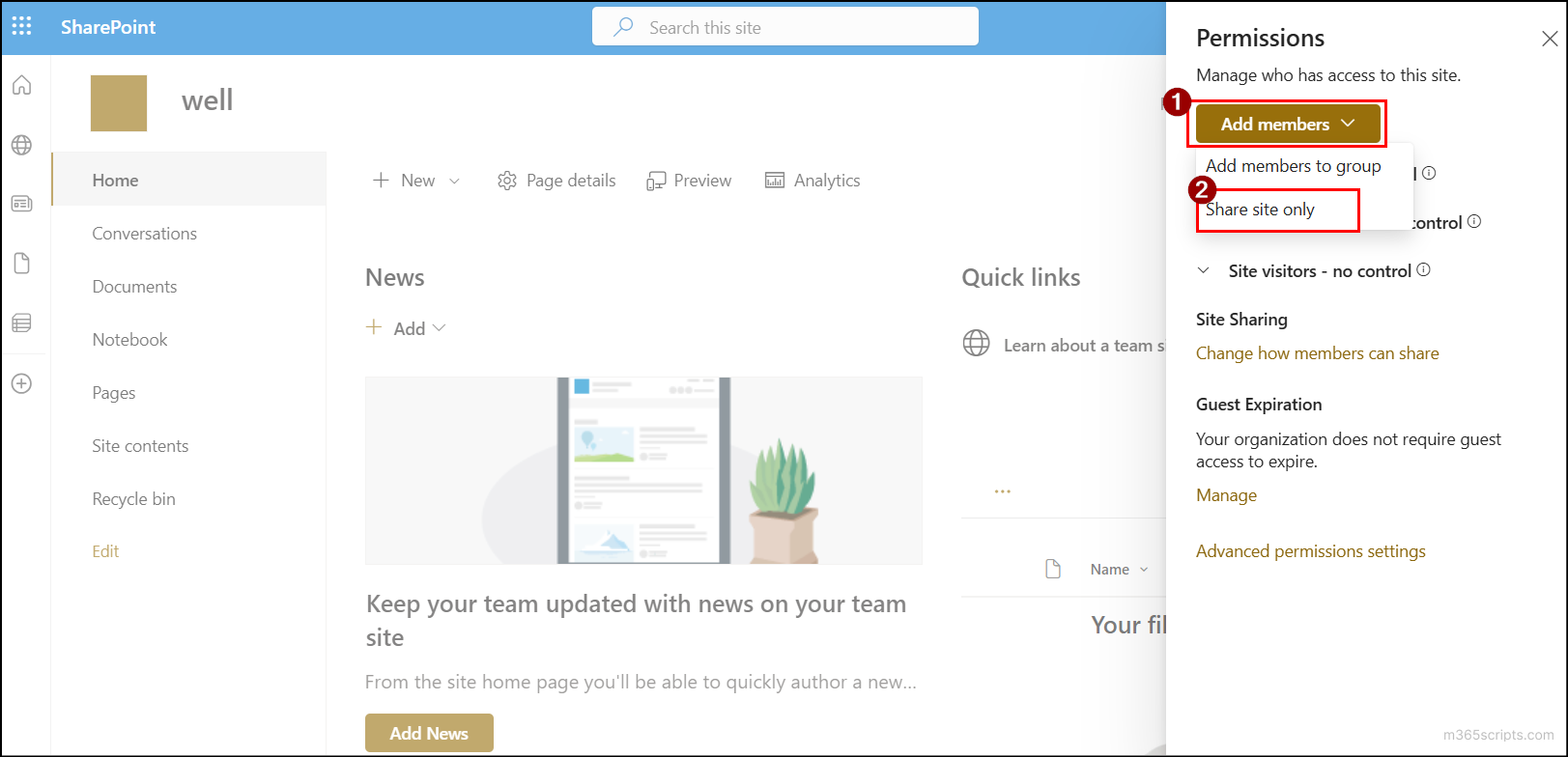 Then, enter the name of the user or group in the field, choose the permission, and click Add.
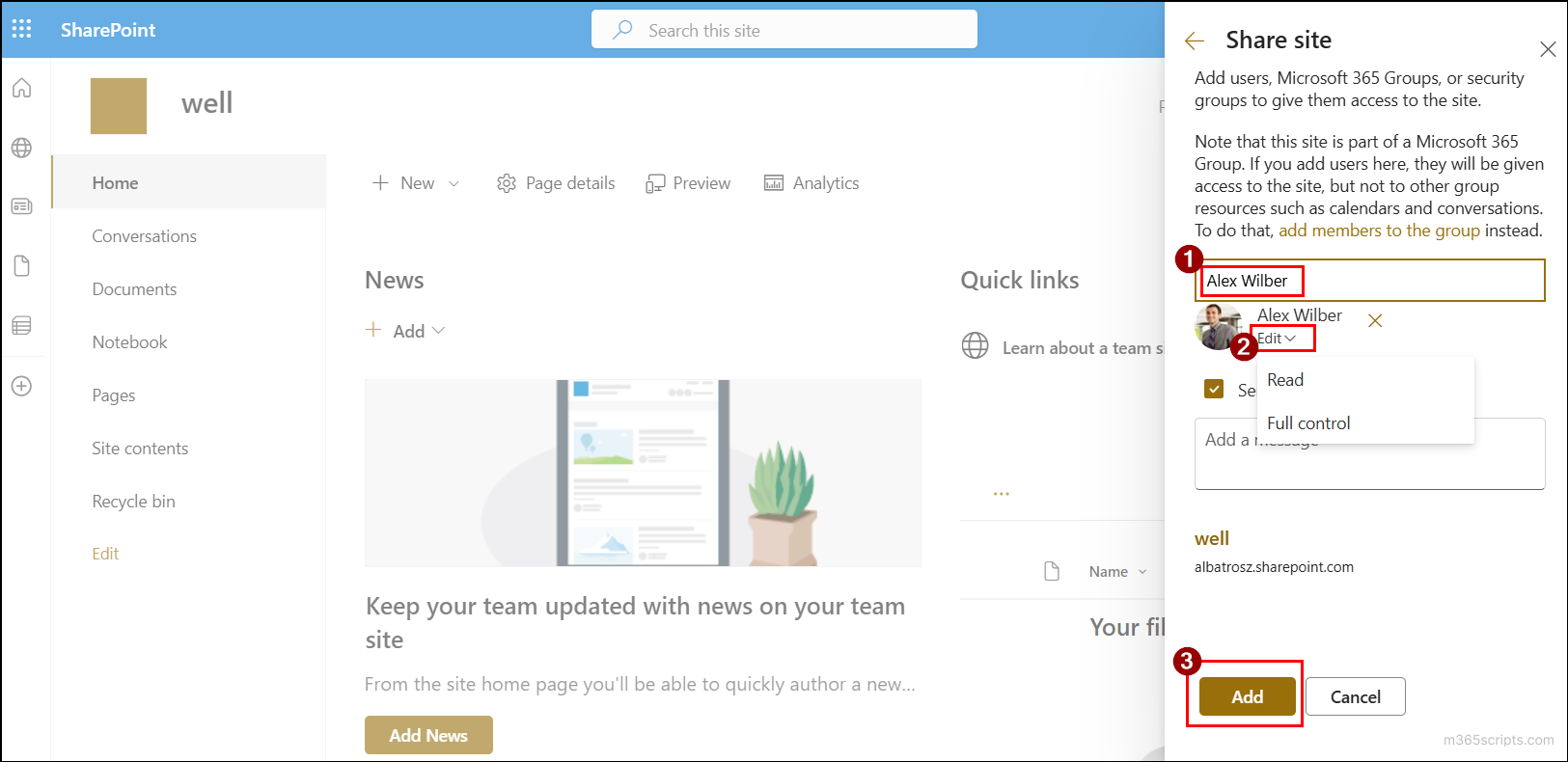
Users added through “Share site only” are granted access at the SharePoint level and are added to the site’s permission groups. They are not added to the Microsoft 365 group associated with the Team. If you need to add a user to the Microsoft 365 group, you can use the “Add members to group” option.
- Communication site: From the top-right corner, click Site access.
- The user or group will be added to the corresponding default group based on the selected permission.
Handy Tip:
If you want to allow everyone in your organization to access a site, you can simply share site with everyone in SharePoint Online instead of adding users individually.
To add members to a SharePoint default group using PowerShell, connect to the SharePoint Online site using PnP PowerShell (interactive mode or app-based authentication), then run the following cmdlet.
|
1 |
Add-PnPGroupMember -Group "<GroupName>" -LoginName "<UserOrGroup>" |
Replace <GroupName> with the name of the target SharePoint group. For <UserOrGroup>, provide the user’s UPN when adding a user, or use the group’s claim format in the form: c:0o.c|federateddirectoryclaimprovider|{GroupID} when adding a group.
During user onboarding, you may need to assign multiple users to the multiple default SharePoint groups within a site. In such cases, you can use a CSV input file instead of assigning each user or group individually.
First, create a CSV file with columns such as GroupName, which has the default group names, and UserOrGroup, containing the user’s UPN or the group’s claim format & group ID. Make sure the column headers are formatted correctly to avoid execution errors.
Sample input CSV

Once the CSV is ready, you can run the cmdlet below to bulk add users or groups to the default SharePoint groups:
|
1 2 3 4 |
$users = Import-Csv "<InputCSVFilePath>" foreach ($user in $users) { Add-PnPGroupMember -Group $user.GroupName -LoginName $user.UserOrGroup } |
Replace <InputCSVFilePath> with the exact location of the input CSV file.
When users change roles or no longer require access to the site, you must revoke their access immediately. This is important to maintain security and ensure users only have permissions that are relevant to their current responsibilities.
To unassign a user or group from a built-in SharePoint group, follow the steps below:
- Open the SharePoint site where you want to remove the user or group.
- Follow the steps based on the site type:
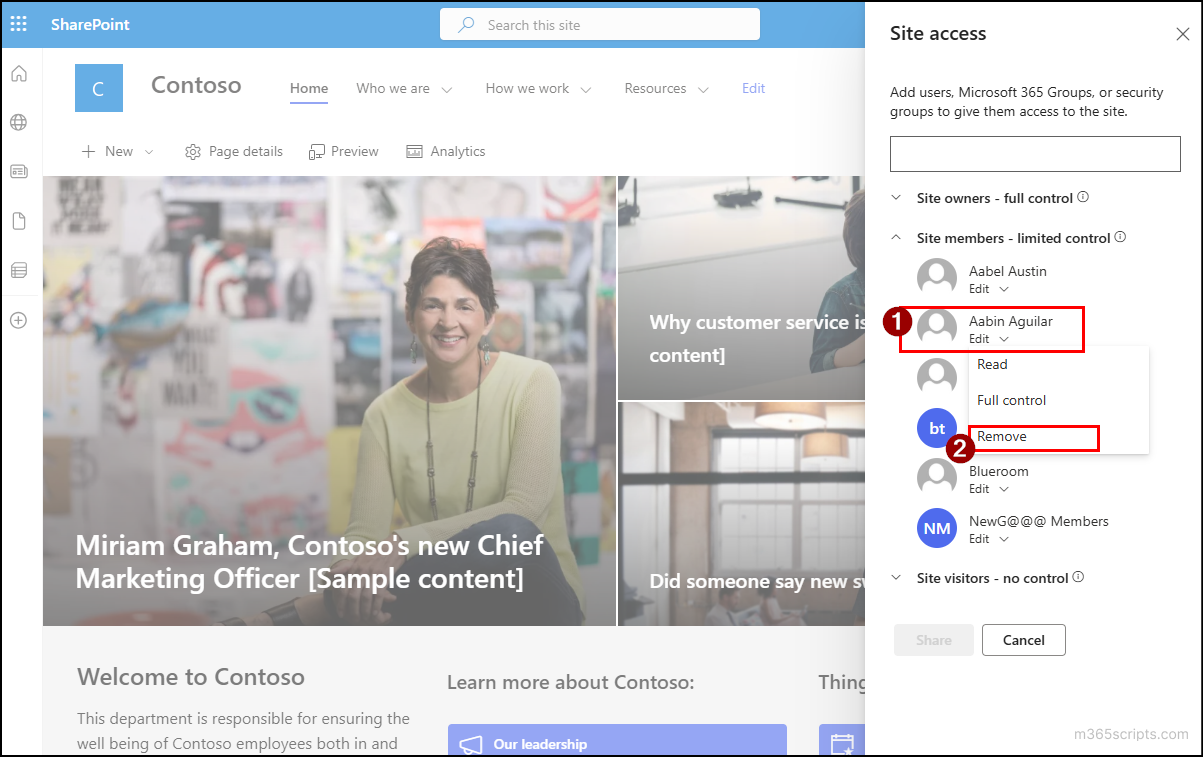
- Communication site: Go to Site access, expand the required group, and then expand the target permission level. Click Remove to revoke access from the selected group.
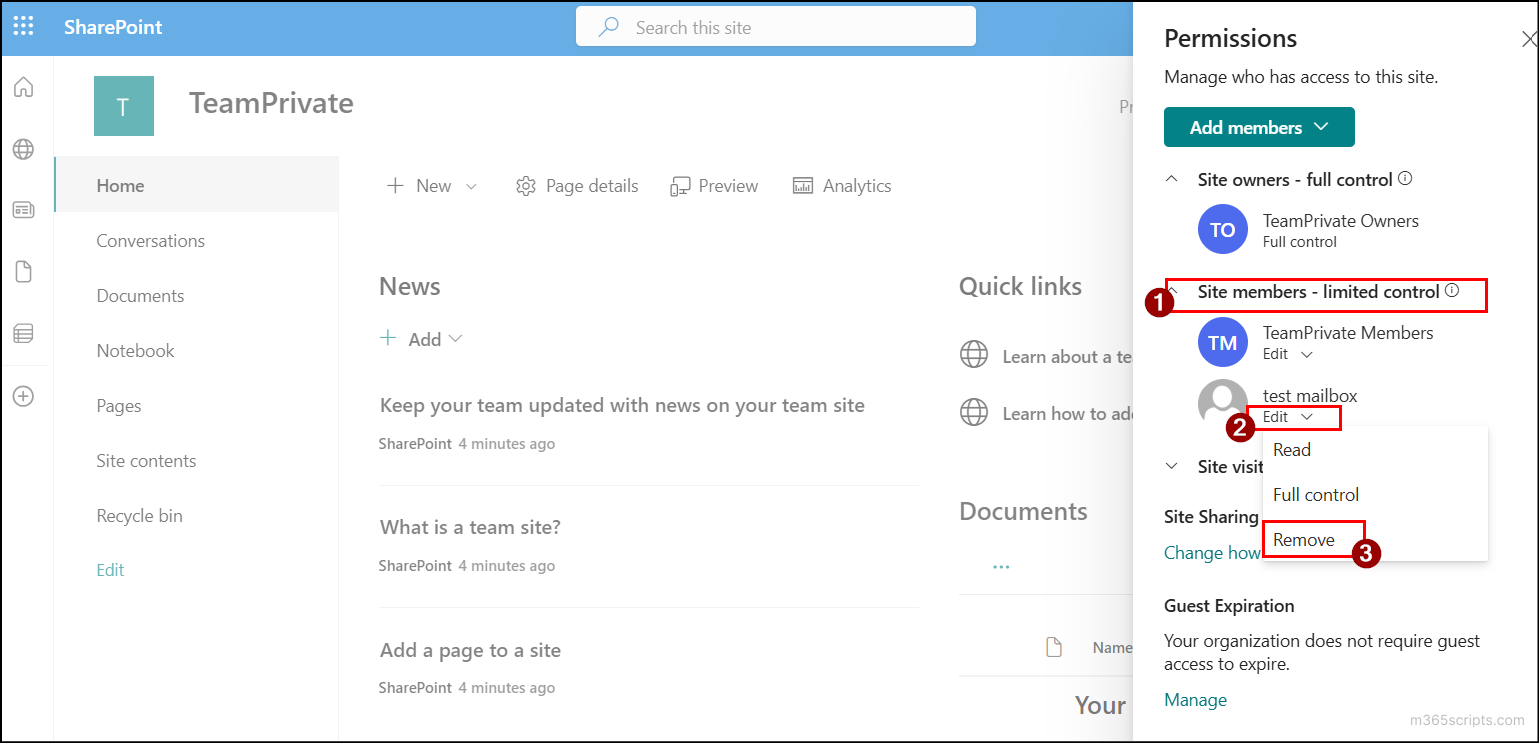
- Team site: From the top right corner, select Settings (⚙️) and select Site permissions. Expand the default group, then expand the target user’s permission, and click Remove.
 You can remove only direct SharePoint group memberships this way. To remove users from a Microsoft 365 group-connected site, click the user icon from the top right corner.
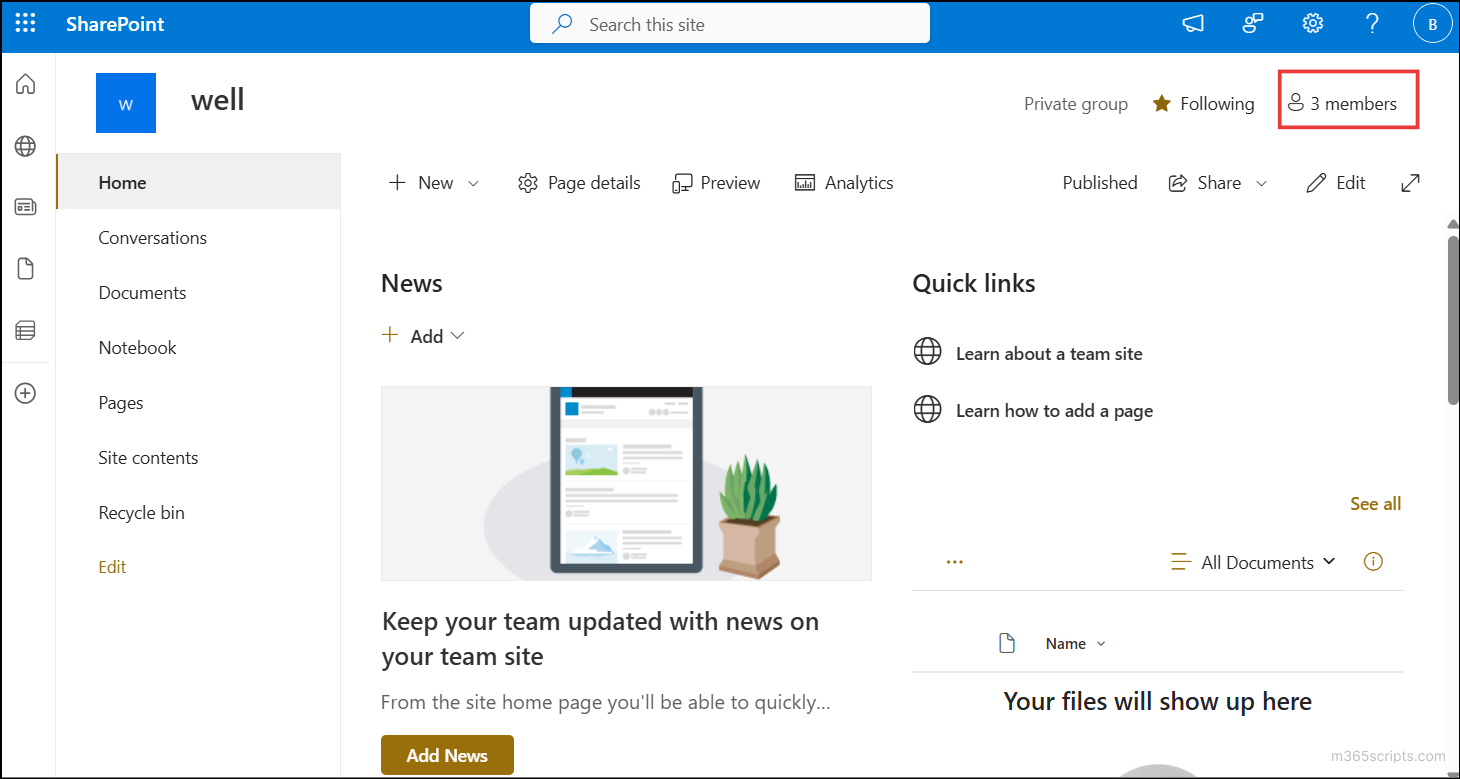 Then, locate the user, expand the user’s permission, and choose Remove from group.
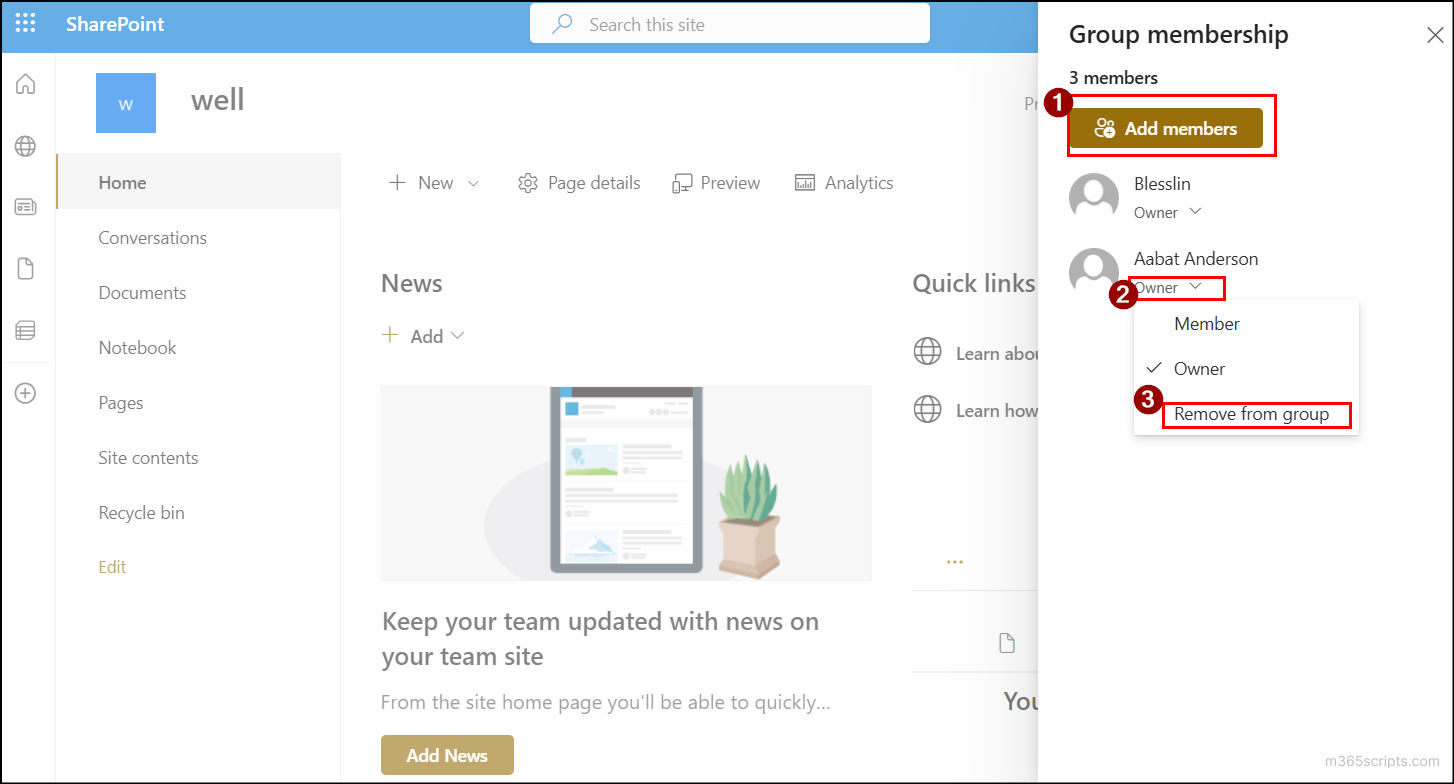
Note: The user icon is visible only when the site is connected to a Microsoft 365 group with at least one member.
- Communication site: Go to Site access, expand the required group, and then expand the target permission level. Click Remove to revoke access from the selected group.
Alternatively, you can remove a user or group from SharePoint group using the PowerShell cmdlet below:
|
1 |
Remove-PnPGroupMember -Group "<GroupName>" -LoginName "<UserOrGroup>" |
This removes only the permissions assigned to the user through that group. However, if the user has additional permissions granted through shared files or folders, those must be removed separately.
In the SharePoint UI, removing multiple users or groups from a SharePoint group can be time-consuming, as you need to remove each one manually.
To avoid this, PowerShell offers a faster and more efficient way to perform bulk removals. To remove multiple users from the default permission groups, first create a CSV file with GroupName and UserOrGroup columns as shown below.
Sample input CSV
Once the CSV is prepared, you can execute the following cmdlet to unassign multiple users or groups from default permission groups:
|
1 2 3 4 |
$users = Import-Csv "<InputCSVFilePath>" foreach ($user in $users) { Remove-PnPGroupMember -Group $user.GroupName -LoginName $user.UserOrGroup } |
This removes users only if they are direct members of the SharePoint group. It will not remove users who are part of the Microsoft 365 group associated with the SharePoint site
After adding users or groups to a site, it is important to verify that only the intended users are present in the relevant groups. This helps prevent users from having incorrect or unintended access levels.
To check the group memberships in a SharePoint site, follow the steps below:
- Open the SharePoint site for which you want to check the group memberships.
- From the top right navigation bar, click Settings (⚙️) and select Site permissions.
- Under Permissions, expand the default group to see all users and groups associated with that group.
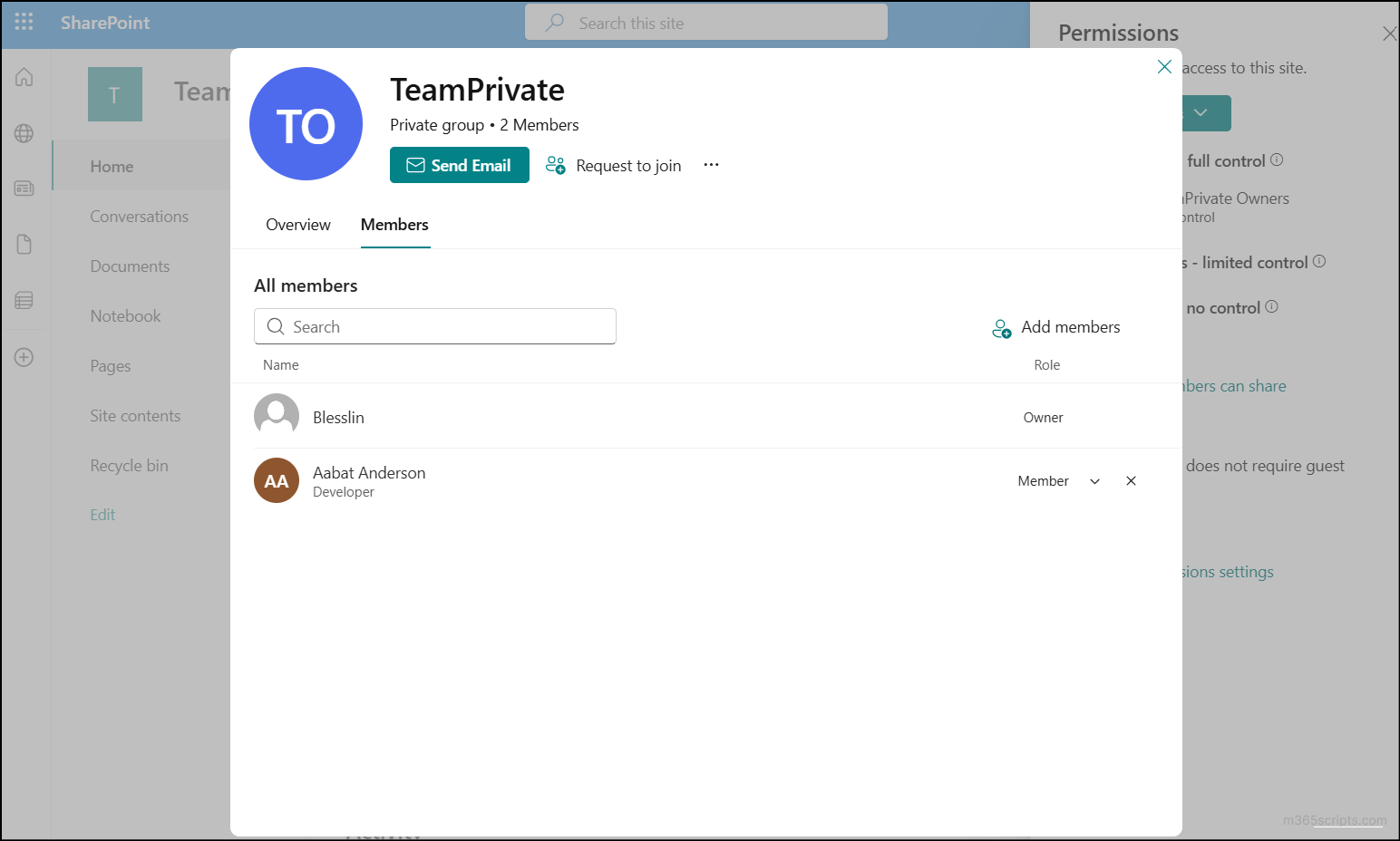
 This view shows only the users added directly and the name of the associated Microsoft 365 group.Note: In group-connected sites in SharePoint Online, the associated Microsoft 365 group is listed under each default group. To view its membership, click the group name and open the Members tab, where you can see all owners and members.
In some organizations, all users are intended to have read-only access to SharePoint sites by default. However, when a Microsoft Teams-connected site is created, the default Members group is automatically assigned Edit permissions, which may grant more access than required. In such cases, administrators can modify the default group’s permission level by changing it from Edit to Read or Contribute to ensure users have only the necessary level of access.
⚠️This is not recommended and should be done only when a permission change is necessary. If needed, you can create a new SharePoint group with appropriate permission level and add users to it.
Follow the steps below to modify the user permissions of a default group in SharePoint Online.
- Open the SharePoint site and click Settings (⚙️) from the top navigation bar.
- Select Site permissions, then click Advanced permissions settings.
- Select the target group by checking the corresponding box and click Edit User Permissions.
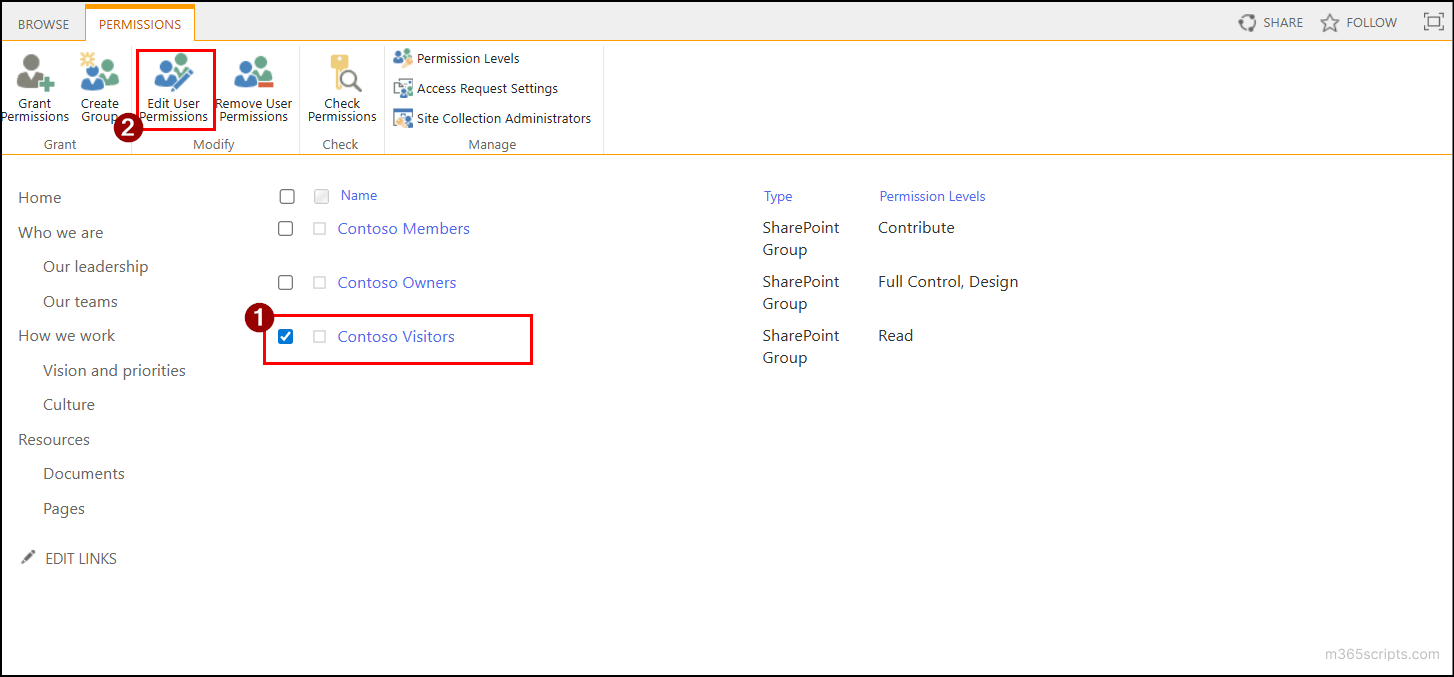
- Choose the required permission levels and click OK. You can adjust access by adding or removing permission levels as needed.
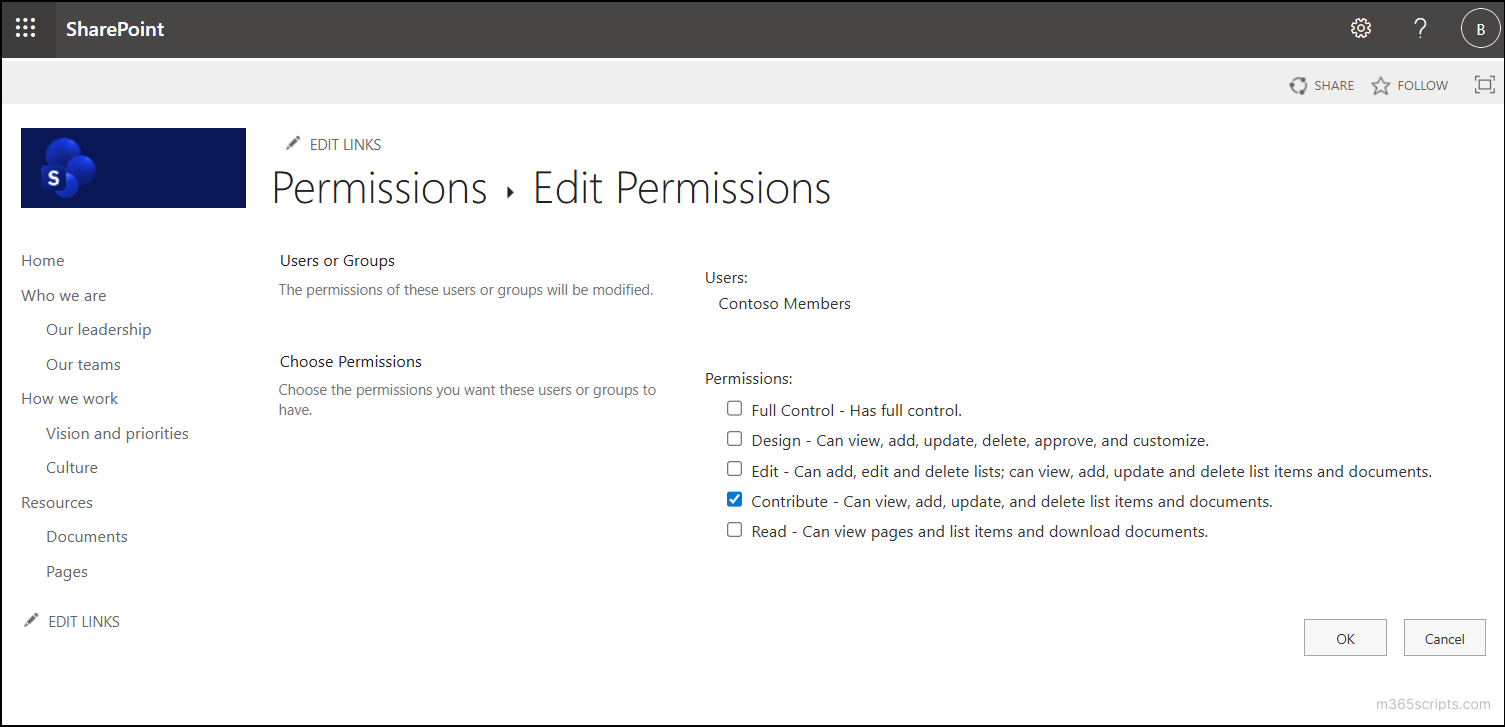
Instead of modifying these user permissions manually, you can update the default group permissions directly using the PowerShell cmdlet below:
|
1 |
Set-PnPGroupPermissions -Identity '<GroupName>' -RemoveRole '<RemovePermission>' -AddRole '<AddPermission>' |
Replace <RemovePermission> with the existing permission level you want to remove, and <AddPermission> with the new permission level you want to assign.
By default, SharePoint groups in SharePoint Online come with predefined settings. For example, membership requests may be disabled, group membership might be visible to everyone, and group owners may be allowed to edit the membership.
However, these settings may not always meet your requirements. In some cases, you may want users to request access to a group or restrict who can manage group membership.
To update settings for a SharePoint default group, follow the steps below:
- Open a SharePoint site and select Settings (⚙️) → Site permissions → Advanced permissions settings.
- Click on the name of the target group, select Settings, and then choose Group Settings from the dropdown.
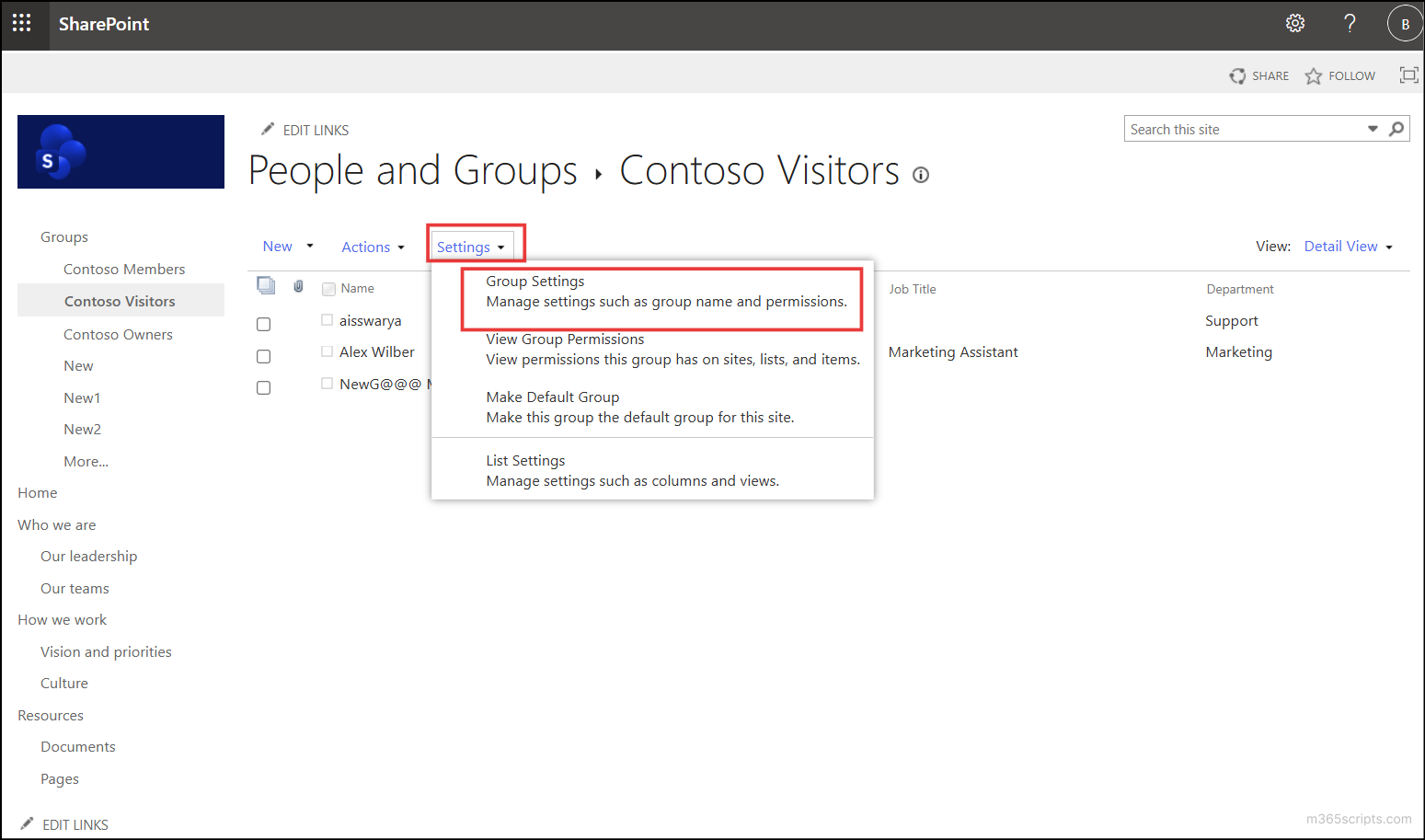
- Here, you can update the group name, description, who can view membership, who can edit membership, and manage requests to join or leave the group.
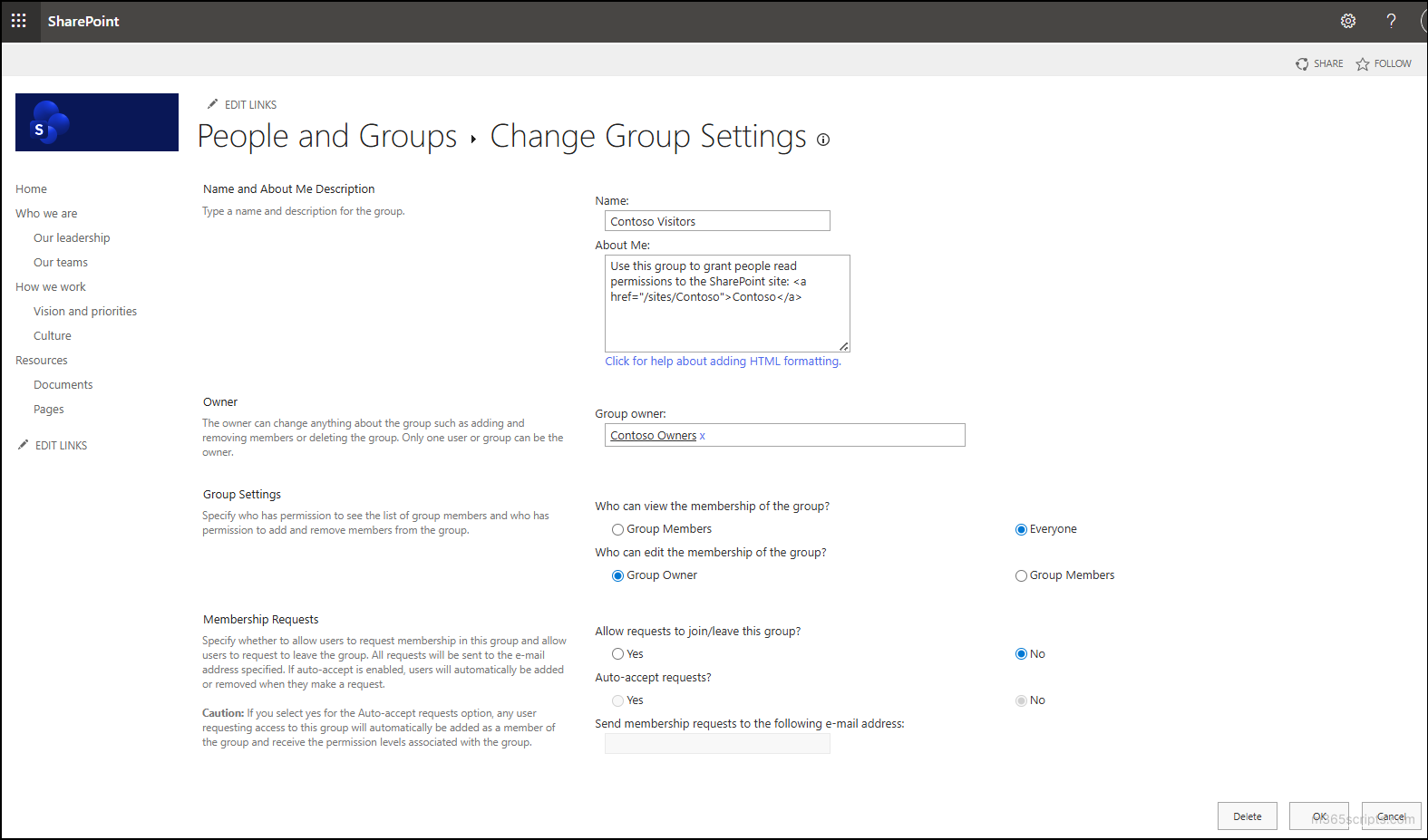
- Once the necessary changes are made, click OK to apply them.
Instead of navigating through multiple UI steps, you can update a SharePoint group using a single cmdlet in SharePoint Online with PnP PowerShell as below:
|
1 |
Set-PnPGroup -Identity ‘<GroupName>’ -Title <Title> -Owner <OwnerName> -AllowRequestToJoinLeave <Boolean> -AutoAcceptRequestToJoinLeave <Boolean> -AllowMembersEditMembership <Boolean> -OnlyAllowMembersViewMembership <Boolean> -RequestToJoinEmail <Email> |
Here’s a breakdown of the key parameters:
- Identity: Specifies the target SharePoint group
- Title: Updates the name of the SharePoint group
- Owner: Sets the group owner
- AllowRequestToJoinLeave: Enables or disables join/leave requests
- AutoAcceptRequestToJoinLeave: Automatically approves join requests. This setting can only be configured if AllowRequestToJoinLeave is set to true.
- AllowMembersEditMembership: Allows members to add or remove users
- OnlyAllowMembersViewMembership: Restricts visibility of group members
- RequestToJoinEmail: Specifies the email address for join requests
When you’re managing a modern group-connected SharePoint site, you’ll notice there are two ways to control user access. At first glance, they might seem similar, but they actually serve very different purpose: SharePoint groups handle permissions within the site, while Microsoft 365 groups power collaboration across the entire organization. Understanding how they differ is essential to keeping your site secure without complicating the access management.
Now, let’s see how default groups in SharePoint Online differ from Microsoft 365 groups.
| Aspect | SharePoint Groups | Microsoft 365 Groups |
| Scope | Site-specific (only within one SharePoint site) | Tenant-wide (across Microsoft 365 services) |
| Creation | Created automatically with SharePoint sites | Created manually or automatically provisioned when a Microsoft Team or a Teams-connected SharePoint site is created. |
| Membership Management | Managed within SharePoint site settings, SharePoint admin center, or using PowerShell | Managed in Entra ID, Microsoft 365 admin center, or using PowerShell |
| Membership Assignment | Only manually assigned | Manual or dynamic assignment |
| Membership Types | Owner, Members and Visitors | Members and Owners |
| Purpose | Manage permissions within a SharePoint site. | Enable collaboration across Microsoft 365 apps like Outlook, Planner, SharePoint, OneDrive. |
| When to use | Site-specific permission management | Cross-service collaboration for a project or department |
And that’s a wrap. We hope this blog helped you understand the different default groups in SharePoint Online and how to manage them effectively. If you have any questions or queries, feel free to share them in the comments below. We would be happy to hear from you. Stay tuned for more blogs.