How Agent Management Rules Simplify AI Governance in Microsoft 365
Microsoft 365 agent management rules help admins identify AI agents that meet specific conditions and perform administrative actions in bulk. This blog explains the available rules, how to configure them, and how they simplify agent governance, ownership management, and the review of agent publishing requests.
AI agents are becoming a part of everyday work in Microsoft 365 by helping organizations automate tasks and improve productivity. As their adoption grows, admins face challenges in tracking agent ownership, controlling outdated agents, and maintaining consistent security policies.
To address these challenges, Microsoft introduced agent management rules in the Microsoft 365 admin center. These rules allow admins to define conditions for identifying agents and automate management tasks through bulk actions.
In this blog, we’ll explore how agent management rules work, their available rules, and how to create and configure rules to simplify AI agent management.
Agent management rules help admins govern AI agents by identifying those that meet specific conditions and applying supported administrative rules in bulk. Admins can configure these rules to manage agents and review or reject user requests to publish them for organizational use.
Here’s how admins can use these rules to manage AI agents.
- Define conditions: Set criteria to identify specific agents or publishing requests.
- Identify matching items: The rule evaluates agents or requests against the configured conditions.
- Review results: Admins review the matching agents or requests before proceeding.
- Run administrative actions: Apply the selected action to manage matching items in bulk.
This rule-based agent management approach helps admins handle common governance tasks, such as installing agents, reassigning ownership, blocking outdated agents, and applying security templates.
Note: Agent management rules are currently available in public preview, so the available features may change as Microsoft continues to develop them.
Microsoft provides two pre-built agent management rules to help admins manage AI agents across the organization,
Let’s take a closer look at how these default rules work and how admins can use them in Microsoft 365.
The Install Microsoft agents rule allows admins to review eligible Microsoft-published agents and install selected agents for all users in bulk.
This helps admins centrally deploy Microsoft agents without requiring individual users to install them.
AI agents can become ownerless when their owners leave the organization, making it difficult to manage their ownership and ongoing usage.
Admins can use the reassign ownerless agents to managers default rule to,
- Identify agents whose original owners have left the organization.
- Transfer ownership to the former owner’s manager based on the Microsoft Entra ID organizational hierarchy.
- Retain useful agents, such as those widely used across teams, so employees can continue benefiting from them without disruption.
Important: To create agents using Agent Builder with organizational data, users need a Microsoft 365 Copilot license or a Copilot Studio pay-as-you-go plan enabled by the organization.
Note: Admins should review the resources and agents associated with departing employees to ensure business continuity as a part of Microsoft 365 employee offboarding.
Beyond these pre-built rules, admins can create custom agent management rules to address their organization’s specific governance requirements. They can define conditions to identify agents and select appropriate administrative actions based on their needs.
Now, let’s see how to create an agent management rule and configure the required conditions and administrative actions.
Admin role required: Global Administrator or AI Administrator.
- Sign in to the Microsoft 365 admin center.
- Navigate to Agents > Settings > Agent management rules.
- Click on Add rule to create a new rule in the Rules page, enter a suitable name and description to identify the purpose of the rule.
First, select the administrative action you want the rule to perform. Each action serves a different agent management purpose.
Available actions include:
- Block agents: Prevent users from accessing selected agents.
- Apply security templates: Apply predefined security configurations to matching agents.
- Reject publishing requests: Reject users’ requests to publish their agents for organizational use.
- Apply permission: Grant the permissions requested by the selected agents.
Next, define the conditions to identify the agents or requests that the selected action should apply to.
You can configure conditions using the following agent and request details,
- Ownership: Agent owner or ownership status.
- Agent details: Display name, agent tags, and publisher.
- Security and risk: Risk level and other supported security attributes.
- Publishing requests: Request date and other supported request criteria.
- Requested permission: Identify requests based on the permissions requested by an agent.
Note: When multiple conditions are configured, all conditions must be met. Admins must select the appropriate actions when configuring the action.
Once you have configured the conditions for the selected administrative action, the rule identifies the agents or requests that match those conditions.
- Review the selected administrative action and configured conditions.
- Review the identified agents or requests to ensure the rule targets the intended items.
- Make any necessary changes to the action or conditions.
- Click Save to create the rule.
Once the rule is created, admins can run it to apply the selected administrative action to the matching agents or requests.
- Go to the Rules page and select the newly created rule.
- Review the list of agents or requests identified by the rule.
- Verify the affected items and click Run to execute the rule.
- After execution, check the Run history to review previous executions and their status.
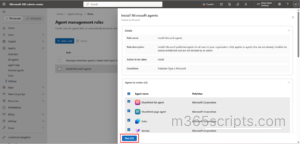
Microsoft 365 admins can create custom agent management rules to address specific security and governance needs.
Let’s explore practical scenarios where admins can use custom rules to manage AI agents across their organization.
- Block ownerless agents without usage
- Block AI agents based on risk factors
- Apply a template to agents
- Reject agent publishing requests
- Apply permissions based on requested permissions
-
Admins often block AI agents in Microsoft 365 to prevent unauthorized access, restrict potentially risky agents, and control agents that are no longer actively used.
Similarly, some AI agents are created for individual purposes and may no longer be needed when their owners leave the organization. If no one is actively using these agents, keeping them available can create additional security risks and make agent management more difficult.
Admins can create a custom rule to block ownerless agents that are no longer in use.
To create this rule, enter the rule name and description, select Block under “Take this action when all conditions are met” dropdown, and configure the following condition:
Criteria Operator Value Owner is None 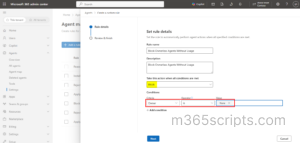
After saving the rule, admins can review the matching agents and click Run to block them. -
Admins can also use the Block action to address different agent security risks. The following scenarios show how admins can identify agents based on risk-related conditions.
Use Cases Criteria Operator Value Block agents with frequent risk occurrences Risk occurrence is exactly (1, 10, 100, 500) Block agents with high-severity security risks Risk severity is High Block agents involved in suspicious credential usage Risk event type is Suspicious credential usage Admins can also use the Risk event type criteria to identify agents associated with other suspicious activities, such as sign-in spikes, Entra directory reconnaissance, unfamiliar resource access, failed access attempts and more. Combining these conditions with an appropriate risk severity helps strengthen AI agent security and governance.
-
Organizations may need to maintain consistent security configurations across AI agents, especially managing agents from different publishers. Security templates help admins apply predefined security settings across selected agents.
Admins can use the Apply Template rule to target agents based on their display names and publishing sources.
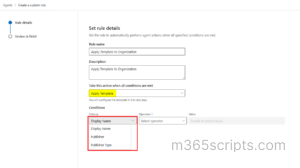
The following examples demonstrate different ways to configure this action,
Use Cases Criteria Operator Value Apply a template to specific Microsoft agents Display Name is exactly [Specific agent name] Publisher Type is exactly Microsoft Apply a template to agents from external publishers Publisher Type is exactly External Apply a template to organization-published agents Publisher Type is exactly PublishedByTenant Apply a template to agents from selected publishers Publisher is equal to any of [Select the required publisher names] Publisher Type is exactly External Important: The Apply Template action is a one-time bulk operation, that admins initiate by selecting the matching agents and clicking Run. It applies only to registered agent instances that have an agent identity. Agent blueprints and AI agents designed to work alongside teams aren’t supported.
Additionally, admins can granularly use prompt policies in Microsoft 365 to inspect and block malicious prompts across supported generative AI applications.
-
When users create AI agents and want to make them available to others in the organization, they must submit publishing requests for admin review and approval. These requests can remain pending for extended periods and become outdated. Admins can create a custom rule to reject such requests based on their age.
To create this rule, enter the rule name and description, select the action, and configure the following condition:
- Action: Reject publish requests
- Criteria: Request date
- Operator: Is older than
- Value: 30, 60, or 90 days
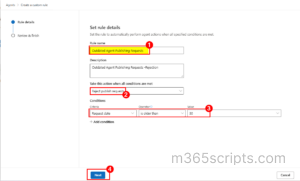
Admins can choose the request-age threshold based on their organization’s review and approval policies. After saving the rule, review the matching requests and click Run to reject them.
-
AI agents may request different permissions to access organizational resources, such as user profiles, emails, and directory information.
Admins can also use the Apply Permission action to identify agents based on the permissions they request and apply the corresponding permission action.
For example, admins can configure a custom rule using the following condition.
Use Cases Criteria Operator Value Identify agents requesting directory write access Requested Permission contains any of Directory.ReadWrite.All Identify agents requesting directory modification access Requested Permission contains any of Directory.ReadWrite.All Identify agents requesting basic user profile access Requested Permission contains any of User.Read Identify agents requesting multiple high-impact permissions Requested Permission contains all of Directory.ReadWrite.All, Mail.ReadWrite This helps admins identify agents requesting specific levels of access and apply the appropriate permission action based on their organization’s access policies.
Agent management rules can simplify administration, but effective governance also requires practices that support data hygiene, identity control, access security, and lifecycle management.
- Review Agent Ownership Regularly: Periodically identify AI agents without owners and reassign ownership when employees leave the organization or change roles. This helps prevent unmanaged agents from remaining active in your tenant.
- Maintain a Centralized Agent Inventory: Use the agent 365 registry to track agents across supported platforms. Review ownership, publisher, platform, and status to identify unmanaged or unapproved agents.
- Enforce Conditional Access and Zero Trust Controls: Use Entra Conditional Access and least-privilege access to restrict agent permission to required resources. Apply MFA to human user access where appropriate.
- Identify Inactive and Unused Agents: Monitor agent usage and identify agents that are no longer needed. Block or remove inactive agents based on your organization’s policies to reduce unnecessary exposure. To streamline this process, you can also use lifecycle workflows to clean up inactive agent IDs and maintain a cleaner agent environment.
- Apply Consistent Security Policies: Use security templates to standardize security configurations across multiple agents. Establish consistent policies for permissions, access, and other supported security settings to reduce configuration gaps and simplify governance.
- Maintain an Organized Approval Process: Regularly review pending publishing requests and reject outdated or irrelevant requests based on your organization’s approval policies.
Finally, before executing any bulk action, carefully review the affected agents or requests. This helps prevent unintended changes to active agents, valid publishing requests, or existing security configurations.
By configuring agent management rules with appropriate actions and conditions, Microsoft 365 admins can reduce manual effort, maintain security across AI agents, and keep their agent environment organized.
I hope this blog helped you understand how to use agent management rules in the Microsoft 365 admin center to simplify agent management, enforce security policies, and automate governance tasks. Feel free to reach us through the comments section if you have any queries.