Find All Group Memberships of Microsoft 365 Users
A user can be a member of multiple Microsoft 365 groups, security groups, distribution groups, and other groups. As an administrator, knowing these memberships is important for understanding what a user can access and how their access is managed.
For example, when a user moves to another team, leaves the organization, or changes roles, you may need to check:
- Which groups is the user a member of?
- Does the user still belong to groups from their previous role?
- Which Microsoft 365 groups or security groups provide access to resources?
- Is the user receiving access through direct group membership?
- Are there unnecessary or outdated memberships that should be removed?
You might think, “Getting a user’s group memberships should be simple!” And you’re right! There are several methods to view a user’s group memberships. But the real question is: Which method should you use for your requirements?
That’s the purpose of this blog. Let’s look at five different ways to retrieve a users’ group memberships in Microsoft 365, understand how each method works, and see when each one is the right fit for your requirement.
Before we jump into the methods, let’s quickly understand how a user can become a member of a group. This makes it easier to understand what information each method can retrieve.
Basically, there are two common ways a user can become a member of a group.
- Direct group membership
A user can be added directly to a group as a member.
For example:
Finance Users → Alex
Here, Alex is directly added as a member of the Finance Users group.
- Membership through a nested group
A user can also become a member of a group through another group. This is known as nested group membership.
For example:
Finance Users → Finance Managers → Alex
Here, Alex is a member of the Finance Managers group, and the Finance Managers group is itself a member of the Finance Users group. As a result, Alex can inherit membership in the Finance Users group through the nested group structure.
Understanding this distinction is important because checking only the groups where a user is directly listed may not always give you the complete picture of their group memberships.
Now that we have a basic understanding of how group membership works, let’s look at the different methods available to retrieve group memberships in Microsoft 365.
- Retrieve a User’s Group Memberships Using the Microsoft 365 Admin Center
- View Users in Microsoft 365 and their Group Memberships
- View a User’s Group Memberships Using Microsoft Graph API
- Find All Group Memberships of a User Using PowerShell
- Export a Group Membership Report in Microsoft 365 (Recommended)
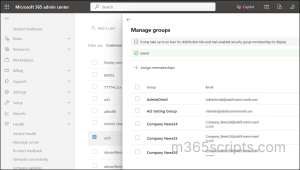
When can you use this? If you’re troubleshooting a user’s access or reviewing their current permissions, checking their group memberships is often a good place to start. The Microsoft 365 admin center lets you view a user’s group memberships directly from their profile.
To check the group memberships:
- Sign in to the Microsoft 365 admin center.
- Navigate to Users → Active users.
- Select the required user. A details pane will open on the right.
- Under the Groups section, you can view the groups the user is a member of.
When is it not suitable?
- This method is useful when you want to check the group memberships of individual users. However, it can become time-consuming when you need to check multiple users because you have to open each user’s profile separately.
- Also, this view does not provide an option to export the group memberships for further analysis.
When can you use this? If you want a more detailed and categorized view of a user’s group memberships, you can use the Microsoft Entra admin center.
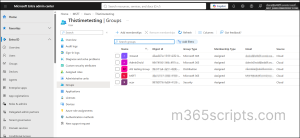
For example, you can quickly identify how many security groups and Microsoft 365 groups a user is a member of. You can also select the respective groups and perform management actions, such as removing the user from a group.
The view provides more details than just the group name, including information such as the object ID, group type, membership type, and other group-related details.
To access it:
- Sign in to the Microsoft Entra admin center.
- Go to Identity → Users → All users.
- Select the required user.
- Under Manage, select Groups.
- You can now view all the groups that the selected user is a member of.
When is it not suitable?
The Microsoft Entra admin center works well when you need to investigate the group memberships of a specific user with more details. However, if you need to check the memberships of 100 or 1,000 users, manually opening each user’s profile can become time-consuming.
When can you use this?
If you want to avoid going through multiple screens and clicks in the Microsoft 365 or Microsoft Entra admin center to find a user’s group memberships, you can use Microsoft Graph API to retrieve the information directly.
It is especially useful when you need to retrieve group membership information programmatically instead of manually opening each user’s profile in the admin center
Microsoft Graph provides two approaches depending on whether you want to retrieve only the groups a user is directly assigned to or also include memberships inherited through nested groups.
Direct group membership
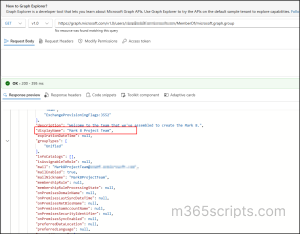
To retrieve the groups that a user is directly a member of, you can use the memberOf API:
|
1 |
GET https://graph.microsoft.com/v1.0/users/{user-id}/memberOf/microsoft.graph.group |
This API returns the groups where the user is directly listed as a member.
Transitive group membership
If you need to retrieve the groups a user belongs to through both direct and nested group memberships, you can use the transitiveMemberOf API:
|
1 |
GET https://graph.microsoft.com/v1.0/users/{user-id}/transitiveMemberOf/microsoft.graph.group |
This API returns the user’s direct group memberships as well as the groups they belong to through nested group membership.
When is it not suitable?
- Although Microsoft Graph API provides flexibility and automation, it requires development or scripting knowledge. You also need to handle authentication, permissions, API requests, pagination, filtering, and processing of the returned data.
When can you use this?
PowerShell is a convenient option when you want to retrieve a user’s group memberships directly from the command line. It is especially useful when you want to quickly filter, search, or check membership information based on specific requirements without manually going through each group or user.
Retrieve group memberships using PowerShell cmdlets
To get a user’s group memberships, connect to Microsoft Graph PowerShell. Once connected, you can run the following cmdlets:
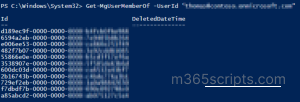
You can use the below cmdlet to retrieve the directory objects that a user is a member of.
|
1 |
Get-MgUserMemberOf -UserId "[email protected]" |
To get the groups name directly, you can filter the results as follows:
|
1 2 3 4 |
Get-MgUserMemberOf -UserId "[email protected]" | Where-Object { $_.AdditionalProperties["@odata.type"] -eq "#microsoft.graph.group" } |
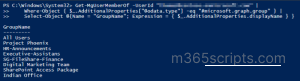
You can also retrieve transitive group memberships by using:
|
1 |
Get-MgUserTransitiveMemberOf -UserId "[email protected]" |
This is useful when you want to include groups that the user belongs to through nested group membership.
Limitations of PowerShell cmdlets
- PowerShell cmdlets provide more flexibility than manually checking the admin centers, but they are still command-based. If you need to retrieve and analyze memberships for many users, apply multiple filters, or generate a structured report, you may need to combine several cmdlets and additional PowerShell logic.
This is where the PowerShell script in the next method can be more useful, as it is designed specifically for generating group membership reports.
If you need to get the group memberships of users in bulk or generate a detailed report, a PowerShell script can make the process much easier.
This script uses Microsoft Graph PowerShell and provides in-depth details about users and their group memberships. It can generate different membership reports based on your requirements, making it easier to analyze group membership information across your organization.
What does the script do?
- Retrieve group memberships for multiple users.
- Export users’ group memberships to a CSV file.
- Review the group memberships of guest users.
- Review the group memberships of disabled users.
- Run the same group membership report periodically.

It saves the effort of manually checking users one by one and gives you the membership data in a format that is easier to analyze and share.
Closing lines:
For a quick check of an individual user, the Microsoft 365 admin center or Microsoft Entra admin center can be sufficient. PowerShell and Microsoft Graph API are better suited for automation and programmatic retrieval.
However, when you need to review multiple users, analyze group memberships, or generate a report, a dedicated group membership report can save significant time and effort.
Choose the method that best fits your requirement and the number of users you need to review. Thanks for reading!