Offline Address Book in Exchange Online
Learn how Offline Address Books (OABs) work in Exchange Online and how to manage them with PowerShell. Create custom OABs, configure address lists, set a default OAB, and assign them through Address Book Policies (ABPs) to provide relevant directory information to different departments when working offline in Outlook.
Offline Address Books provide users with a downloadable copy of address information that Outlook can use when working offline. When different departments use the same address book, it can be difficult to identify the right recipient, especially when users have similar names. This can increase the chance of sending information to the wrong person.
Creating custom OABs can help provide users with only the address information relevant to their department or role when working offline. This blog walks through creating, assigning, and auditing Offline Address Book using PowerShell.
Before creating or managing an Offline Address Book (OAB), it is important to understand how Exchange Online organizes recipient information. An OAB does not independently contain a separate directory of users. Instead, it is built from the address lists configured in Exchange Online.
The relationship between address lists, the Global Address List (GAL), address books, Address Book Policies (ABPs) helps administrators organize and control how recipient information is presented to users.
- Address Books – Collections of recipient and resource information that users can access in Outlook to find people, groups, contacts, and meeting rooms within the organization.
- Address Lists – Collections of mail-enabled recipients and resources grouped using specific filtering criteria, such as department, location, or recipient type.
- Global Address List – The organization’s primary directory which contains all mail-enabled users, groups, contacts, and other available resources within the organization.
- Address Book Policies– Policies that control which address book information different groups of users can access in Outlook. An ABP includes a GAL, OAB, room list, and address lists.
An OAB is an offline copy of the organization’s address information when Outlook is running in Cached Exchange Mode. Admins can choose which address lists to include when creating an OAB, such as the GAL or custom address lists. Outlook then downloads the OAB and uses it for recipient lookups when working offline.
Exchange Online generates updated OABs every 8 hours, while Outlook periodically checks for updates to ensure users have the latest available address information when running in cached Exchange mode.
When multiple OABs are available, Exchange Online determines which OAB a mailbox uses based on the configured ABP. A mailbox that doesn’t have an OAB assigned uses the organization’s default OAB, which normally contains the address information available in the default Global Address List. This address list includes every mail-enabled object in the organization by default.
For example, if the Finance team is assigned an ABP that specifies a Finance OAB, Outlook users in that group will download and use the Finance OAB instead of the default OAB.
Before you begin creating and managing OABs, make sure you meet the prerequisites given below.
Role Requirement: Assign the “Address Lists” role to the required administrators through an Exchange Online role group.
PowerShell Requirements: Install and connect to Exchange Online PowerShell.
Before creating a new OAB, you can check the OABs already available in your organization using the following cmdlet.
|
1 |
Get-OfflineAddressBook | Format-Table Name, Versions, AddressLists, IsDefault |
The above cmdlet lists the available Offline Address Books and shows their name, version, address lists, and whether it is the default OAB.
 To view the detailed properties of a specific OAB, pass the name of the Offline Address Book.
|
1 |
Get-OfflineAddressBook -Identity "<IT OAB>" | Format-List |
The above cmdlet lists the detailed properties of the IT OAB.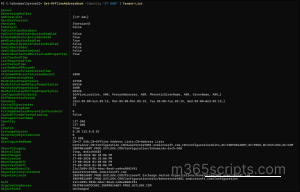
To create a custom OAB in Exchange Online use the cmdlet given below.
|
1 |
New-OfflineAddressBook -Name "IT OAB" -AddressLists "\IT GAL" |
Replace “IT OAB” with the desired OAB name and “IT GAL” with the address list you want to include.
You can include multiple address lists in the same OAB by separating their names with commas.
|
1 |
New-OfflineAddressBook -Name "<IT OAB>" -AddressLists "\IT GAL","\Finance GAL" |
The above cmdlet creates the IT OAB offline address book and includes both the IT GAL and Finance GAL address lists.
After creating the OAB, you shall verify the configuration using the Get-OfflineAddressBook cmdlet discussed earlier.
Note: Creating an OAB does not automatically assign it to mailboxes. You must either configure it as the default OAB or include it in an ABP.
When an organization has multiple OABs, you can configure one OAB as the default. This default OAB is used for mailboxes that don’t have an OAB assigned.
|
1 |
Set-OfflineAddressBook -Identity "IT OAB" -IsDefault $true |
The above cmdlet sets the IT OAB as the default Offline Address Book. Replace “IT OAB” with the name of the OAB you want to set as the default.
To configure specific users to use a custom OAB, assign the OAB to an Address Book Policy.
Before proceeding, make sure to complete the steps to create address book policies in your Exchange Online environment.
|
1 |
Set-AddressBookPolicy -Identity "IT ABP" -OfflineAddressBook "\IT OAB" |
Replace IT ABP with the name of your Address Book Policy and IT OAB with the name of the Offline Address Book you want to assign.
To verify the OAB assigned to each Address Book Policy, run the following cmdlet:
|
1 |
Get-AddressBookPolicy | Select-Object Name,GlobalAddressList,OfflineAddressBook,RoomList,AddressLists | Format-Table -AutoSize |
The above cmdlet displays the configured GAL, OAB, room list, and address lists for each Address Book Policy. 
Now that you have configured an OAB to an ABP, use the following cmdlet to assign the ABP to individual user.
|
1 |
Set-Mailbox "[email protected]" -AddressBookPolicy "IT ABP" |
Replace “[email protected]” with the user’s email address and “IT ABP” with the name of the Address Book Policy you want to assign.
You can assign ABPs to multiple users in bulk based on their department, role, location, or other organizational requirements.
To update the OAB assigned to an ABP, run the following cmdlet:
|
1 |
Set-AddressBookPolicy -Identity "IT ABP" -OfflineAddressBook "\HR OAB" |
Replace “IT ABP” with the name of the Address Book Policy and “HR OAB” with the OAB you want to assign.
When an OAB is no longer required, you can remove it from Exchange Online using PowerShell.
Before you delete an OAB, check whether it is assigned to an ABP. If the OAB is assigned to an ABP, first update the ABP with the default OAB. The OAB value in an ABP cannot be left empty.
|
1 |
Remove-OfflineAddressBook -Identity "Support OAB" |
Replace ‘Support OAB” with the name of the OAB you want to delete.
Note: If you remove the default OAB, Exchange Online does not automatically select another OAB as the default. If required, manually configure another OAB as the default before removing an OAB.
1. Is an Offline Address Book mandatory in Exchange Online?
No, an Offline Address Book (OAB) is mainly used by Outlook in Cached Exchange Mode for offline address lookups. Custom OABs are only needed when your organization has specific address book requirements.
2. Can Offline Address Book contain multiple address lists?
Yes. You can include multiple address lists when creating or configuring an Offline Address Book.
3. What are the key differences between Offline Address Book and Global Address List?
The following comparison outlines the key differences between Offline Address Book and Global Address List.
|
Aspect |
Offline Address Book (OAB) |
Global Address List (GAL) |
|
Purpose |
Provides address information when Outlook is in cached Exchange mode. |
Provides a live directory of recipients and resources when connected to Exchange Online. |
|
Contains |
Contains selected address lists and GALs. |
Contains list of all mail-enabled users, contacts, groups, and other objects within the organization. |
|
Dependency |
A downloadable offline copy that contains GAL information and selected address lists. |
Functions independently as the organization’s primary directory. |
|
Location |
Downloaded and stored locally on the user’s device. |
Stored in Exchange Online. |
Hope this blog helped you understand how Offline Address Books work in Exchange Online and how they tie into Address Book Policies. Feel free to share your thoughts and feedback in the comment section!