Manage Active Directory User and Group Relationships Using PowerShell Script
Managing user-group relationships in Active Directory can be challenging, especially when handling group memberships, primary group assignments, and group ownership at scale. To simplify these tasks, we developed a PowerShell script that supports 16 management actions for both individual and bulk operations. This blog shows how to use the script to streamline user group relationships.
In Active Directory, user and group relationships play a key role in controlling access to organizational resources, permissions, and shared services. Whether you’re onboarding new employees, handling role changes, or removing access during offboarding, admins often need to add users to groups, remove memberships, assign group owners, and perform many other user-group management tasks.
While these tasks are manageable for a few users, they can quickly become time-consuming in larger environments. To simplify user-group relationship management, we’ve created a PowerShell script that supports both single and bulk actions.
Without delay, let’s dive into why user-group relationship management matters, the different ways to handle it, and how this PowerShell script can help to streamline the process.
Here are the key reasons why managing user-group relationships is important in Active Directory:
- Simplified Administration: You can manage access through groups instead of individual user accounts, making onboarding, role changes, and offboarding more efficient.
- Consistent Role-Based Access Control (RBAC): Assign users to security groups based on their roles to ensure consistent permissions and controlled access to organizational resources.
- Streamlined Auditing and Compliance: Well-maintained user group relationships make it easier to review access rights and support security and compliance audits.
- Improved Security: Proper user-group relationship management helps enforce least-privilege access and reduces the risk of excessive permissions.
In Active Directory, several methods are available to manage user and group relationships. While each method can help admins, they differ in terms of functionality, scalability, and ease of use.
- Active Directory Users and Computers (ADUC): One of the most commonly used tools is Active Directory Users and Computers for managing user-group relationships through a graphical interface. Admins can use the Member Of tab under user properties to manage group memberships and update primary groups. To manage group ownership, admins can use the Managed By tab in the group’s properties. It works well for day-to-day administrative tasks and quick changes. However, things become difficult when bulk management of user and group relationships is involved.
- Active Directory Administrative Center (ADAC): This tool provides a more modern interface and includes features such as the PowerShell History Viewer. Unlike ADUC, where admins often need to switch between multiple tabs to perform different tasks, ADAC presents group properties in a single-view layout. However, ADAC is not ideal for large-scale user and group management, as it lacks the speed and flexibility needed for bulk operations.
- Active Directory PowerShell: It is one of the most efficient ways to manage Active Directory users and groups, especially in large environments. It supports automation, scripting, and bulk operations that are difficult to perform through ADUC and ADAC. However, performing tasks through Active Directory PowerShell requires multiple cmdlets and error handling, which can increase complexity and administrative effort.
To simplify these challenges, we developed a PowerShell script that supports 16 user and group relationship management actions. It enables admins to manage memberships, primary group assignments, and group ownership through a single solution.
Download Script: ManageADUserGroupRelationship.ps1
- Performs 16 actions to manage Active Directory user-group relationships.
- Enables you to run a specific management action directly.
- Supports bulk actions to user and group management using CSV input files.
- Allows you to perform multiple actions in a single execution.
- Automatically loads the Active Directory PowerShell module if it is not already available on the system.
- Exports execution results to a CSV log file with details such as action performed, status, and timestamp.
This all-in-one script eliminates the administrative overhead by bringing essential Active Directory user and group relationship management functions under a single hood. No more switching between tools or juggling multiple cmdlets.
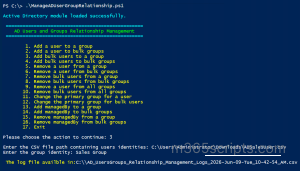
Follow the steps below to run the user and group relationship management script in your Active Directory.
- Download the PowerShell script and save it locally on your Windows machine.
- Open Windows PowerShell and navigate to the script location.
- Choose any of the execution methods below based on your requirements.
|
1 |
.\ManageADUserGroupRelationship.ps1 |
This launches an interactive menu that displays all supported actions to manage user and group relationships in Active Directory. You can select the required action and provide the necessary details when prompted to execute it.
After execution, the script generates a CSV log file containing details such as the user, group, action performed, execution status, timestamp, and any error information.
When you want to execute a specific operation directly without navigating through the full menu, use the -Action parameter as shown below.
|
1 |
.\ManageADUserGroupRelationship.ps1 -Action 1 |
Replace the action number with the operation you want to perform to execute it directly without navigating through the available actions.
By default, the script exits after completing an action. If you need to perform multiple operations consecutively, use the -MultiExecutionMode parameter.
|
1 |
.\ManageADUserGroupRelationship.ps1 -MultiExecutionMode |
This option returns you to the main menu after each completed action, allowing you to perform multiple user and group relationship management tasks without rerunning the script. Once all actions are completed, the script records the execution details in the generated log file.
By default, the script uses the credentials of the currently signed-in user. If you need to perform operations using a different account, specify alternate credentials using the -Username and -Password parameters.
|
1 |
.\ManageADUserGroupRelationship.ps1 -Username <Username> -Password <Password> |
Replace <Username> and <Password> with the credentials of an account that has the required permissions to perform Active Directory operations.
Note: When running the script from a workstation or client machine, you can also specify the Active Directory domain using the -DomainName parameter.
With support for both individual and bulk operations, this script helps streamline common Active Directory user and group management tasks. Below are the supported use cases.
- Add a user to a specific Active Directory group
- Add a particular user to multiple AD groups
- Bulk add users to an Active Directory group
- Add bulk users to multiple Active Directory groups
- Remove an Active Directory user from a group
- Remove a user from multiple groups
- Remove multiple users from an AD group
- Bulk remove users from Active Directory groups
- Remove a user from all groups in Active Directory
- Bulk remove users from all groups
- Set a user’s primary group in Active Directory
- Change the primary group for multiple users
- Assign a manager to an Active Directory group
- Assign owners to multiple groups
- Remove the owner from a group in AD
- Unassign managers from multiple AD groups
When a user requires access to a shared resource, adding them to the appropriate security or distribution group is essential in Active Directory. Without searching for objects or navigating OU trees, you can add the user to a specific Active Directory group using the script below.
|
1 |
.\ManageADUserGroupRelationship.ps1 -Action 1 |
Simply enter the user’s and group’s sAMAccountName or Distinguished Name (DN) to complete the action. 
Once executed, the script generates a log file containing details such as the event time, user name, group name, action performed, status, and any error messages.
Output Log:

Consider a scenario where an employee moves into a cross-functional role and requires access to several resources across departments. Instead of updating memberships individually, this action allows a user to be added to multiple groups in a single operation.
Before proceeding, it’s important to understand Active Directory group scopes, as they determine which users can be added as member of the group. Attempting to add a user who is not supported by the group’s scope may cause the operation to fail.
- Global Groups: You can only add users from the same domain.
- Domain Local Groups: You can add users from any domain in the forest, as well as from trusted external domains and forests.
- Universal Groups: You can add users from any domain within the same forest.
To add a user to multiple groups, prepare an input CSV file with the Group column and populate it with the names of the groups as shown below.
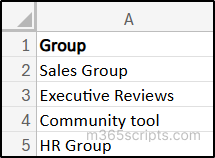
Then, execute the script as follows to add a specific user to multiple Active Directory groups using a CSV file.
|
1 |
.\ManageADUserGroupRelationship.ps1 -Action 2 |

After adding the user to the specified groups, the script generates a log file to track the execution details, ensuring proper auditing and easy troubleshooting.
Output Log:

Organizations may need to grant the same access to multiple users within a department or team. For example, when a new finance department is onboarded or a project team is formed, several users may need to be added to the same Active Directory group. This action helps admins to update memberships in bulk.
Prepare a CSV file and ensure it contains a User column populated with the usernames as shown below.
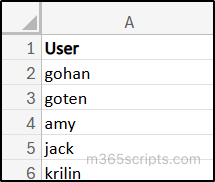
Then, run the script as follows to add multiple users to an Active Directory group.
|
1 |
.\ManageADUserGroupRelationship.ps1 -Action 3 |
This action prompts you to provide the target group name and a CSV input file for user identities.
 Output Log:

Following an acquisition, merger, or department reorganization in Active Directory may require align multiple users across multiple groups. This script simplifies the process by allowing admins to perform bulk user-group assignments in a single operation. It effectively adds all users listed in the user CSV file to all groups listed in the group CSV file.
So, for execution, prepare two separate CSV files: one with a User column containing the usernames and another with a Group column containing the target group names.
Then, run the script as follows to add bulk users to multiple Active Directory groups.
|
1 |
.\ManageADUserGroupRelationship.ps1 -Action 4 |

Once the process finishes, the script generates a log file containing details such as the event time, username, group name, action performed, status, and any error messages.
Output Log:
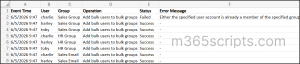
Pro Tip: Looking to add different users to different groups in bulk? If needed, you can also add specific users to specific groups instead of adding every user to every group for more targeted bulk group operations.
When user access to specific resources is no longer needed, or a user should no longer be part of a distribution list, admins may need to remove them from specific groups. This helps keep group memberships up to date and aligned with current responsibilities.
Execute the script as follows to remove a user from an Active Directory group.
|
1 |
.\ManageADUserGroupRelationship.ps1 -Action 5 |
When prompted, enter the user and group details to remove the user from the specified Active Directory group.

Output Log:

A privileged account may no longer require access to sensitive systems after a project engagement ends. In such cases, admins need to revoke the access by removing them from multiple Active Directory groups. This action allows a user to be removed from multiple Active Directory groups in a single operation.
For this action, use the CSV file with Group column containing group names, then execute the script as follows
|
1 |
.\ManageADUserGroupRelationship.ps1 -Action 6 |

Output Log:

Imagine you’ve created an Active Directory group for an intern training program and added all participants to it. Once the training is completed, those users may no longer need membership in the group. In such scenarios, this action helps admins remove multiple users from the group in a single step.
To bulk remove users from an Active Directory group, run the script as follows.
|
1 |
.\ManageADUserGroupRelationship.ps1 -Action 7 |

Output Log:

While it’s important to add multiple users to multiple groups during project transitions or department reorganizations, it’s equally important to remove outdated group memberships to avoid unauthorized access. Using native tools often requires admins to navigate to each group individually or rely on multiple PowerShell commands and looping logic to perform bulk removals.
To remove multiple users from Active Directory groups in bulk, run the script as follows.
|
1 |
.\ManageADUserGroupRelationship.ps1 -Action 8 |
Provide the two CSV files for users and groups while execution.

Output Log:
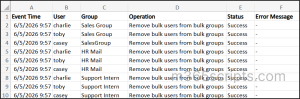
Employee offboarding and inactive account cleanup often require admin to remove all group memberships from a specific user. This practice strictly enforces the principle of least privilege, ensures that outdated accounts don’t retain permissions or access, and minimizes the organization’s attack surface.
To remove a specific user from all groups in Active Directory, execute the script and enter the target username when prompted.
|
1 |
.\ManageADUserGroupRelationship.ps1 -Action 9 |

After execution, the script removes all group memberships associated with the user and records the results in a log file.
Output Log:
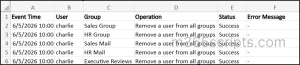
Note: This action does not remove the user from their primary group.
When a major business unit is restructured or during large-scale deprovisioning events, admins must clear access across a broad set of users simultaneously. Instead of repeating the time-consuming cleanup process for every individual account, use the script below to efficiently remove multiple users from all group memberships in bulk.
Execute the script as shown below and enter the user CSV file to perform the action.
|
1 |
.\ManageADUserGroupRelationship.ps1 -Action 10 |

Output Log:
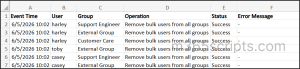
Although changing a user’s primary group is generally not recommended, some legacy applications, POSIX-compliant systems, and Unix/Linux integrations rely on it for permission management.
When you need to update a specific user’s primary group, run the script as follows:
|
1 |
.\ManageADUserGroupRelationship.ps1 -Action 11 |
After execution, provide the username and the new primary group to which the user should be assigned.

Output Log:
If you need to update the primary group for multiple users simultaneously, use this action to perform the changes in bulk. Before proceeding, ensure that the group is eligible for primary group assignment.
To change the primary group for multiple users, run the script as follows:
|
1 |
.\ManageADUserGroupRelationship.ps1 -Action 12 |
After executing the script, provide the new primary group and a CSV file containing the target users.

Output Log:
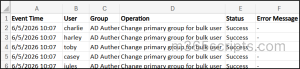
Note: Ensure that the target group is a Global or Universal Security Group. Active Directory does not allow Distribution Groups to be assigned as a user’s primary group.
In Active Directory, group managers are responsible for overseeing memberships. This is particularly useful during access reviews, audits, and governance activities. It helps maintain accurate memberships and reduces administrative overhead.
To assign a group manager to an Active Directory group, execute the script as follows:
|
1 |
.\ManageADUserGroupRelationship.ps1 -Action 13 |
After execution, specify the target group name and the user’s identity who should be assigned as the group manager.

Output Log:

In some scenarios, such as organizational restructuring, admins may need to assign owners to multiple Active Directory groups. Performing this task manually can be tedious, as it requires navigating to each group, locating the Managed By tab, and assigning the appropriate owner individually. In such scenarios, this action helps streamline the process by allowing group ownership to be assigned in bulk.
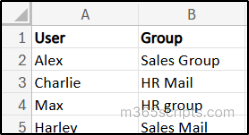
Prepare a CSV input file with the Group and User columns, then populate it with the group names and the users who should be assigned as owners.
Sample CSV input file:
To assign managers to multiple Active Directory groups, run the script as follows:
|
1 |
.\ManageADUserGroupRelationship.ps1 -Action 14 |
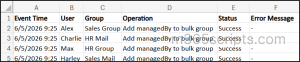
After execution, the script assigns the specified ManagedBy owners to the target groups and records the results in a log file.

Output Log:
When a group owner changes roles, moves to a different department, or leaves the organization, the group’s ownership may need to be removed or reassigned.
Run the script as follows to remove the manager from a group in your Active Directory.
|
1 |
.\ManageADUserGroupRelationship.ps1 -Action 15 |

Output Log:

Imagine several team managers have moved to new roles or left the organization. Before assigning new owners, admins may need to remove existing ownership assignments from multiple groups. This action allows admins to remove ownership assignments from multiple Active Directory groups in a single operation.
For such scenarios, run the script as follows:
|
1 |
.\ManageADUserGroupRelationship.ps1 -Action 16 |

Output Log:

While the PowerShell script streamline user-group management tasks, admins still need to prepare CSV files, validate inputs, and execute scripts manually. What if all your user-group management tasks could be handled from a single interface with just a few clicks?
That’s exactly what AdminDroid’s Active Directory management tool, delivers.
AdminDroid provides a centralized web-based interface that enables you to efficiently manage user-group relationships across your Active Directory environment. With the Admindroid’s Active Directory management tool, you can:
Manage Group Memberships for Users
- Add users to Active Directory Groups
- Bulk add users to multiple groups
- Remove users from groups
- Remove user from all groups
Control Manager Assignments to Groups
- Assign owner to group
- Remove manager
- Enable Manager can update membership
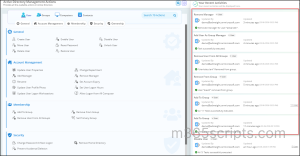
More than just a user-group management tool, AdminDroid’s Active Directory Companion tool delivers enterprise-grade capabilities and comprehensive management features to simplify and scale your day-to-day operations.
Bulk Management: Select users or groups directly from reports or import them through a CSV file and perform membership updates with just a few clicks.
Instant Rollback: Accidentally added the wrong users to a group or removed the wrong members? AdminDroid allows you to instantly reverse group membership changes, including bulk operations, with a single click.
Pause and Resume Actions: Temporarily pause the bulk actions during maintenance windows, approval delays, or unexpected changes, and resume them later without restarting the entire process.
Workflow Automation: Combine multiple user and group management tasks, such as creating a group for a new department, adding related users to it, and assigning a manager to the group, into a single automated workflow using Flow Agents.
Granular Delegation: Delegate specific group membership management tasks to help desk teams or departmental managers without granting excess Active Directory permissions.
Built-in Auditing: Every user and group management action performed through AdminDroid is automatically audited, allowing you to track who made a change, what was modified, which group was affected, and when it occurred.
AdminDroid goes beyond user and group relationship management. It provides a centralized hub featuring 450+ Active Directory reports, 60+ management actions, advanced automation capabilities, alerting and more to simplify your entire infrastructure.
Download AdminDroid today and start your 15-day free trial to experie.nce faster, easier, and more efficient Active Directory administration
We hope this blog helped you understand how to manage Active Directory user-group relationships efficiently using PowerShell. By maintaining accurate group memberships, primary group assignments, and group ownership, you can keep your Active Directory environment well organized.
If you have any questions or comments, feel free to share them in the comments section below. We’d love to hear from you.