Create Custom Meeting Templates in Microsoft Teams
Custom meeting templates in Microsoft Teams help organizations standardize secure meeting settings. Instead of manually configuring meeting settings every time for different meeting scenarios, admins can create reusable templates with predefined configurations for organizers to use. This blog walks you through how to create, manage, and assign custom meeting templates in Microsoft Teams.
Microsoft Teams meetings often involve sensitive business discussions, executive reviews, customer interactions, and compliance-driven collaboration. In such scenarios, meeting organizers frequently need to configure security settings based on the type of meeting they schedule.
However, manually configuring settings before every meeting can increase the chances of security misconfigurations. For example:
- Unnecessary users may bypass the lobby in confidential meetings.
- Attendees may gain unnecessary recording permissions.
- End-to-end encryption protection missing during sensitive meetings.
To standardize secure meeting experiences, organizations can use Teams meeting templates with default security settings for different business scenarios.
Let’s explore how templates make things easier for us, and how Microsoft further simplifies it with default and custom templates.
Meeting templates in Microsoft Teams help organizations standardize meeting experiences by applying predefined settings for specific collaboration scenarios. Instead of manually configuring settings for every meeting, organizers can simply choose a template that already includes the required security, access, and collaboration controls.
Teams admins can centrally create and manage these templates and control their availability for meeting organizers across the organization. To create, manage, and use meeting templates in Microsoft Teams, your organization must have a Teams Premium license.
By default, Microsoft Teams provides predefined meeting templates with default settings for specific collaboration scenarios. These include:
- Virtual Appointment: Designed for customer-facing meetings and consultations with a customized lobby experience for external participants. Ideal for healthcare appointments, support sessions, and client meetings.
- Controlled-content Meeting: Helps protect sensitive meeting content by applying security controls like restricted recording, watermarking, and attendee access restrictions to reduce unauthorized sharing during confidential discussions and compliance-sensitive meetings.
- Moderated Meeting: Requires a designated moderator to manage participant interactions and meeting activities. It is suitable for webinars, formal presentations, and large organizational meetings.
However, predefined meeting templates may not fully satisfy every organization’s business and security requirements. In such cases, admins can create custom meeting templates with tailored meeting settings for different business scenarios.
Let’s dive into custom meeting templates in Microsoft Teams and see how they help enforce secure meeting configurations by default for sensitive meetings.
Custom meeting templates in Microsoft Teams allow organizations to create reusable meeting configurations tailored to different business and security requirements.
For example, admins can create separate templates for executive meetings, external client calls, virtual training sessions, confidential discussions, or large-scale webinars. Once configured, meeting organizers can simply select the appropriate meeting template while scheduling a meeting.
Admins can customize various meeting settings in Microsoft Teams custom meeting templates based on the meeting type. You can explore the settings that can be configured in custom meeting templates in the table below.
| Category | Configurable Meeting Settings |
| Security & Protection |
|
| Audio & Video Controls |
|
| Recording & Transcription |
|
| Meeting Notifications |
|
| Meeting Engagement |
|
Note: To use a sensitivity label in custom meeting templates, the label must first be published to the Teams admin account through a Microsoft Purview label policy.
For each meeting setting, admins can define the default option, control visibility, and decide whether meeting organizers can modify it. Here are the three control modes that help manage these configurations.
- Default value – Defines the default setting automatically applied when organizers use the meeting template.
- Visibility – Determines whether the meeting organizer can view and access the setting while scheduling the meeting.
- Lock status – Defines whether organizers can modify the setting or if it remains enforced by the template.
By using these configurations, admins and meeting organizers can standardize secure meeting experiences across the organization.
Let’s look at some common scenarios where custom meeting templates can be useful and how to create custom meeting templates in Microsoft Teams
Here are some common real-world scenarios where custom meeting templates are helpful:
- Confidential Meeting Template – Suitable for finance discussions, executive reviews, and other sensitive business meetings
- End-to-end encryption – Enabled
- Watermarking – Enabled
- Lobby bypass – Organizer only
- Chat forwarding – Restricted Recording – Disabled
- General Team Meeting Template – Best suited for everyday team collaboration, project discussions, and internal sync meetings.
- Lobby bypass – People in organization
- Meeting chat – On
- Reactions – On
- Recording – Allowed
- Mic/Camera – Allowed
- Copilot – Enabled
- Webinar Template – Ideal for customer presentations, large organizational events, and sessions that require controlled attendee interactions.
- Lobby bypass – Everyone
- Attendee mic – Off
- Attendee camera – Off
- Q&A – On
- Reactions – On
- Manage what attendees see – On
Now, let’s see how to create and manage the custom templates in Microsoft Teams admin center.
Admins can create custom meeting templates using the Teams admin center. End users can also create meeting templates in their Teams clients based on their needs. However, admins cannot always ensure whether those templates are configured securely or consistently.
To maintain consistent meeting governance, admins can create organization-wide custom meeting templates and control template visibility for specific users based on business requirements. Let’s see now!
- Create custom meeting templates in Microsoft Teams
- Create meeting policy to manage custom template visibility
- Assign custom meeting templates to specific users
To create custom meeting templates in Teams, follow the steps below.
- Sign in to the Microsoft Teams admin center.
- Navigate to Meetings → Meeting templates.
- Click + Add to create a new meeting template, then enter the template name and description.
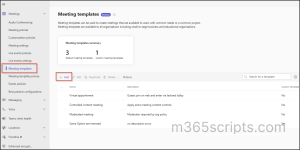
- Then configure the required meeting settings and click Save to create the custom meeting template.
By default, all custom meeting templates are available to users through the Global (Org-wide default) meeting template policy. You can update this policy to hide unwanted templates from organizational users.
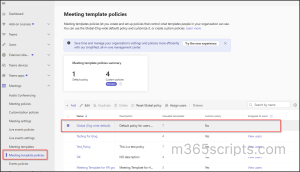
However, to assign specific custom meeting templates to specific users, you must create a separate meeting template policy in Microsoft Teams.
To create a custom meeting policy in Microsoft Teams, follow the steps below.
- Sign in to the Microsoft Teams admin center.
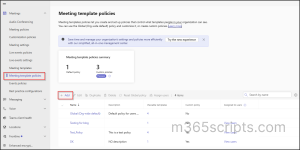
- Navigate to Meetings → Meeting templates policies.
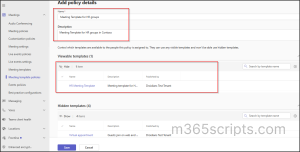
- Click +Add to create a new meeting template policy, then enter the policy name and description.
- Under Viewable templates, select and hide all templates except the custom meeting templates you intend to provide to users assigned to this policy.
- Click Save to create the meeting template policy.
- After creating the policy, select the newly created policy in the Meeting templates policies section.
- Click Assign users from the top menu bar.
- In the Manage users pane, search and select the required users, then click Apply.
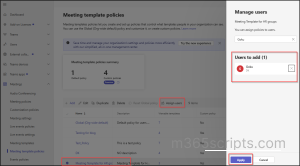
Now, users assigned to this policy can use the template while scheduling meetings. You can also manage custom templates using PowerShell. Let’s see it now!
You can use PowerShell to create, manage, and assign meeting template policies, though custom meeting templates themselves cannot be created using PowerShell.
To manage custom templates using PowerShell, connect to Microsoft Teams as a first step. Done? Let’s move to the main configurations.
Run the below cmdlet to view custom meeting templates and their configurations.
|
1 2 3 4 5 |
(Get-CsTeamsMeetingTemplateConfiguration).TeamsMeetingTemplates | ForEach-Object { Write-Host "Template Name:" $_.Name $_.TeamsMeetingOptions } |
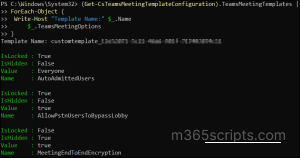
To make your templates available for specific users, you first need to create a meeting policy with visibility for those templates. To do that, create a meeting policy using the following script.
|
1 2 3 4 5 6 7 8 9 10 11 |
$Name = "<PolicyName>" $Description = "<ProvideDescription>" $Templates = @("<TemplateName>") $HiddenTemplates = (Get-CsTeamsMeetingTemplateConfiguration).TeamsMeetingTemplates | Where-Object { $_.Name -notin $Templates } | ForEach-Object { New-CsTeamsHiddenMeetingTemplate -Id $_.Name } New-CsTeamsMeetingTemplatePermissionPolicy -Identity $Name -HiddenMeetingTemplates $HiddenTemplates -Description $Description |
Make sure to replace <PolicyName>, <ProvideDescription>, and <TemplateName> with the appropriate values. The script will hide all other templates except the specified ones. Provide the custom meeting template names as comma-separated values to create a meeting template policy with multiple templates for specific users.
After creating the meeting policy, assign it to specific users using the below cmdlet. Ensure to replace <PolicyName> with the name of the previously created policy and <UserUPN> with the user principal name (UPN) of the respective user.
|
1 |
Grant-CsTeamsMeetingTemplatePermissionPolicy -PolicyName <PolicyName> -Identity <UserUPN> |
To verify the assigned policy for a user, run the following cmdlet.
|
1 2 |
Get-CsOnlineUser -Identity <UserUPN> | Select-Object DisplayName, TeamsMeetingTemplatePermissionPolicy |
To test this, a meeting was scheduled using a custom meeting template with the following settings:
- Lobby bypass – Only organizer and co-organizer
- Attendee mic – Off
- Attendee camera – Off
- Recording – Off
- Meeting chat – Off
So, as per the template configuration, when users tried to join the meeting, they couldn’t bypass the lobby directly. Instead, the organizer received an admission request and had to manually allow participants into the meeting.
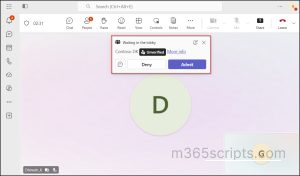
Similarly, from the attendee side, once they are admitted:
- The mic option was disabled
- The camera option was unavailable
- Meeting chat was turned off
- The recording option was not accessible
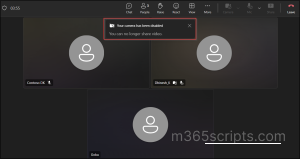
Microsoft Teams applies meeting settings based on a hierarchy between sensitivity labels, meeting policies, and meeting templates. While meeting templates help standardize meeting settings, their configurations can be overridden by Teams meeting policies or sensitivity labels.
Among these, sensitivity labels take the highest priority and can enforce stricter controls like watermarking, end-to-end encryption, and recording restrictions. However, admin policies take precedence over meeting templates.
Let’s understand this with the example below.
Teams Meeting Policy Configuration
The Teams admin configures the meeting policy with the following settings:
| Feature | Policy Configuration |
| Who can bypass lobby | Only organizer and co-organizer |
| Recording | Allowed |
This means users are technically permitted to record Teams meetings, and the Record option can appear during meetings.
Sensitivity Label Enforcement
Next, admin creates a sensitivity label named Highly Confidential with stricter security restrictions.
| Feature | Sensitivity Label Configuration |
| Recording | Disabled (Enforced) |
| Watermarking | Enabled |
This means that any meeting using this label cannot be recorded, and a watermark will be applied.
Meeting Template Configuration
The meeting organizer schedules a meeting using:
- Meeting Template: Executive Review
The Executive Review template is configured with the following settings:
| Meeting Setting | Default Value |
| Who can bypass lobby | Everyone |
| Watermarking | Disabled |
| Q&A | On |
Final Meeting Experience
| Feature | Final Result | Why |
| Recording
|
Disabled
|
The sensitivity label takes precedence over the admin policy settings.
|
| Watermarking
|
Enabled
|
The sensitivity label enforced watermark protection settings.
|
| Lobby Access | Only organizer and co-organizer
|
The admin policy takes precedence over the meeting template configuration.
|
| Q/A | ON | The setting was configured through the meeting template.
|
And that’s a wrap! We hope this blog helped you understand how to create and manage custom meeting templates in Microsoft Teams. By using these custom templates, organizations can standardize meeting settings by predefining major Teams meeting configurations for different meeting scenarios. Overall, it helps simplify meeting creation and reduce security misconfigurations in sensitive meetings.
If you have any questions, feel free to share them in the comments section. Stay tuned for more Microsoft Teams management insights!