Different Ways to Add Guests to a Team in Microsoft Teams
Collaborating with users outside an organization is a common part of modern teamwork, and Microsoft Teams makes it easy through guest access. Whether you’re working with clients, vendors, partners, or contractors, adding them to the right team ensures secure and seamless collaboration. This blog shows you the different ways to add guest users to a team in Microsoft Teams and help you choose the approach that best fits your organization’s needs.
External collaboration has become a business requirement for most organizations. Vendors, consultants, contractors, clients, and partner organizations often need access to collaborate with internal teams, participate in meetings, and work on shared files in Microsoft Teams.
Without guest access, organizations often resort to email threads and file attachments to collaborate with guest users. This can result in fragmented communication, multiple versions of the same file, and reduced productivity. Microsoft Teams guest access enables organizations to collaborate securely while maintaining administrative control over guest users.
In this blog, let’s explore Microsoft Teams guest access and the different ways to add guest users to Microsoft Teams.
Guest access in Microsoft Teams is a feature that allows organizations to securely collaborate with people outside their organization, such as clients, vendors, partners, contractors, and consultants.
Guest users are often confused with external users, but they work quite differently. Understanding guest user and external user access is key to enabling secure collaboration and avoiding over-permissioned access.
When a guest user is invited, Microsoft creates a guest account in the Microsoft Entra ID directory through Business-to-Business (B2B) collaboration. After accepting the invitation, guests can sign in using their existing work, school, or personal Microsoft account.
Once added to a team, they can participate in channel conversations, join meetings, chat with team members, access shared files, and use other Teams resources. Admins can control what guests can access through Microsoft Teams and Microsoft Entra ID guest access policies.
Guest users are identified with the Guest label in Microsoft Teams, making it easy to distinguish external collaborators from internal users.
Microsoft Teams offers multiple ways to add guest users to a team. The appropriate method depends on whether the guest user already exists on the Microsoft Entra ID tenant.
- Add a new guest user directly to a team in Microsoft Teams
- Add an existing guest user to a team in Microsoft Teams
Let’s walk through each method in detail.
Before inviting guest users, admins should verify several prerequisites across Microsoft Teams, Microsoft Entra ID, Microsoft 365 Groups, and SharePoint Online.
Without these settings, guest invitations may fail, or guest users will be unable to access team resources.
Enable Guest Access in Microsoft Teams
To allow guest users to be added to Microsoft Teams, an admin must toggle the guest access switch in the Teams admin center. This activates the option to add members from outside your organization into a team.
Go to Microsoft Teams admin center → Users → Guest access → Toggle “Guest access” to On.
Here, admins can also manage guest access permissions, including calling, meetings, and messaging. It is important to note that it can take up to 24 hours for these changes to take effect across your tenant.
Configure Microsoft Entra External Collaboration Settings
Microsoft Entra ID manages external collaboration at the tenant level. If guest invitations are restricted in Entra ID, those restrictions override guest access settings configured in other Microsoft 365 services.
Navigate to Microsoft Entra admin center → External Identities → External collaboration settings.
Here, review the following settings based on your organization’s requirements:
- Guest invite restrictions – This setting determines who can invite guest users to your organization. Choose the options that best aligns with your organization’s security and governance requirements.
- Collaboration restrictions – This setting controls which external domains can receive guest invitations. By default, guest users from any domain can be invited. Admins can configure an allow list or block list to restrict guest invitations to trusted domains
Enable Microsoft 365 Guest Access
Microsoft Teams uses Microsoft 365 Groups manage team membership. Therefore, guest access must also be enabled for Microsoft 365 Groups. If these settings are disabled, guest users cannot be added to teams or access group resources.
Go to Microsoft 365 admin center → Settings → Org settings → Microsoft 365 Groups.
Ensure the following checkboxes are selected for Microsoft Teams guest access to function as expected.
- Let group owners add people outside your organization to Microsoft 365 Groups as guests.
- Let guest group members access group content
Turn On SharePoint Online External Sharing Settings
Since Microsoft Teams relies on SharePoint Online for file sharing and collaboration, external sharing settings should be enabled at both the tenant level and the relevant site collection level associated with the Team.
Go to SharePoint admin center > Policies > Sharing.
Here, set organization-level external sharing settings to one of the following options.
- Anyone (least restrictive, allows anonymous sharing links), or
- New and existing guests (recommended for controlled guest collaboration)
This allows guest users to access files, folders, and documents shared within a team.
Validate Guest Access Configuration in Microsoft 365
Admins can also use Microsoft’s built-in test “Run Tests: Guest Access” to check whether all required settings for Microsoft Teams guest access are in place. This helps identify missing or incorrect configurations before inviting guest users to a team.
For many collaboration scenarios, waiting for an admin to create a guest account before adding someone to a team can delay work. To simplify onboarding, Microsoft Teams allows team owners to add external users directly to a team. When an external email address is added, Microsoft automatically creates the guest account in Microsoft Entra ID and sends the invitation on behalf of the organization.
Once the invitation is accepted, the user is added as a guest user in the organization and becomes a member of the selected team. They can then collaborate based on the organization’s guest access settings and assigned permissions.
The Microsoft Teams client is the simplest and most commonly used method for inviting new guest users to a team. Team owners can add a guest user by simply entering their email address, while Microsoft Teams handles the guest invitation process in the background.
Follow the steps below to add a guest user to a team through Microsoft Teams client:
- Sign in to Microsoft Teams and select the team where you want to add the guest user.
- Click the More options (•••) next to the team name and choose Add member.
- Enter the guest user’s email address and select Add <UPN> as a guest?
- Click Add to send the invitation.
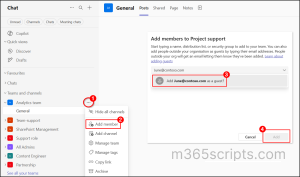
After the guest account is added to the Team, admins can centrally manage guest membership. If required, team owners can also add the guest to private channels after they have been added to the parent team.
If a guest user has already been invited to an organization, admins can add the existing guest account to a team using either the Microsoft Teams admin center or PowerShell. This approach is useful for organizations that centrally manage guest identities before granting access to individual teams.
Admins can invite guest users through Microsoft Entra ID, Microsoft 365 admin center, or PowerShell. Once the guest account exists in the tenant, admins can add them to a team using the available methods.
Teams admins or Global admins can add existing guest users to a team by following the steps below:
- Sign in to the Microsoft Teams admin center.
- Navigate to Teams → Manage teams and select the target team where the guest user will be added.
- Click Add members, search for the guest user, and then select the appropriate guest account.
- Click Apply to update the changes.
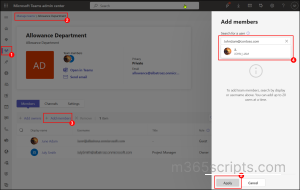
PowerShell provides an efficient way to add existing guest users to Microsoft Teams, making it ideal for bulk onboarding and automated provisioning.
Connect to Microsoft Teams PowerShell and run the following cmdlet to add an existing guest user to a team.
|
1 |
Add-TeamUser -GroupId "<TeamGroupID>" -User "<GuestUPN>" -Role Member |
Replace the following placeholders before running the cmdlet.
- <TeamGroupID> – The ID of the target Microsoft Teams team.
- <GuestUPN> – The email address or User Principal Name (UPN) of the existing guest user.
To add multiple guests to a team, create a CSV file containing the guest users’ email addresses, as shown below.
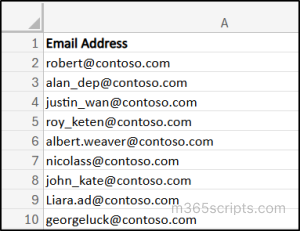
Replace <FilePath> with the path to your CSV file and <TeamGroupID> with the Microsoft 365 Group ID of the target team, then run the following cmdlet:
|
1 2 3 |
Import-Csv "<FilePath>" | ForEach-Object { Add-TeamUser -GroupId "<TeamGroupID>" -User $_.EmailAddress -Role Member } |
This approach simplifies bulk guest management and significantly reduces the time and effort required to add multiple guest users to a team in Microsoft Teams. After users are added through PowerShell, it can take 24 to 48 hours for the changes to appear in the Microsoft Teams client.
Note: Team owners can also add existing guest users directly through the Microsoft Teams client.
Microsoft Teams provides multiple ways to invite guest users to a team. Some methods allow team owners to invite guests directly, while others require the guest account to exist in the Microsoft Entra ID tenant before it can be added to a team. Organizations can choose the method that best aligns with their governance and administrative requirements.
The following comparison can help admins determine the most suitable approach for their environment.
| Method | Who Can Add Guest | Recommended For | Bulk Support | Administrative Control |
| Microsoft Teams App | Teams Owner | Ideal for small teams and project-based collaboration. | No | Low |
| Teams Admin Center | Teams Admins & Global Admins | Suitable for organizations that require centralized management of guest access. | No | High |
| PowerShell | Teams Admins, Teams Owners & Global Admins | Best for environments that require automation or onboarding a large number of guests. | Yes | High |
While guest access simplifies external collaboration, failing to manage guest accounts can lead to excessive permissions and inactive external users remaining in the environment. The following best practices help organizations maintain secure guest access in Microsoft Teams.
Enable Multi-Factor Authentication for Microsoft 365 Guest Users
Guest users often access organizational resources using their own identities. This can allow attackers to easily gain unauthorized access to your teams, files, and other shared resources after compromising a guest account. Therefore, configure Conditional Access policies to enforce MFA for guest users and strengthen the security of external collaboration.
Review Microsoft Teams Guest Access Regularly
Guest accounts may remain active even after projects or engagements have ended. Regularly find the team with guest users, and remove accounts that no longer require access to help maintain a secure collaboration environment.
Restrict Guest Access to Sensitive Teams Using Sensitivity Label
Sensitivity labels help classify and protect teams based on the organizational security and compliance policies. By applying a sensitivity label to a team, admins can control whether guest users are allowed to be added to that team. This enables organizations to prevent guest access to teams containing sensitive or confidential information.
Configure Microsoft Teams Guest Access Expiration Policies
Since Microsoft Teams stores files in SharePoint Online, guest users may continue to have access to shared files and sites even after collaboration has ended. To prevent long-term access, set guest access expiration policies in SharePoint Online to automatically expire guest access to shared sites after a defined period. Admins can configure the expiration policy at the tenant or site level.
Review Microsoft Teams External Collaboration Settings
Regularly review the unified external collaboration settings in the Microsoft Teams admin center to ensure guest access remain aligned with your organization’s security requirements. Use the predefined Open, Controlled, or Custom collaboration modes to simplify administration while maintaining the appropriate level of external collaboration.
Audit Microsoft Teams Guest User Activities
Regularly audit Microsoft 365 guest user activities to ensure that guest users access only the resources they need. This helps admins review guest sharing activities, detect suspicious behaviour, and strengthen the security of external sharing across Microsoft 365
Perform Access Reviews for Inactive Guest Users
Create access reviews in Microsoft Entra ID to regularly evaluate guest user access and identify inactive Microsoft 365 guests. This regularly review and remove users who no longer require access and maintain a secure environment.
Maintain a Secure Guest Sharing Environment
Configure guest user access restrictions in Microsoft Entra ID to control what guest users can access within your organization. By defining appropriate permissions, organizations can maintain a secure guest sharing environment.
Thus, guest access in Microsoft Teams enables organizations to collaborate securely with external users while maintaining administrative control. By choosing the appropriate method and implementing proper governance practices, organizations can balance collaboration, security, and operational efficiency.
Thanks for reading. If you have any questions about Microsoft Teams guest access, feel free to share them in the comments.