Difference Between Entra User App Registrations and App Consent
Admins often struggle to decide whether to restrict app registrations, user consent, or both in Microsoft Entra ID. Uncontrolled app registrations can result in rogue applications, while unrestricted user consent can increase the risk of consent phishing. This blog explains the differences between these settings and how to configure them to balance security and governance.
In Microsoft 365, users play a key role in how applications gain access to organizational data. While this improves productivity and simplifies integrations, it can also introduce security and governance risks if not properly managed.
In such scenarios, admins often face an important security decision: should they restrict app registrations, consent, or both for users? It is important to configure these settings carefully, because misconfigured settings can lead to consent phishing attacks and sensitive data exposure.
This blog explains what user app registrations and user app consent are, how they differ, and why organizations should carefully manage both settings.
User app registration determines who can create applications in the tenant, while user app consents determine who can grant those applications access to Microsoft 365 data. Explore the sections below for a deeper understanding of how both settings work.
- User app registration in Microsoft Entra ID
- Risks of user app registrations
- User app consent in Microsoft Entra ID
- Risks of allowing user app consent
- Restrict user app registrations in Microsoft Entra ID
- Control user app consents in Microsoft Entra
- Decide between restricting Entra app registrations and user consent
User app registration in Microsoft Entra ID refers to the ability for users to create and register applications within the organization’s tenant. This setting is enabled by default in Microsoft Entra ID.
When a user registers an application, Entra ID creates an application object that represents the application within the directory. This object acts as the identity of the application.
The user who registers the application can then control how the app behaves by configuring settings such as:
- Authentication methods and redirect URIs
- API permissions (for example, Microsoft Graph permissions)
- Client secrets or certificates
- Application access and integration settings
Although users can register applications and configure their settings, application registration alone does not provide access to Microsoft 365 resources. The requested API permissions must still be consented to by users or administrators based on the organization’s consent settings.
However, unmanaged or unnecessary application registrations can still create administrative challenges and introduce indirect security risks within the environment.
Below are some common risks when app registration permissions are not properly managed in Entra ID:
Unauthorized Application Creation: Users may create applications without administrator awareness or approval. This can create unnecessary administrative overhead. Admins may find it difficult to track who created the applications, why they were created, and whether they are actually required for the organization.
Excessive API Permissions: Users can register applications by requesting high-privilege permissions. If an admin unintentionally grants consent to those permissions, the application can gain high-level access to organizational data. This may happen through a compromised admin account. As a result, sensitive data such as emails, files, Teams messages, or directory information could be exposed.
Risks of Application Sprawl: Over time, unused or abandoned applications can accumulate in the tenant. This can clutter the environment. Admins may face difficulties while monitoring applications and identifying which applications are still required. As a result, forgotten applications may also remain active with unnecessary permissions.
Because of these risks, organizations should carefully evaluate whether all users truly need permission to register applications. Now, let’s explore how user app consent works and the risks associated with it.
User app consent, on the other hand, allows users to grant trusted and third-party applications to access to Microsoft 365 resources. This setting allows users to approve certain app permission requests without administrator involvement.
For example, an application may request permission to access certain Microsoft 365 resources on behalf of the user, such as:
- Read user profile
- Read mail
- Access files
- Read Microsoft Teams data
When a user grants consent, the application receives OAuth tokens that allow it to access Microsoft 365 resources based on the approved permission scopes.
If user consent is allowed without proper restrictions, users may grant permissions to malicious or untrusted applications without fully understanding the level of access being requested. In most cases, applications can access only the data and resources that the signed-in user already has permission to use. However, even user-level permissions can still introduce serious security risks to the organization.
Some common risks include:
Malicious OAuth Applications: Users may unknowingly grant consent to malicious OAuth applications. These applications can appear legitimate and trick users into approving access to organizational data.
OAuth Phishing Attacks: Attackers may use OAuth consent phishing attacks to bypass traditional credential-based protections. Even if MFA is enabled, users can still grant permissions directly to a malicious application.
Persistent Access Through OAuth Tokens: Once consent is granted, attackers can access resources such as mailboxes, files, or Teams data through OAuth tokens. In many cases, applications can continue accessing these resources without requiring the user to sign in again.
Here is a quick comparison between user app registrations and user consent in Entra ID.
| Aspect | User App Registrations | User App Consents |
| Purpose | Allows users to register and configure applications in Microsoft Entra ID. | Allows users to grant OAuth permissions to an application to access Microsoft 365 resources. |
| Scope | Users can configure API permissions, redirect URIs, client secrets, and authentication settings. | Users can approve permissions such as reading mail, files, profile data, or Teams information. |
| Access Impact | Does not provide direct access to resources by itself. | Provides application access based on the granted permission scopes. |
| Configured In
|
Entra ID User Settings. | User Consent settings and consent policies. |
| Security Concern | Shadow applications and application sprawl.
|
Consent phishing and unauthorized data access. |
So far, we have discussed what user app registrations and app consent are, along with their potential risks. Now, let’s walk through how to manage these settings in Microsoft Entra ID to reduce unnecessary application creation and limit risky app consent.
Follow the steps below to restrict users from registering applications in Microsoft Entra ID:
- Sign in to the Microsoft Entra admin center.
- Navigate to Users under Entra ID and select User settings.
- Locate the setting Users can register applications and change it to No.
- Finally, click Save to apply the changes.
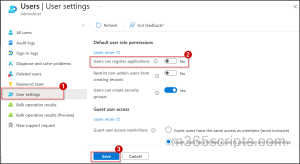
This setting prevents users from creating new app registrations within the tenant.
To restrict user app registrations in Entra using PowerShell, first connect to Microsoft Graph. Once connected, run the following cmdlet to restrict users from registering applications in Microsoft Entra ID.
|
1 2 3 4 5 |
Update-MgPolicyAuthorizationPolicy ` -AuthorizationPolicyId authorizationPolicy ` -DefaultUserRolePermissions @{ AllowedToCreateApps = $false } |
Follow the steps below to manage user app consent settings in Microsoft Entra ID.
- Sign in to the Microsoft Entra admin center.
- Navigate to Identity → Applications → Enterprise applications.
- Under Security, select Consent and permissions.
- Under User consent for applications, choose the appropriate setting based on your organization’s requirements:
- Do not allow user consent – Users cannot grant consent to applications. All consent requests require administrator approval.
- Allow user consent for apps from verified publishers, for selected permissions – Users can consent only to low-risk permissions from verified publishers or internally registered applications.
- Let Microsoft manage your consent settings (Recommended) – Microsoft automatically manages consent settings using its recommended security configuration and updates them when recommendations change.
- Click Save to apply the changes.
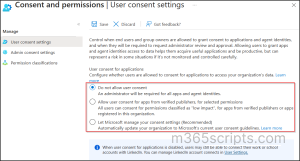
You can also control user permissions for app consent in Microsoft 365 using PowerShell. To do this, connect to Microsoft Graph PowerShell and run the below cmdlets:
- To disable user consent completely:
123Update-MgPolicyAuthorizationPolicy `-AuthorizationPolicyId authorizationPolicy `-PermissionGrantPolicyIdsAssignedToDefaultUserRole @() - To allow user consent only for verified publishers:
12345Update-MgPolicyAuthorizationPolicy `-AuthorizationPolicyId authorizationPolicy `-PermissionGrantPolicyIdsAssignedToDefaultUserRole @("ManagePermissionGrantsForSelf.lowRisk") - To apply Microsoft-recommended consent settings:
12345Update-MgPolicyAuthorizationPolicy `-AuthorizationPolicyId authorizationPolicy `-PermissionGrantPolicyIdsAssignedToDefaultUserRole @("ManagePermissionGrantsForSelf.microsoft-user-default-low")
The decision to restrict app registrations or user consent depends entirely on organizational requirements, security priorities, and operational needs. Some organizations prefer strict governance with maximum control, while others choose a balanced approach that supports both security and productivity.
Let’s look at some common approaches you can follow.
Strict Governance Approach
For organizations with strict security or compliance requirements:
- Disable user app registrations org-wide and assign the Application Developer role only to specific users. This provides controlled app registration permissions for selected users within the organization.
- Disable user consent and allow only admins to approve application permissions and consent requests.
This approach provides maximum control over application creation and OAuth permissions. However, it can increase administrative overhead because admins must review and approve every request.
Balanced Governance Approach
For organizations that prefer a balanced governance approach:
- Allow user app registrations within the organization.
- Restrict user consent permissions by allowing consent only for verified publishers with selected low-risk permissions.
- Enable the admin consent workflow to fully restrict user app consent in Microsoft Entra ID. With this feature enabled, users can submit consent requests for applications, and designated reviewers can review and approve those requests based on organizational security requirements.
Follow the steps below to enable the admin consent workflow settings:
- Sign in to the Microsoft Entra admin center.
- Navigate to Enterprise applications → Consent and permissions → Admin consent settings.
- Turn on the “Users can request admin consent to apps they are unable to consent to” setting.
- Select the reviewers (users, groups, or roles) based on your organizational requirements.
- Click Save to apply the changes.
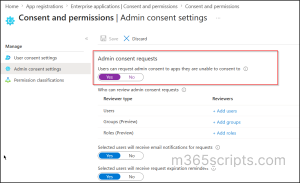
Once enabled, users can submit admin approval requests for applications instead of granting consent directly.
Final thoughts:
Understanding the difference between user app registrations and user app consent is essential for improving application security in Microsoft 365 environments. A strong security posture should include controlled application creation, restricted user consent permissions, regular application reviews, and continuous monitoring of API access.
By implementing these controls, you can reduce the risks associated with consent phishing, shadow applications, unauthorized API access, and persistent OAuth abuse within Microsoft 365 environments.
We hope this blog helped you understand User App Registrations and User App Consents in Microsoft 365. Thanks for reading! Feel free to share your questions or thoughts in the comments.