Set Guest User Access Expiration in SharePoint Online
Set guest user access expiration in SharePoint Online to automatically revoke external sharing permissions. Configure tenant-level or site-level expiration policies through admin center or PowerShell. Protect externally shared content by requiring periodic access renewal for guest collaborators.
Sharing in SharePoint Online makes collaboration effortless. With a quick link, customers, vendors, or partners can instantly access your files and sites. But here’s the real question: What happens after the collaboration ends?!
Without an expiration limit, external users may retain access longer than intended. Over time, this increases the risk of data exposure, unwanted file uploads, or content misuse outside your organization. That’s why setting a guest user access expiration policy is essential for maintaining control and supporting secure file collaboration in SharePoint Online.
In this blog, let’s explore how to configure guest access expiration in SharePoint Online before sharing your next file or site.
Setting guest access expiration is configuring a policy that prevents an external user from accessing your shared content after a specific period. The shared content can be anything from site to individual files in SharePoint Online. As soon as the external user reaches the day of expiration, access to the content is lost unless the expiration is extended.
Because, if a site gets shared with desired permissions, external users can even create folders or upload files on SharePoint sites. So, setting expiration is essential to avoid unwanted actions.
You can set user access expiration in SharePoint Online using both the SharePoint admin center and PowerShell:
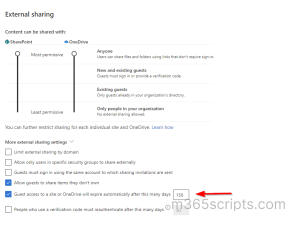
To configure guest user access expiration at the tenant level, follow the steps below:
- Login to the SharePoint admin center.
- Under Policies, select the ‘Sharing’ tab.
- Select More external sharing settings.
- Check the box that shows ‘Guest access to a site or OneDrive will expire automatically after these many days’.
- Enter the number of days the user access should expire after.
- Click Save.
To configure guest access expiration at the site level, follow the steps given below:
- Navigate to the SharePoint admin center
- Choose Active sites under sites.
- Select the site which you want to configure the expiration limit -> select Sharing.
- Reach the Expiration of guest access section and select “Guest access expires automatically after this many days”.
- Click Save.
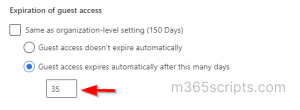
Note: If you wish to set the limit the same as the organization level setting, select the option shown below.

To do this,
First, connect to SharePoint Online by using the Connect-SPOService cmdlet.
|
1 |
Connect-SPOService -Url https://m365scripts-admin.sharepoint.com/ |
Then, set expiration using the following cmdlet:
|
1 |
Set-SPOTenant -ExternalUserExpirationRequired $True -ExternalUserExpireInDays 150 |
Follow the steps given below to set expiration to guest access at the site level using PowerShell.
First, connect to SharePoint Online PowerShell via the Connect-SPOService cmdlet.
|
1 |
Connect-SPOService –Url https://m365scripts-admin.sharepoint.com/ |
Then set the expiration limit at the site level using the Set-SPOSite cmdlet.
|
1 |
Set-SPOSite -Identity $SiteURL -OverrideTenantExternalUserExpirationPolicy $True -ExternalUserExpirationInDays 35 |
Here, $SiteURL is the URL to the site you want to set the expiration policy.
Here, the ‘OverrideTenantExternalUserExpirationPolicy’, part of the script deselects the “Same as organization level setting” for you.
💡Tip: For stricter control, you can also disable sharing for non-owners in SharePoint.
After you set the expiration limit either at the site level or globally, it is important to manage them for extending or removing the access.
To manage guest access expiration for a site, follow these steps:
- Navigate to the desired SharePoint site.
- Click the Gear icon (Settings) in the top-right corner.
- Select Site Permissions.
- Click Guest Expiration.
- Select Manage to view and modify guest access.
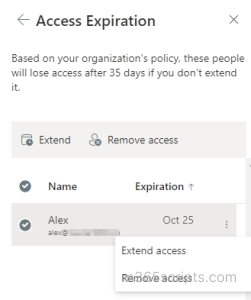
From here, you can extend or remove access for specific guest users as needed.
As soon as you share a site with a guest user after setting the policy, you can find their name in the above list and as admin, you can decide whether to extend or remove access. Admin receives alert notifications 21 days prior to access expiry via email.
Additionally, a banner showing details about expiring guest access displays on the web app, 2 to 3 weeks before the guest expiration date. To streamline this process, you can also automate guest access approvals in SharePoint using Power Automate.
- The threshold limit that you can set for expiration ranges from 30 to 730 days.
- Site level setting for expiration takes precedence over the organization level settings.
- The above-mentioned steps work for Microsoft 365 group-connected sites when you share the whole site itself. For sites that are not connected to Microsoft 365 group, these steps work when you share files and folders within the site.
- The policy won’t affect the guest users with existing site permissions before the policy is configured.
Setting up guest user access expiration is easy but monitoring guest user access policies can be a complex task. To track the access expiration of guest users, you must manually access the guest expiration management section for each SharePoint Online site individually. Unfortunately, it lacks detailed and necessary information about the policy configurations.
Don’t worry! AdminDroid acts as a game changer that simplifies the monitoring of guest user access expiration by giving deep drilled details at ease.
AdminDroid’s “Guest Access Expiration Changes” report helps you track expiration changes by giving information about the extended or removed guest user expiration for sharing invitations.
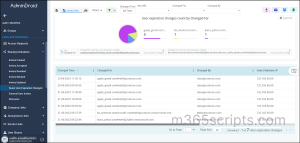
It will keep you up to date on changes made in the expiration policy by giving necessary insights such as the guest user for whom the expiration was modified, the user who made the change, the time of the modification, and so on.
Additionally, with AdminDroid’s SharePoint Online auditing tool, you can keep track of all sharing policy changes, thereby controlling the access and permissions granted to external users. Also, to help you protect the organization’s data from various threats, AdminDroid offers extensive metrics on SharePoint Online files, folders, pages, DLP activities, memberships, etc.
Furthermore, the AdminDroid SharePoint Online reporting tool provides you complete visibility over SharePoint sites, site collection details, SPO site usage, SPO lists/document libraries, etc. for efficient SharePoint Online management.
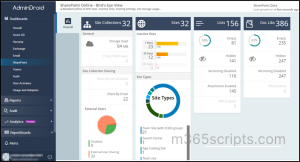
AdminDroid doesn’t gets over with the above, to analyze your entire SPO environment at a glance, it provides a visually appealing SharePoint Online dashboard. This will give you an overview of all the SharePoint Online content for effective SharePoint Online management.
Download AdminDroid and see how it helps you in guest user access management!
Hope you enjoyed the blog, Feel free for any assistance.