Bulk Manage Group Members in Microsoft Entra ID
Microsoft has improved bulk operations in Microsoft Entra ID by removing the earlier one-hour execution limitation. This blog explores how to add, remove, and export group members in bulk, making group management easier and more efficient.
Bulk manage group members in Microsoft 365 is an ongoing responsibility for admins, involving tasks like onboarding new users, removing outdated access, or exporting membership details when needed. However, performing these actions manually for each user can be time-consuming and prone to errors. To address this, Microsoft Entra ID provides Bulk Operations for group management.
This experience has now been enhanced and is available as Bulk Operations in Microsoft Entra ID (preview). It also addresses several limitations of the earlier approach, making group management easier and more efficient at scale. Let’s explore these improvements and see how they make group management more efficient.
The earlier bulk operations experience in Microsoft Entra ID struggled with performance in large environments. When handling thousands of users or groups, jobs often timed out or failed. This forced admins to split tasks into smaller batches or manage group membership using PowerShell cmdlets and Microsoft Graph API. Although these approaches worked, they added extra effort and made routine administration more complex.
With the new bulk operations experience in preview, Microsoft addresses these scalability challenges by making the process more reliable and better suited for large workloads. It helps reduce timeouts and improves overall performance. The feature currently supports bulk operations for:
- Groups
- Group members
- Devices
- Administrative Units and
- Role assignments
Bulk operations in Microsoft 365 support all group types and allow administrators to manage group membership at scale. They provide three key actions for managing group members efficiently.
- Bulk import group members in Microsoft Entra ID
- Bulk export Entra ID group members
- Remove multiple group members in Entra ID
Bulk importing group members is useful during onboarding or when assigning users to departments or project teams. This saves time, reduces manual effort, and helps ensure consistent and accurate group membership management. Use the following steps to import multiple group members at once:
Bulk importing group members is useful during onboarding or when assigning users to departments or project teams. This saves time, reduces manual effort, and helps ensure consistent and accurate group membership management. Follow the steps below to import multiple group members at once:
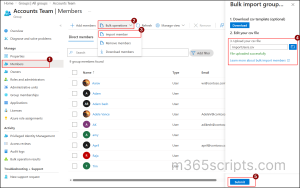
- Go to the Microsoft Entra admin center and navigate to Groups -> All groups tab.
- Select the desired group to add members and navigate to the Members tab.
- Next, click on the bulk operations dropdown and choose Import member.
- In the Bulk import group members flyout pane, click the Upload icon, and select your CSV file from the directory.Note: You can also select Download CSV template to obtain a ready-to-use file for importing users. After downloading, remove the sample row and update the file with user details.
You can enter either the User Principal Name (UPN) in the format “[email protected]” or the user’s Object ID (GUID) in the format “aaaaaaaa-0000-1111-2222-bbbbbbbbbbbb”.
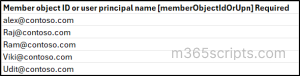
This step is optional and if you already know the correct format, you can skip the template and proceed directly with the import process.
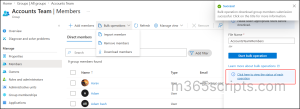
5. Once the file is uploaded successfully, select Submit to import users in bulk.
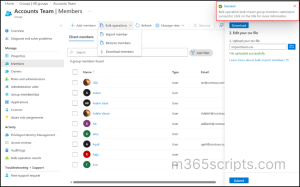
6. After submitting, to monitor the result, click on the Success pop up to view the operation result.
Exporting group members allows you to review or analyze group membership by extracting details of multiple users at once. This helps with reporting, auditing, and maintaining visibility into access across the organization. Follow the steps below to export group members in Entra ID.
- Open the Microsoft Entra admin center and navigate to Groups -> All groups tab.
- Select the desired group and navigate to the Members tab.
- Select Bulk operations and choose Download members.
- In the Download group members flyout pane, a default name is automatically assigned. You can also customize the name for exporting the file.
- Next, click Start bulk operation to initiate the download process.
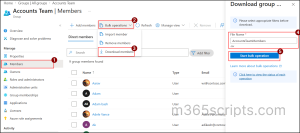
This takes you to the bulk operations result page where you can see the exported list of members for the specific group.
When you need to clean up access, bulk removing group members allows you to remove multiple users from a group at once. This is useful during offboarding, role changes. It helps maintain security and ensures only the right users retain access. Use the following steps to bulk remove group members in Entra ID.
- Open the Microsoft Entra admin center, navigate to Groups and select the desired group.
- Choose Bulk operations and select Remove members.
- In the Bulk remove group members flyout pane, upload the csv containing the users to be removed by clicking on Select a file under the Upload your csv file section.
- Then select Submit to start removing members from the selected group.
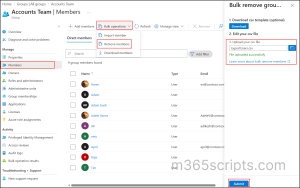
After all, Microsoft Entra ID provides a dedicated monitoring experience to track all bulk operations, helping admins review, audit, and verify the status of actions performed in bulk. This ensures better visibility into completed, in-progress, or failed operations. For all the above operations. You can navigate to the Bulk Operations (Preview) page to view and monitor bulk operations performed in Entra ID.
Here, you can view a list of bulk operations performed along with details such as creation time, modified time, status, and type. The status indicates the progress or outcome of the action and the type represents the selected operation performed. You can click on the desired file to download the CSV report for auditing purposes.
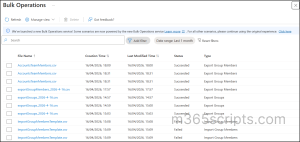 You can also click on “Click here to view the status of each operation” to navigate to the bulk operations monitoring page.
Wrapping Up
With this update, Microsoft Entra ID helps bulk manage group members by allowing easy management of large groups and reducing manual work. Although there are some limits like file format and processing rules, it is still much faster and more efficient than adding users one at a time.
We hope this blog has helped you understand how to bulk import, remove, and export group members in Microsoft Entra ID effectively. Thank you for reading, and feel free to reach out in the comments section if you have any questions or need further clarification.