Secure Multitenant Applications Using App Instance Property Lock in Microsoft Entra ID
App instance property lock in Microsoft Entra ID helps protect sensitive multitenant app properties from unauthorized changes after provisioning in another tenant. By locking critical credentials and token encryption settings, organizations can reduce the risk of malicious modifications and identity-based attacks. In this blog, you’ll learn what application instance property lock is and how to configure it.
In Microsoft Entra ID, multitenant applications are designed to allow organizations to share applications with users across multiple tenants.
However, when these applications are provisioned outside the home tenant, protecting the security of their local app instances becomes equally important. If abused, attackers may add unauthorized credentials, alter authentication-related settings, or misuse app permissions to gain persistent access to Microsoft 365 resources.
To help secure multitenant application instances, Microsoft Entra ID provides a feature called Application Instance Property Lock. In this blog, we’ll explore what application instance property lock is, why it matters, and how to configure it in Microsoft Entra ID.
Application instance property lock is a security feature in Microsoft Entra ID that helps protect sensitive properties of a multitenant application after it is added to another tenant. It prevents unauthorized or accidental changes to critical application properties that could impact authentication and security.
For example, imagine Company A creates a multitenant application in its home tenant. As part of the process, Microsoft Entra ID creates an application object for the app. It defines the app’s permissions, authentication settings, and overall configuration.
Once Company B consents to the application, Microsoft Entra ID automatically creates a service principal instance inside Company B’s tenant. This service principal acts as the local representation of the original application and contains its permissions and authentication configuration.
App instance property lock helps protect this service principal by blocking the modification of its sensitive properties.
With this app instance property lock feature, the following sensitive properties can be protected:
- Signing credentials – Credentials where the usage type is Sign. These credentials are used by the application to digitally sign authentication requests or tokens so that other systems can verify if they came from a trusted source. This is commonly used in SAML-based applications.
- Verification credentials – Credentials where the usage type is Verify. These credentials help the application validate and trust incoming authentication tokens or requests before granting access. This is mainly used in applications that rely on the OIDC client credentials flow.
- TokenEncryptionKeyId – Specifies the encryption key (public key) used by Microsoft Entra ID to encrypt authentication tokens issued for the application. The application then uses its corresponding private key to decrypt and read the token securely.
By locking these properties, app developers can ensure that important authentication settings remain unchanged across customer tenants. This helps reduce the risk of misconfiguration, credential abuse, and identity-based attacks targeting enterprise applications.
As we know, when a multitenant application is consented to in another tenant, Microsoft Entra ID creates a service principal in the consuming tenant’s Enterprise applications blade.
However, many organizations assume that only the home tenant can control the application’s credentials. While this is true for the application object, it is not always true for the service principal instances created in other tenants.
Without application instance property lock:
- Malicious actors who gain control of the consumer tenant can modify sensitive application properties, including credentials and authentication configurations.
- Unauthorized administrators within the tenant may overwrite existing secrets or authentication settings used by the application.
- New authentication artifacts such as rogue certificates or client secrets can be introduced and attached to the trusted application without proper oversight.
- Sensitive authentication-related configurations can be tampered with, weakening intended security controls.
- Existing application permissions may be misused to access sensitive Microsoft 365 resources such as mailboxes, SharePoint sites, and user data.
For newly created applications through the App registrations page, app instance property lock is enabled by default. However, admins must manually enable this feature for existing applications.
You can configure this using both the Microsoft Entra admin center and Microsoft Graph PowerShell.
- Configure app instance property lock using Entra
- Configure application instance property lock using PowerShell
To configure the app instance property to protect sensitive properties of the service principal, follow the steps below:
- Sign in to the Microsoft Entra admin center.
- Navigate to Entra ID → App registrations and select the application you want to configure.
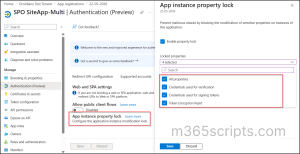
- Next, go to Authentication→ Settings and select Configure under the App instance property lock section.
- In the App Instance Property Lock pane, configure the required lock settings. By default, Microsoft Entra ID locks all sensitive properties, but you can customize the settings based on your application requirements:
- Enable property lock – Enables or disables app instance modification lock.
- All properties – Locks all sensitive properties.
- Credentials used for verification – Locks adding/updating credentials used for verification.
- Credentials used for signing tokens – Locks adding/updating credentials used for signing.
- Token Encryption KeyId – Locks the tokenEncryptionKeyId property.
- Click Save to apply the settings.
You can also use PowerShell to configure application instance property lock for your Microsoft Entra applications. First, connect to Microsoft Graph using the following cmdlet:
|
1 |
Connect-MgGraph -Scopes "Application.ReadWrite.All" |
Lock All Sensitive Properties of an App Instance
To lock all sensitive properties of the service principal, run the following cmdlet after replacing <APPLICATION_OBJECT_ID> with the Object ID of the application:
|
1 2 3 4 5 6 7 8 9 |
$params = @{ servicePrincipalLockConfiguration = @{ isEnabled = $true allProperties = $true } } Update-MgApplication ` -ApplicationId "<APPLICATION_OBJECT_ID>" ` -BodyParameter $params |
This cmdlet enables application instance property lock and blocks modification of all sensitive properties associated with the application.
Lock Specific Sensitive Properties of an App Instance
To lock specific sensitive properties using application instance property lock, run the following PowerShell script:
|
1 2 3 4 5 6 7 8 9 10 11 |
$params = @{ servicePrincipalLockConfiguration = @{ isEnabled = $true credentialsWithUsageSign = $true credentialsWithUsageVerify = $true tokenEncryptionKeyId = $true } } Update-MgApplication ` -ApplicationId "<APPLICATION_OBJECT_ID>" ` -BodyParameter $params |
Make sure to replace <APPLICATION_Object_ID> with the Object ID of the application. Set credentialsWithUsageSign,credentialsWithUsageVerify,and tokenEncryptionKeyId to $true or $false to allow or block modification of specific sensitive properties.
This cmdlet locks only the specified sensitive credential properties of the app instance instead of protecting all properties.
Enable Application Instance Property Lock for All Existing Applications
To configure application instance property lock for existing applications where the feature is not already configured, use the $true or $false values based on your organizational requirements.
|
1 2 3 4 5 6 7 8 9 10 11 12 13 14 15 16 17 18 19 |
$apps = Get-MgApplication -All -Property "Id,DisplayName,ServicePrincipalLockConfiguration" | Where-Object { $null -eq $_.ServicePrincipalLockConfiguration.IsEnabled } foreach ($app in $apps) { $params = @{ servicePrincipalLockConfiguration = @{ isEnabled = $true allProperties = $true credentialsWithUsageSign = $true credentialsWithUsageVerify = $true tokenEncryptionKeyId = $true } } Update-MgApplication ` -ApplicationId $app.Id ` -BodyParameter $params Write-Host "Enabled App Instance Property Lock For:" $app.DisplayName } |
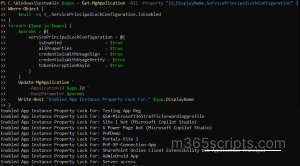
This script identifies existing applications where application instance property lock is not configured and enables the lock across those applications. It locks all sensitive properties, such as signing credentials, verification credentials, and token encryption settings, across those applications.
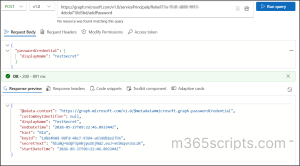
Before enabling this feature, new credentials can be added to the service principal using Microsoft Graph API or PowerShell. In the example below, a new password credential was successfully added through the addPassword API request.
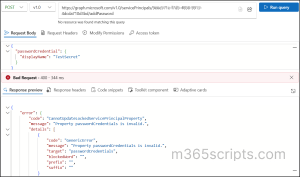
After enabling application instance property lock, attempts to modify protected credentials will be blocked. As shown below, the same API request now fails with a 400 Bad Request error because the sensitive properties of the service principal are locked from modification.
And that’s a wrap! We hope this blog helped you understand application instance property lock in Microsoft Entra ID and its role in strengthening application security. By protecting sensitive application properties from unauthorized changes, organizations can reduce the risk of credential abuse and identity-based attacks in multitenant environments.
While organizations may prefer to limit multitenant apps to specific tenants for critical workloads, this feature provides an extra layer of protection for app instances created in consumer tenants.
Thanks for reading. Feel free to share your thoughts or questions in the comments.