Guest Access vs External Access in Microsoft 365
Microsoft 365 admins often confuse guest access and external access because both enable collaboration. However, they differ in user authentication and the level of resource access they gain. Understanding the differences helps prevent unnecessary access to organizational resources. This blog explains the key differences between guest access and external access and helps you choose the right option for every collaboration scenario.
When someone outside your organization needs to collaborate with your team, should you invite them as a guest or enable external access? Although both options let you collaborate with people outside your organization, they serve different purposes. Choosing the wrong one can either grant unnecessary access to organizational resources or limit collaboration when deeper access is required.
In this blog, you’ll learn:
- What is guest access?
- What guest users can and can’t access
- How to add a guest user
- What is external access
- What external users can and can’t access
- How to configure external access
- Difference between external and guest access
- Best practices on guest access and external access
To make the difference clearer, let’s look at a simple example using Zava and Fabrikam.
Alex works at Fabrikam and needs to collaborate with Zava users. With guest access, Zava creates a guest account for Alex in its Microsoft 365 tenant, allowing him to access the Teams, files, and resources that are shared with him. With external access, Alex uses his existing Fabrikam account to communicate with Zava users, without Contoso creating an account for him. In short,
- Guest access (For full collaboration): Lets people from outside your organization join inside your Microsoft 365 organization as guest users. They can access Teams channels, files, and other shared resources almost like a regular team member.
- External access (For communication only): Lets people from other Microsoft 365 organizations chat, call, and join meetings with your users using their own work accounts, without being added to your tenant.
Next, we’ll explore guest and external access in detail, including their capabilities, and how guest and external users gain access to your Microsoft 365 tenant.
Guest access lets you invite people outside your organization to collaborate in your Microsoft 365 environment. They can access resources you grant permission to, such as Teams and channels, SharePoint sites, files, and meetings.
When you add someone as a guest, Microsoft creates a guest account for them in your Microsoft Entra ID through B2B collaboration. This allows them to sign in using their existing work, school, or personal Microsoft account while accessing only the resources you’ve granted permission to.
For example, when Alex from Fabrikam is added as a guest to Zava, Microsoft Entra ID creates a guest user account similar to alex_fabrikam.com#EXT#@zava.com.
Common scenarios for guest access include project collaboration, document reviews, partner engagements, and providing temporary access to shared Microsoft 365 resources.
Before adding guest users, it’s important to understand what they’ll be able to access. Guest users can access only the resources that have been shared with them. Depending on the permissions granted, they can:
- Chat, make calls, and join meetings with users in your organization.
- Join Microsoft Teams and participate in team conversations.
- View and edit shared files in SharePoint and OneDrive.
- Access shared Microsoft 365 Groups, Planner plans, and other collaboration resources.
- View meeting invitations, calendar availability, and out-of-office status of users they collaborate with.
- Start, reply to, and delete conversations in the teams they are members of.
Although guest users can collaborate within your organization, their access is restricted to the resources explicitly shared with them. They cannot:
- Browse your entire Microsoft Entra directory or view organizational information beyond their assigned permissions.
- Add or remove team members unless additional permissions are provided.
- Manage Teams settings, meeting policies, or tenant-level configurations.
- Perform administrative tasks or access organization-wide settings.
Before adding guest users, make sure your tenant is configured to allow them. Follow the prerequisites to add a guest user to your tenant and ensure guest access is enabled.
Note: If guest access is enabled in Teams but external sharing is blocked in SharePoint, guests won’t be able to access shared files.
Once the prerequisites are in place, you can invite guest users through Teams, Microsoft 365 Groups, or SharePoint. To add a guest user directly from the Microsoft 365 admin center, follow these steps.
- Sign in to the Microsoft 365 admin center.
- Navigate to Users → Guest users, then select Add a guest user.
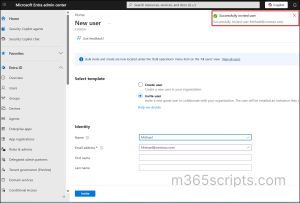
- Choose Invite user or Create user, if you want to create a guest account manually.
- To invite a guest user, enter the guest user’s details, including their first name, email address, and any other required information.
- Select Invite.
A confirmation message appears indicating that the invitation has been sent. The guest user receives an invitation email. Once they accept the invitation, Microsoft Entra ID creates a guest account in your tenant, enabling them to access the Microsoft 365 resources you share with them.
Now that we’ve covered guest access, let’s look at how external access works and when to use it.
External access (also called Teams federation) lets users in different Microsoft 365 organizations communicate with each other without creating guest accounts. Instead of adding someone to your tenant, Teams establishes communication between trusted domains.
When external access is enabled, users can communicate with people in another organization without leaving their own Microsoft 365 tenants. No user objects are created in either tenant.
Common scenarios include customers, vendors, contractors, and partner organizations who need to communicate without accessing your Microsoft 365 resources.
External access allows the following communication capabilities between organizations:
- Chat with your users one-on-one or in group chats.
- Make audio and video calls, schedule and join Teams meetings.
- View users’ presence status (Available, Busy, Away, etc.).
- Share their screen and use other in-meeting collaboration features, if permitted by your organization’s policies.
- Browse your organization’s directory to find users (they must know the user’s email address or SIP address).
External access is limited to communication, so external users can’t access your organization’s resources or become part of your tenant. They cannot:
- Access your Teams, channels, SharePoint sites, Microsoft 365 Groups, or other organizational resources.
- Open files, OneNote notebooks, or other content shared within your Teams.
- View your users’ out-of-office messages.
- Become members of your Teams.
By default, Microsoft Teams allows external access with other organizations unless administrators configure allow or block lists. You can control this allow or block lists by configuring external access settings in the Teams admin center under External collaboration → External access.
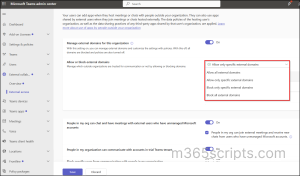
Once configured, users in your organization can chat and call users in the allowed external organizations. External users don’t receive invitations or become part of your Microsoft 365 tenant. Instead, communication is established when external access is enabled between organizations. Users can connect in several ways:
- A user starts a one-on-one chat by entering the external user’s email address or SIP address.
- A user adds an external participant to a group chat if permitted by your organization’s policies.
- An external user is invited to a Teams meeting by adding their email address to the meeting invitation.
The table below highlights the key differences between guest access and external access in Microsoft 365.
| Aspect | External Access | Guest Access |
| When to use | Use external access when you just want to let users from other organizations communicate with your users without giving access to your resources. | Use guest access when you want to grant an external user access to the same Teams activities, channels and shared resources as native team members. |
| Exists in your Microsoft Entra ID directory | ❌ No – Users stay in their home tenant | ✅ Yes – A Microsoft Entra B2B guest account is created |
| User type in Microsoft Entra ID | Not applicable | Guest |
| Can be added to a team/group | ❌ No | ✅ Yes |
| Invitation email sent | ❌ No | ✅ Yes |
| Access shared files (SharePoint & OneDrive) | ❌ No | ✅ Yes |
| Access Microsoft 365 apps shared with them | ❌ No | ✅ Yes (if permitted) |
| Chat, call, and join Teams meetings | ✅ Yes | ✅ Yes |
| Searchable in your organization’s directory | ❌ No | ✅ Yes |
| See users’ out-of-office status | ❌ No | ✅ Yes |
| View dial-in meeting participant phone numbers | ❌ No | ✅ Yes |
Follow the below security considerations to secure Microsoft 365 guest access and external access while maintaining safe collaboration with external users.
- Review guest accounts regularly: Configure access reviews or guest access expiration policies to automatically remove inactive users instead of leaving unnecessary accounts in your tenant.
- Limit guest directory visibility: Restrict guest user access in Microsoft Entra to prevent guests from viewing unnecessary directory information.
- Protect sensitive SharePoint sites: Restrict external sharing on Sharepoint that contains confidential or business-critical data, even if guest access is enabled elsewhere in the organization.
- Strengthen guest account security: Secure Microsoft Teams guest user access by enforcing MFA, granting least privilege, and applying sensitivity labels to Teams based on your requirements.
- Apply targeted external access policies: Configure granular external access policies for users or groups that require tighter control, instead of applying the same settings across the organization.
- Tighten external access: Enable the Teams PowerShell controls to enforce external access and federation policies for managing stricter federated group chats.
- Strengthen M365 collaboration security: Follow an external sharing security checklist to manage access controls, protect sensitive data, and restrict collaboration to trusted users only.
That’s it! Guest access and external access are both essential for collaborating with people outside your organization, but they serve different purposes. Choosing the right option helps you strike the right balance between productivity and security. I hope this blog helped you understand the differences and when to use each feature. If you have any questions, let us know in the comments below!