Report Security Concerns in Microsoft Teams Meetings and Group Calls
Microsoft Teams is extending its security reporting capabilities to meetings and group calls, with the rollout continuing through October 2026. Users can now report suspicious participants or calls directly from live meeting and group call experience. This blog explains how users can report concerns and how admins can review the submitted reports in Teams and Microsoft Defender.
Microsoft Teams already lets users report suspicious messages, making it easier to flag phishing, scams, and other malicious activity. Microsoft later extended reporting to chats with external users and one-to-one calls, giving users more options to report phishing in Teams.
But suspicious activity can also unfold during Teams meetings and group calls. Microsoft is now closing this gap by extending security reporting to Teams meetings and group calls. In this blog, we’ll look at how users can report security concerns using this feature and how admins can review the submitted reports.
Microsoft Teams supports end user reporting for security concerns across multiple Teams items. These two new reporting capabilities are now added to the Teams protection reports, with both options enabled by default. If users report suspicious activity, admins can investigate the submitted reports and take appropriate action based on their organization’s security processes.
For example, an attacker could impersonate a trusted person, use social engineering tactics, or share a phishing link while the conversation is in progress. Users can now report such concerns directly from the meeting or group call. Let’s see how to report these security concerns in Teams.
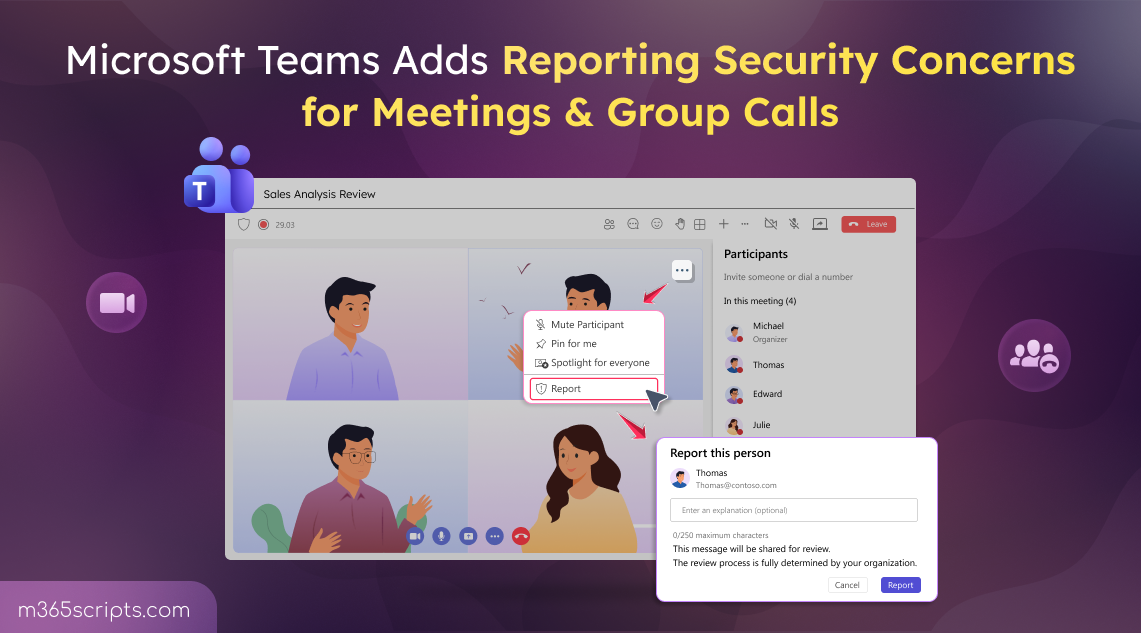
During a Teams meeting, users can report a participant when they notice suspicious, malicious, or potentially fraudulent behaviour.
To report a security concern during a meeting, follow the steps below:
- From the joined Teams meeting, find the participant you want to report from the participant tile or pane.
- Open More options (…) for the participant and select Report.

3. Enter an optional reason to report the person and submit the Report.
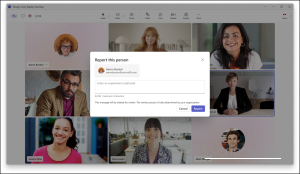
Rollout Timeline on Teams Meeting Reporting
Targeted release begins in late September 2026, followed by General Availability in mid-October, with rollout expected to complete by late October.
Teams already allows users to report a suspicious Teams call from their call history. With this update, user can report security concerns in group calls through Report call. This can help users stop receiving spam calls in Microsoft Teams.
To report a group call, follow the below steps:
- Go to Calls in Teams and select Call history.
- Select the specific group call you want to report.
- Select More options (…) next to the call and choose Report call.
- Security concern is selected by default. Enter additional details if required, then select Report.
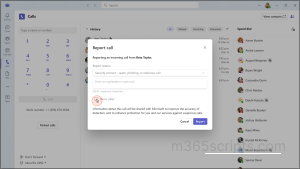
Rollout Timeline on Group Call Reporting Feature in Microsoft Teams
The feature is currently rolling out, with General Availability worldwide expected from early October 2026.
Security reporting in Teams works both ways. A user may report a participant or call that appears suspicious and later realize that the activity was legitimate. In such cases, Teams provides options to correct the earlier report instead of leaving a false positive for the security team to review.
If a reported participant or group call is later found to be legitimate, users can use the Not a concern option to undo the earlier report. Admins can inform users about this option so that incorrectly reported security concerns can be corrected.
This feedback helps distinguish genuine security incidents from legitimate activity and gives security teams more reliable information when reviewing reported users and calls. The same concept also applies to messages, where users can report incorrectly flagged messages as Not a security risk.
Once a user submits a report, it moves through Microsoft’s security reporting workflow:
➡ The reported Teams message or call is handled based on the User reported settings.
The report can be sent to:
- Microsoft and the reporting mailbox (Default setting)
- Microsoft only
- Reporting mailbox only
➡ Regardless of the Send the reported items to setting, metadata from the reported Teams item is available on the User reported tab under Submissions. This includes details such as the sender, recipient, reporter, and reported item information.
➡ Admins can open the reported item to review these details and use them as an additional security signal for investigation.
➡ Microsoft can also generate alerts when users report Teams messages or calls as Security risk or Not a security risk. The related alert policies are enabled by default for these reports.
➡ Admins can open the related alert directly from the reported item to review the security concern and determine whether further action is required.
Once users start submitting reports, admins can review them through the Microsoft Defender portal or Teams admin center.
For organizations using Microsoft Defender for Office 365 Plan 1, Plan 2, or Microsoft Defender XDR, reported Teams items can be monitored and reviewed in Defender. To view reported Teams items in Microsoft Defender, follow these steps:
- Sign in to the Microsoft Defender and open the user reported settings page.
- Under Microsoft Teams, make sure Monitor reported items in Microsoft Teams is enabled.
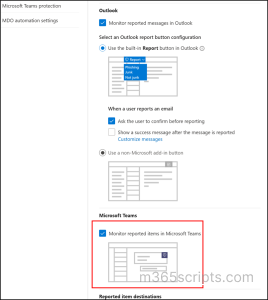
Once configured, admins can review reported Teams items under Submissions 🡢 User reported. This setting is enabled by default for new tenants, while existing tenants may need to enable it. It works together with the Teams reporting settings, which determine whether users can submit reports in the first place.
Admins can also review user-reported security submissions from the Teams admin center without relying on the Defender submission view.
- Sign in to the Teams admin center.
- Go to Analytics & reports 🡢 Protection reports.
- On the View reports tab, select User reported security submissions.
- Choose the relevant category, such as Calling, Chats and channels, or User, and select a date range.
- Select Run report and export the report to CSV when additional reporting details are required.
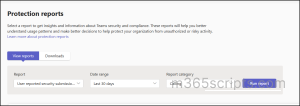
Note: The meeting and group call categories will be added to the Protection reports as the feature rolls out.
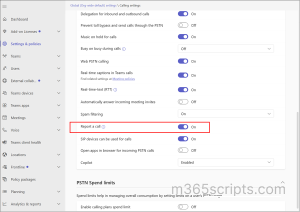
For group calls, go to Teams admin center 🡢 Settings & policies and select Global (Org-wide) default settings for all users or Custom policies for users & groups for specific users. Under Voice 🡢 Calling, enable the Report a call toggle so users can submit group call reports.
Microsoft Teams now lets users report security concerns directly from meetings and group calls. To make the feature effective, organizations should decide who will review and handle the reports and ensure users know when to use the new reporting options for phishing, scams, impersonation, social engineering, or suspicious participants and callers.
I hope this blog helped you understand the new Teams protection reports. If you have any doubts or questions, feel free to share them in the comments.