How to Request Files from External Users Using OneDrive
Need files from teammates, clients, or external partners without messy email attachments? Microsoft OneDrive’s Request Files feature lets you collect files in a designated folder through an upload-only link. Learn how to securely request files from others in OneDrive and simplify file submissions.
Getting someone to send you a file sounds simple at first, until the follow-up emails begin. “Could you send that document again?” “Did you upload the latest version?” “Can you share it by today?” Soon, collecting a few files can turn into a messy trail of attachments and links.
Even after the files arrive, they may be scattered across emails or different locations, requiring manual effort to download, sort, and organize each submission. That’s where OneDrive’s Request Files capability can help. It lets you collect files directly in a specific folder and keep submissions organized instead of relying on email attachments or manual sharing.
In this guide, we’ll explain what the OneDrive Request Files feature is and how to use it to keep file collection organized and hassle-free.
Previously, collecting files from external users often involved sharing folders with edit permissions, relying on email attachments, or using third-party file-sharing services. These approaches could expose existing files, run into attachment size limits, or require organizations to manage additional file-sharing services.
The Request Files feature simplifies this process by letting external users upload files without accessing the folder’s existing contents. In OneDrive, you can create an upload-only link for a folder and share it with clients, partners, or other external users, including those who don’t have a Microsoft account. Files uploaded through the link are automatically stored in the designated OneDrive folder.
Recipients can only upload files to the folder through your request link. They cannot view, edit, download, or delete any existing content already inside the folder, nor can they see who else has submitted files.
File request is especially useful when you need to collect files from people outside your organization without giving them access to your OneDrive folders. For example, HR teams can gather resumes from candidates, and project teams can receive design assets, videos, and vendor documents without relying on email attachments.
With OneDrive file request, you can:
- Collect files from anyone: People with the request link can upload files without needing OneDrive or a Microsoft account.
- Easily identify who uploaded the files: OneDrive automatically adds the uploader’s name as a prefix to each submitted file for easy identification.
- Avoid filename conflicts: If two files have the same name, OneDrive automatically adds a number to the second file’s name to prevent duplicate file names.
Before getting started, let’s look at the prerequisites for using the Request Files feature.
To use Request Files feature in your Microsoft 365 organization, verify that the following settings are configured.
- OneDrive for work or school: The file request feature is supported only in OneDrive for work or school accounts.
- “Anyone” links enabled: “Anyone” links must be allowed at the organization level for SharePoint and OneDrive.
- File request link permissions: The applicable folder must support View, edit, and upload or View and upload permissions for Anyone links.
- Security group restrictions: Allow only specific security groups must not be enabled in a way that restricts the use of Anyone links.
- Supported Microsoft 365 environment: File Request is not supported in OneDrive for home, Office 365 operated by 21Vianet, or Office 365 Germany.
If these external sharing or link settings are not configured correctly, users may be unable to create file requests and could encounter a “Cannot create the file request” error.
In addition to these prerequisites, administrators must enable the Request Files feature at the organization level before users can create file requests.
Administrators can enable request files for OneDrive feature by configuring the relevant tenant settings through the SharePoint Online Management Shell.
- First, connect to SharePoint Online PowerShell.
- Then, use the Get-SPOTenant cmdlet to verify the current status of OneDrive file requests using the OneDriveRequestFilesLinkEnabled parameter.
|
1 |
Get-SPOTenant | Select OneDriveRequestFilesLinkEnabled |
3. If the setting is not enabled, set OneDriveRequestFilesLinkEnabled to $True by executing the following cmdlet:
|
1 |
Set-SPOTenant -OneDriveRequestFilesLinkEnabled $True |
Additionally, you can configure the expiration date for the OneDrive for Business “Request File” function using the OneDriveRequestFilesLinkExpirationInDays parameter. For example, the following cmdlet sets the link expiration to 10 days:
|
1 |
Set-SPOTenant -OneDriveRequestFilesLinkExpirationInDays 10 |
Once enabled, users can request files from others in OneDrive.
Follow these steps to create file requests and collect files from others using OneDrive:
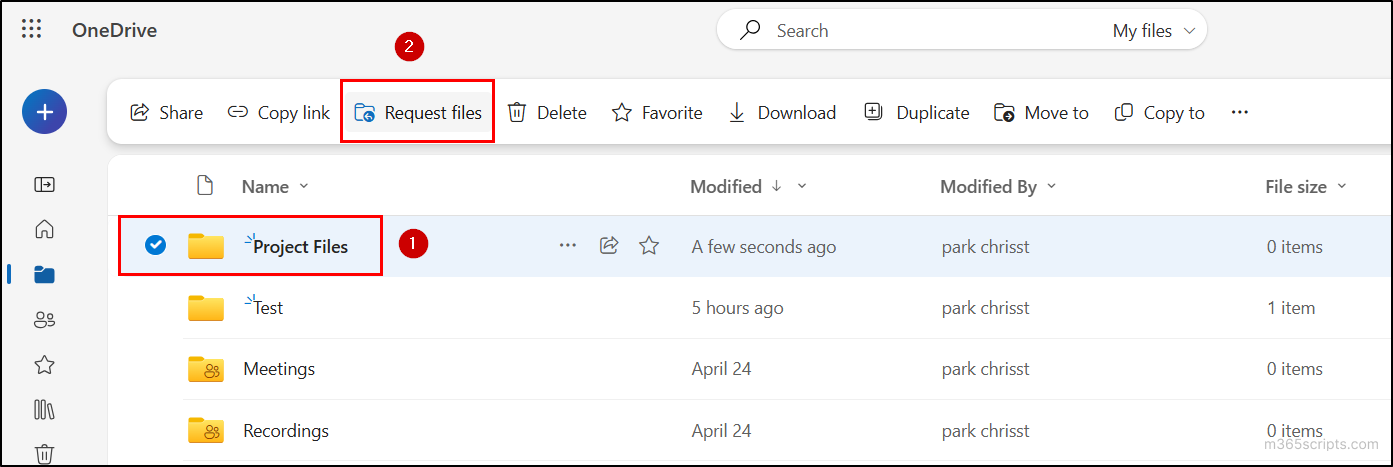
- Sign in to OneDrive for Business and select an existing folder or create a new folder for the file request.
- Select the folder and choose Request Files.
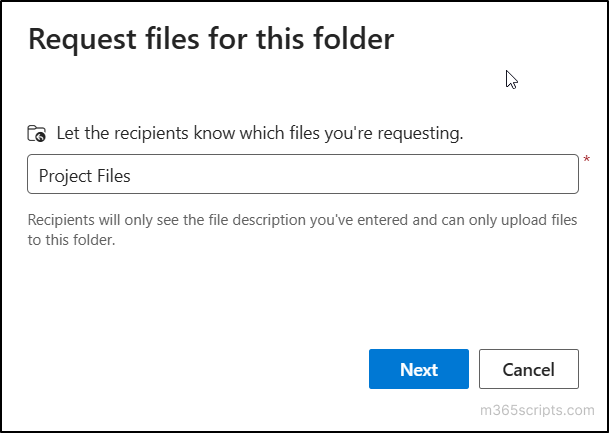
3. Enter a name or description for the files you want to collect, then select Next.
4. Copy the generated file request link and share it with the intended recipients.
5. Alternatively, enter the recipients’ email addresses to send the file request link directly by email.
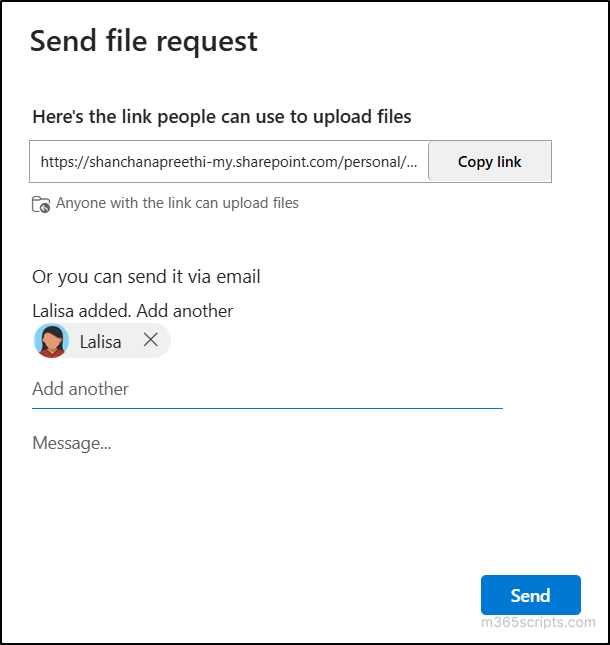 6. Select Send to finish creating the request.
To change the request name later, select the folder and choose Request files again. Update the name as needed and save the changes. The updated name will appear to recipients when they use the request link to upload files.
Once the request is created and shared, recipients can use the link to submit their files without accessing the contents of the folder. If the link is sent directly through OneDrive, recipients receive an email invitation with the link.
Here’s how recipients can use the link to upload files to the OneDrive folder.
- Open the file request link in any browser. If the recipient isn’t signed in to a Microsoft account, they’ll be prompted to enter their first and last name for identification.
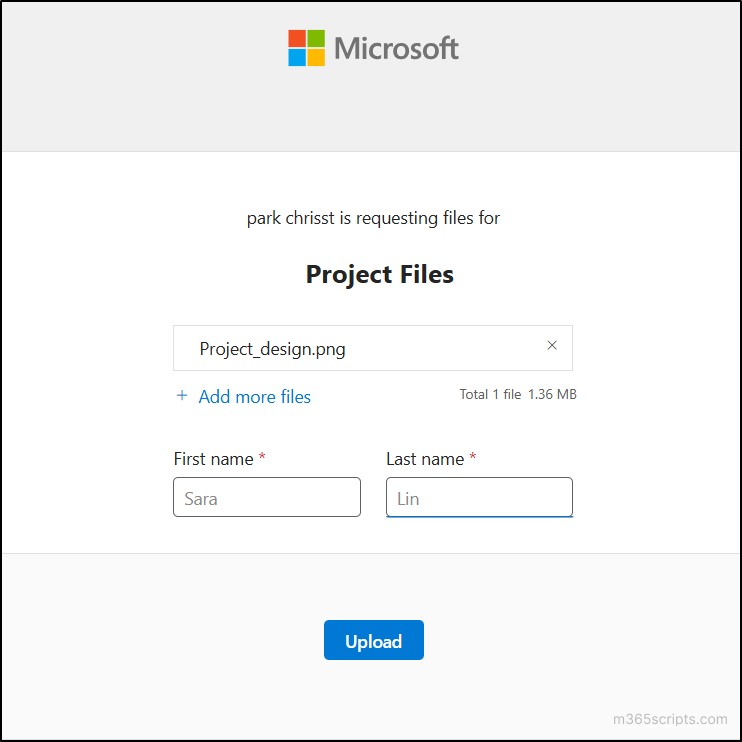
2. Then, click Select File and choose the requested file from the device. To upload multiple files, select Add more files and add the additional files.
3. Next, select Upload to submit the files to the requested OneDrive folder.
Note: Names entered by recipients who aren’t signed in are not verified and are used only to help identify the submission. For signed-in recipients, their Microsoft account identity is recorded with the upload.
Finally, OneDrive sends you an email notification when files are uploaded through the request.
The person who created the file request can stop accepting submissions once the required files have been collected.
Follow the steps below to remove the links shared through file requests to prevent anyone with the link from uploading additional files to the folder.
- Select the folder associated with the file request and select the ellipsis (…) menu.
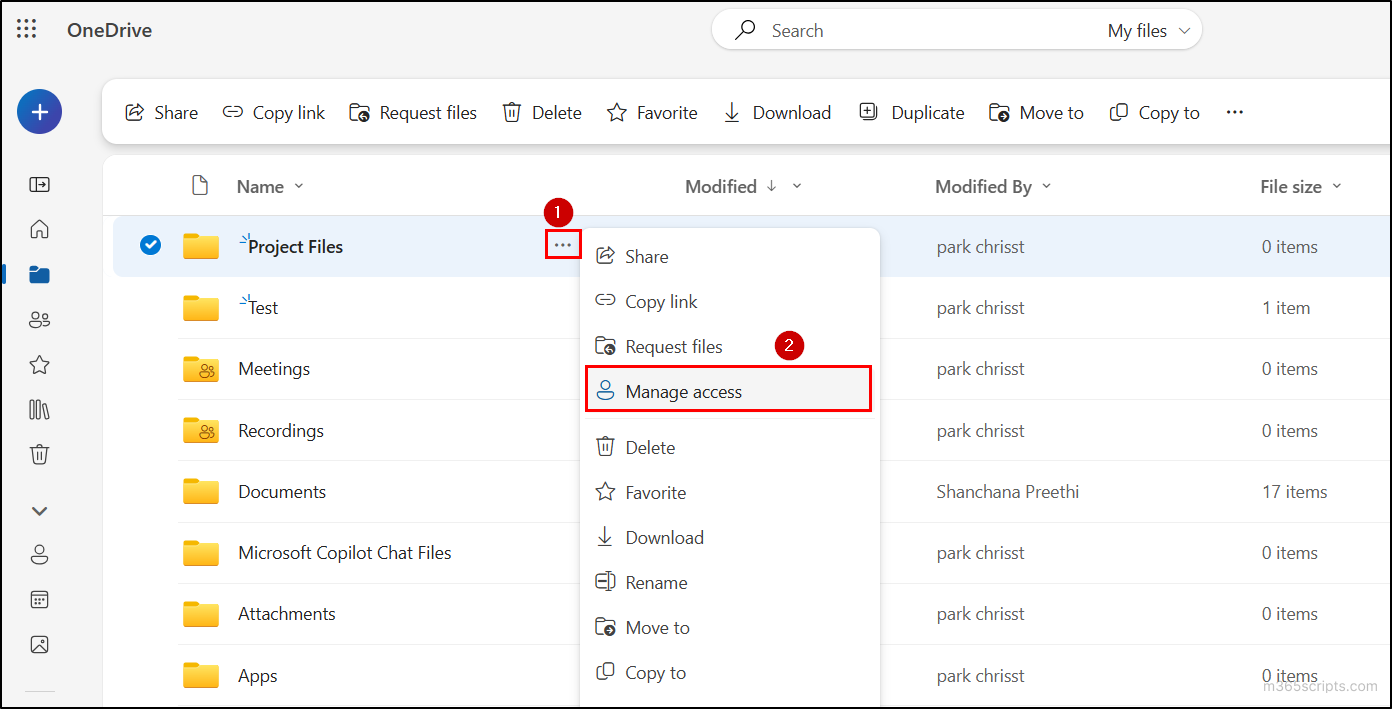
2. Select Manage access and navigate to the Links tab.
3. Find the Anyone link created for the file request and select the Delete icon next to it. This removes the file request link and prevents further uploads.
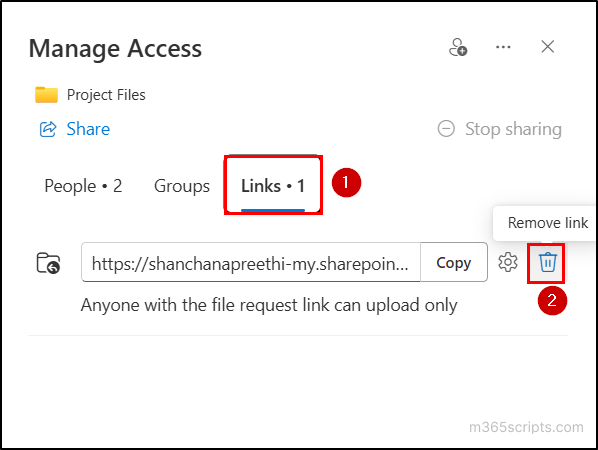
Once the file request link is deleted, recipients can no longer use it to upload files to the folder. Files uploaded before the link was deleted remain in the folder.
While Request Files feature simplifies file collection, there are a few limitations to consider:
- Requires Anyone links: The feature requires Anonymous links to be enabled tenant-wide, which allow unauthenticated access and may introduce security risks if enabled broadly.
- No built-in reminders: Follow-ups for pending submissions still need to be handled separately, such as through email.
- No response tracking: You cannot collect text responses or use checklists to track required or received files.
- No approval workflow: There is no built-in approval process to approve, or reject files uploaded through a Request Files link. An approval workflow for external file sharing can be added using Power Automate.
Conclusion:
OneDrive file request provides a simple way to collect files from external users through an upload-only link. It works well for straightforward file collection. However, administrators should consider the security implications of Anonymous links and their limitations around reminders, response tracking, and approval workflows.
Apart from OneDrive, Microsoft also supports Request Files feature in SharePoint Online document libraries for similar file-collection needs.
That’s it for requesting files from others! Have any questions or experiences with OneDrive file request? Share them in the comments below.